
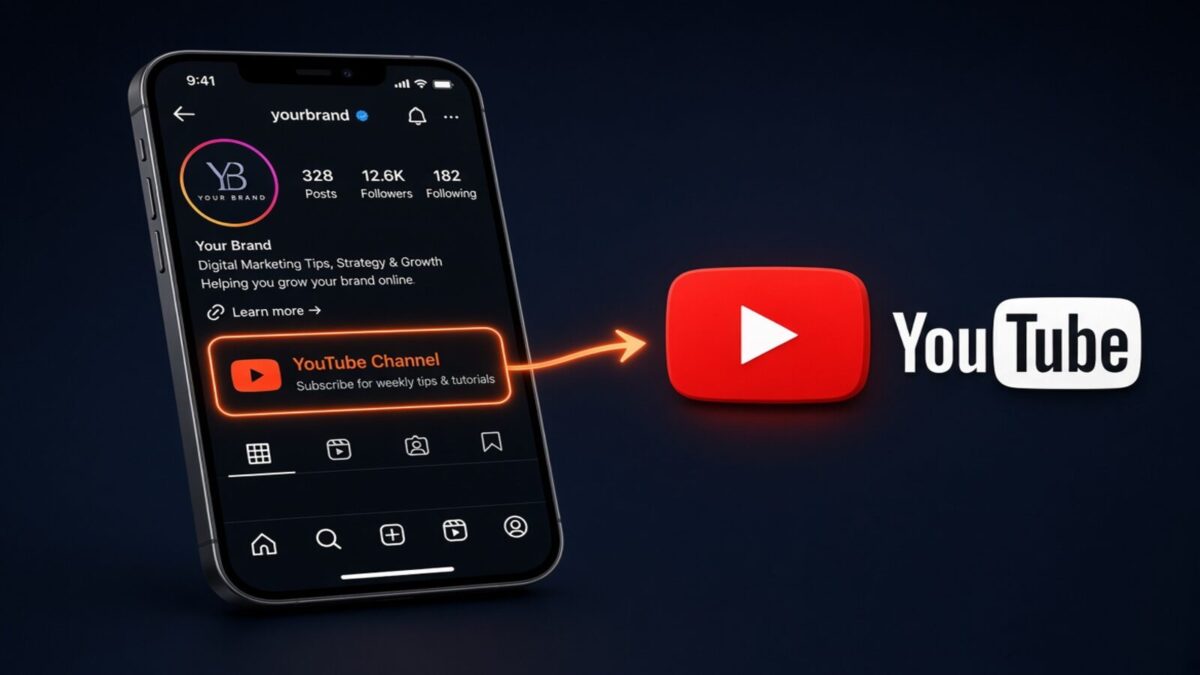
Are you a YouTuber? Do you want to drive more traffic to your YouTube channel? Instagram is a great platform for promoting your videos and gaining more subscribers. One way to do that is to include a link to your YouTube channel in your Instagram bio. But how do you do it? Fear not; in this Inspie To Thrive blog post, I will guide you through quick steps to add your YouTube link to your Instagram bio.
It’s a great way to get other followers from IG to your YouTube channel.
Estimated reading time: 6 minutes
Table of Contents
Key Takeaways
- You can add up to 5 clickable links in your Instagram bio, including YouTube video or channel links.
- To add a YouTube link, copy your video or channel URL in YouTube, then paste it into the Links section under Edit Profile on Instagram.
- Reorder your Instagram links so your YouTube link sits at the top and gets the most clicks.
- Always test your Instagram bio link to confirm it opens the correct YouTube video or channel before you promote it.
- Your Instagram profile picture and bio links are public, even on a private account, so only add links you are comfortable sharing.
Before You Start
You’ll only need a few things:
- Your YouTube channel or video link (I’ll show you exactly how to grab it)
- The Instagram app on your phone (or Instagram on desktop)
- About 2 minutes
That’s it. No extra apps or tools required.
Note: Instagram lets you add up to 5 links in your bio. Keep the list short so people don’t get overwhelmed.
How to Add Your YouTube Link to Instagram Bio (Step-by-Step)
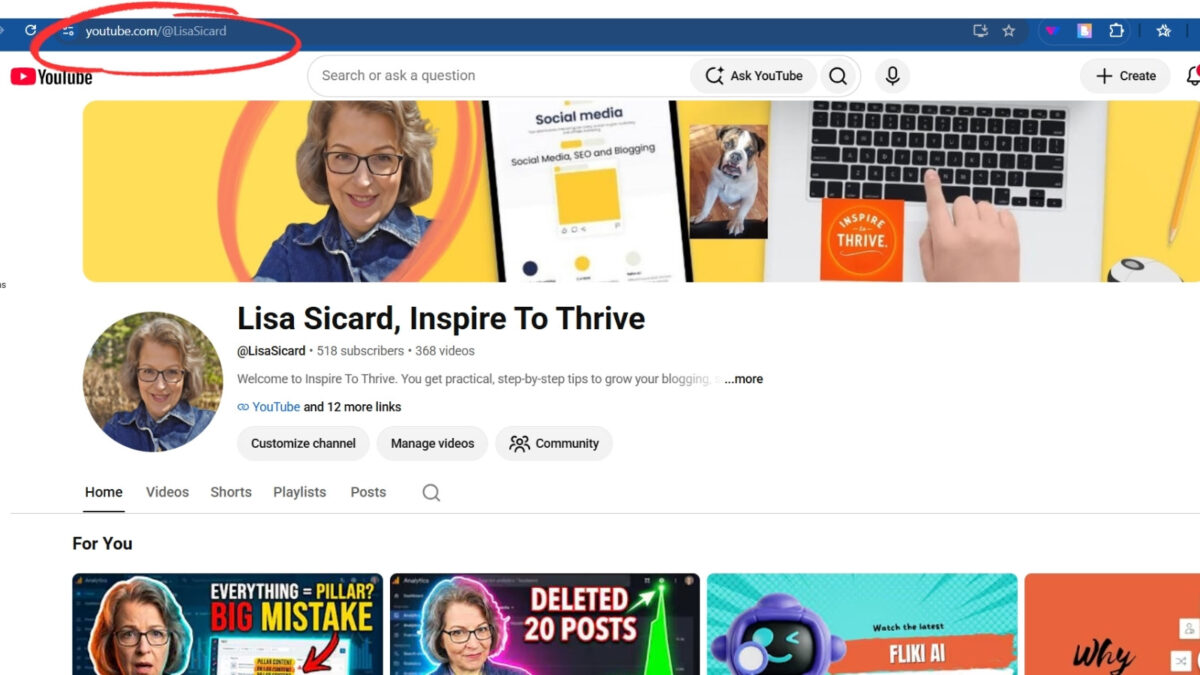
Step 1: Copy Your YouTube Link
- Open the YouTube app or go to YouTube.com.
- Go to the video or channel you want to share.
- Tap the Share button.
- Select Copy link.
That’s the exact URL you’ll paste into Instagram.
Step 2: Open Instagram and Go to Edit Profile
- Open the Instagram app and go to your profile.
- Tap Edit profile.
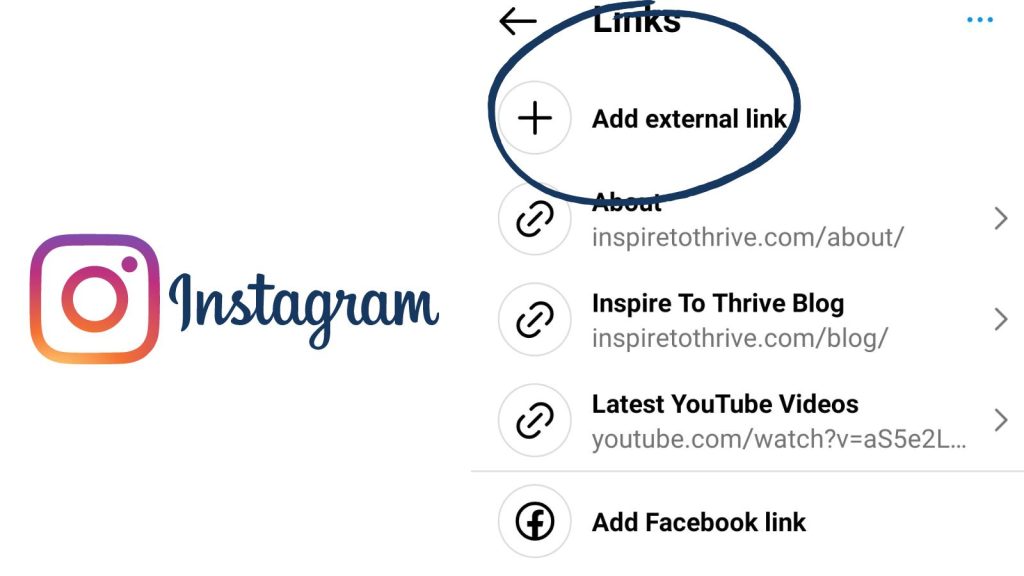
Step 3: Add the Link
- Under your bio, tap the Links section.
- Tap Add external link.
- Paste your YouTube URL.
- Add a short title (this is what people will actually see). Good examples: – “Watch My Latest Video” – “YouTube Channel” – “New Video Here”
- Tap Done, then save your profile.
Step 4: Reorder Your Links (Optional but Recommended)
If you already have other links:
- Go back into the Links section.
- Tap the three dots in the upper right.
- Choose the reorder option and drag your YouTube link to the top.
The first link usually gets the most taps, so put your most important YouTube link first.
Step 5: Test the Link
- Go back to your Instagram profile.
- Tap the YouTube link you just added.
- Confirm it opens the correct video or channel.
That’s it. Your YouTube link is now live in your Instagram bio.
Some users have been adding more links via Linktree. However, if you do some research, you may learn that ” Linktree may be bad for SEO.
I don’t recommend giving your audience too many choices, as they may feel overwhelmed and choose nothing. I’ve only added 3 links in my own Instagram bio.
If you prefer, watch this video to see how to add your YouTube link to your Instagram bio: 👇
Your Instagram Links Are Not Private
Even if you have a private account, the links in your profile area may still appear to others. According to Instagram:
“Your Instagram profile image and bio can be associated with you and are public to everyone, on or off Instagram, even if they don’t have an Instagram account. Keep in mind that this information can’t be hidden and remains public regardless of whether your personal account is made private or public. If you don’t want people to see this info, we suggest updating your profile image or removing your bio.”
I’ve always said, anything you post online is never completely private, as we have seen many times with spy apps, leaks, and hacks, especially on social media networks.
Conclusion: YouTube Link For Instagram Bio
Adding your YouTube link to your Instagram bio is one of the easiest ways to send followers straight to your videos. Follow the steps above, put your most important link first, and test it before you start promoting it.
That’s all it takes; go add your link and start driving more traffic to your channel today. Have you added your YouTube link into your Instagram bio? I’d love to hear about it in the comments below. 👇
Frequently Asked Questions About Adding a YouTube Link in an Instagram Bio
Instagram now allows up to 5 links in your profile bio. You can mix different link types, such as your YouTube channel, individual YouTube videos, your website, or other social profiles. Keep the total link count tight so you do not overwhelm visitors with too many choices.
Yes, you can use more than one of your 5 available YouTube links. For example, you can add your main YouTube channel link plus a direct link to a current video you want to promote. If you do this, place the most important YouTube link at the top of your link list.
First, open your video or channel on YouTube, tap Share, then copy the link. Next, open Instagram, visit your profile, and tap Edit Profile. Under your username, tap Links, add your YouTube link, then tap Done to save. After that, visit your own profile and tap the link to confirm it opens the correct YouTube page.
Open your Instagram profile and tap Edit Profile, then go to the Links section. Tap the three dots in the upper right corner of the links area, select the reorder option, then drag your YouTube link to the top of the list. This makes it the first link people see and click on in your bio.
No, your Instagram profile image and bio, including your links, are public, even if your account is set to private. People can see your profile photo and bio on or off Instagram, even if they do not have an Instagram account. Only add links and profile information that you are comfortable sharing in public.
Disclosure: This Inspire To Thrive blog post contains affiliate links. I may earn a commission from qualifying purchases at no extra cost to you. Some sections were drafted with AI tools and carefully reviewed/edited by me.

- Website Bounce Rate: What It Means in 2026 (and How to Improve It) - October 26, 2026
- Is It Too Late for Holiday SEO? What Still Works in November - October 25, 2026
- Is Benable Legit? My Honest Benable Review & Earnings Proof - October 24, 2026
Enjoy this content? Help me show up more often in Google by adding Inspire To Thrive as a Preferred Source:


Hi Lisa,
Thanks for the tip! I had early access to the extra links option on Instagram so it’s great to see that they rolled it out to everyone. Do you track the clicks on those links are getting? I keep forgetting to check my stats.
You are welcome Ileane. It’s not rolled out to everyone yet, I have a few accounts I manage that do not have the access yet. Yes, I can track them through my Google Analytics. Pretty cool! Thanks for coming by on this one and have a great day Ileane.
Hey Lisa,
Thanks for sharing this quick guide on how to add a YouTube link to an Instagram bio. It’s a helpful tip for anyone looking to promote their channel and reach a wider audience.
Thank you Aadiv, welcome to Inspire To Thrive. I’m glad you found it helpful and I hope you can yours now. It will be rolling out to all Instagram users in time. Thanks for coming by and have a great day.
Great tutorial Lisa. Quick, easy, and straight to the point. By the way, do you recommend following people first on Instagram in order to get lots of followers back?
Hi Randall, thank you. Yes, I do recommend that as long as they are relevant to your niche. Thanks for coming by on this one and have a great day.