Instagram offers various privacy settings that let you control who sees your content, who can interact with you, and how your activity appears to others. This benefits personal accounts in many ways; for business/professional accounts, it can be a game-changer in Instagram marketing.
If you’re considering making your Instagram account private, you should understand how Instagram privacy settings work and what others can or can’t see.
This article explains Instagram’s privacy features and everything you need to know to manage your online presence effectively for Digital marketers (competitive research via public data), parents (monitoring exposure without invasive tools), and general users (protecting their own accounts).
Estimated reading time: 14 minutes
Table of Contents
Key Takeaways
- Instagram privacy settings let you control who sees your content and interacts with you, enhancing security for both personal and business accounts.
- Types of accounts include Personal, Creator, and Business, each with different privacy controls and visibility options.
- Setting your account to private restricts content visibility to approved followers, blocking non-followers from seeing posts or stories.
- You can tailor privacy settings for specific features, such as stories, highlights, and DMs, to manage interactions effectively.
- Understanding Instagram privacy settings is essential for protecting your online presence while balancing visibility for brand growth.
- Be aware of the upcoming 8 E2EE change for direct messages.
What Others Can See: Public vs Private vs Business/Creator Accounts
The biggest difference comes down to whether your account is public or private. Business accounts must stay public. Creator accounts can be either. Here’s exactly what non-followers can see in each case:
Comparison table
| Feature | Public Personal or Creator | Private Personal or Creator | Business Account |
|---|---|---|---|
| Profile photo, name, username, bio | Visible to everyone | Visible to everyone | Visible to everyone |
| Follower, following & post counts | Visible to everyone | Visible to everyone | Visible to everyone |
| Posts, Reels & carousel photos | Anyone on Instagram | Approved followers only | Anyone on Instagram |
| Stories & Highlights | Anyone on Instagram | Approved followers only | Anyone on Instagram |
| Follower & following lists | Anyone on Instagram | Approved followers only | Anyone on Instagram |
| Appear in Search, Explore, hashtags or location pages | Yes | No (content hidden from non-followers) | Yes |
| Can be followed instantly | Yes | No (requires your approval) | Yes |
| Can posts appear in Google/search engines? | Possible (especially professional accounts) | No | Possible |
| Can non-followers embed or remix Reels? | Yes (unless you restrict it) | No | Yes (unless restricted) |
| Can account be set to private? | Yes | Yes | No — must switch to personal first |
Business accounts cannot be private. Instagram requires them to stay public so business tools (Insights, contact buttons, ads, etc.) work. To go private, you must switch back to a personal account.
Creator accounts can be private or public and still keep most professional tools, but private mode sharply limits discovery and reach.
Even on a private account, your basic profile information (photo, name, username, bio, and counts) remains visible to anyone, including people who aren’t logged in to Instagram.
How to Change Instagram Privacy Settings (Current App Paths)
Most privacy controls live under Settings and activity (sometimes labeled Settings and privacy). Menu names can shift slightly with app updates, but you can always use the search bar at the top of Settings to find what you need.
1. Make Your Account Private (or Public)
On the mobile app (iPhone or Android):
- Open Instagram and tap your profile picture (bottom right).
- Tap the three-line menu (top right).
- Tap Settings and activity.
- Scroll to the Who can see your content section and tap Account privacy.
- Turn on the toggle next to Private account.
- Tap Switch to private to confirm.
On the website (instagram.com):
- Click More (bottom left) → Settings.
- Under Who can see your content, click Account Privacy.
- Toggle Private account on and confirm.
Note: Business accounts cannot be private. To go private, you must first switch back to a personal account (Settings → Account type and tools → Switch account type → Switch to personal). Creator accounts can be private or public.
2. Control Who Can Message You and See Your Activity Status
- Go to Settings and activity.
- Under How others can interact with you, tap Messages and story replies.
- Adjust:
- Message controls — decide whether non-followers can message you (or only send requests).
- Show activity status — turn this off so people can’t see when you’re online or recently active.
3. Control Tags and Mentions
- Go to Settings and activity.
- Tap Tags and mentions (or search for “Tags”).
- Set:
- Who can tag you (Everyone, People you follow, or No one).
- Who can mention you.
- Manually approve tags — turn this on so tagged posts don’t appear on your profile until you approve them.
4. Manage Who Sees Your Stories
- Go to Settings and activity.
- Under Who can see your content, look for Story or Hide story and live.
- Options include:
- Hide story from specific people (they stay followers but won’t see your stories).
- Close Friends list — share stories only with a selected group.
- Story sharing controls (allow or block resharing to others’ stories or messages).
5. Other Useful Privacy Controls
| Setting | Where to Find It | What It Does |
|---|---|---|
| Comment filters / Hidden words | Settings → Comments or Hidden words | Automatically hide comments containing certain words or phrases |
| Restrict someone | Their profile → ⋯ → Restrict, or Settings → Restricted | Soft limit (comments only visible to them; messages go to requests) without blocking |
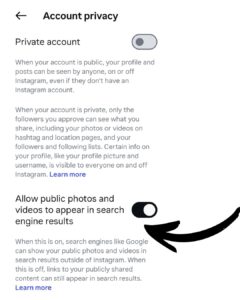
| Search engine indexing (professional accounts) | Settings → Privacy → Allow public photos and videos to appear in search engine results | Controls whether public posts can show up in Google |
Tip: After changing settings, review your followers list and remove anyone you no longer want seeing your content (especially after switching to private). Existing followers stay unless you remove them.
Types of Instagram Accounts and Their Privacy Features
Instagram offers three types of accounts, each with different privacy controls:
- Personal Accounts: Personal accounts can be public or private. If you have a public account, anyone can view your posts, stories, and reels. For private accounts, you grant access only to approved followers.
- Creator Accounts: Creator accounts are recommended for influencers and content creators. This type of Instagram account offers insights and growth tools while maintaining flexible privacy settings, similar to personal accounts.
You can set your creator account to public or private, giving access to whomever you wish to view your content.
- Business Accounts: Businesses need a public profile to utilize Instagram’s promotional tools. Although they can’t be private, you still control who interacts with your posts and messages. This control can be vital for managing your Instagram business account. You can easily switch back to a personal account if you choose.
Here is a comprehensive guide to converting your Instagram account to a business account.

What Happens When You Set Your Account to Private?
Switching your Instagram account to private changes how people interact with your profile.
Unlike a public account, your content becomes restricted to approved followers only. Non-followers won’t see your posts, reels, or stories unless they are using one of these strategic methods to view private Instagram accounts known to a few.
Here’s what happens when you set your account to private:
- Your account activities—likes, comments, etc., on public posts remain visible.
- Only approved followers can see your posts, stories, and highlights.
- Non-followers can’t access your content, even if they find your profile in search results, hashtags, or shared links.
- Your reels won’t appear on Instagram’s explore, suggested content, or hashtag pages for non-followers.
- Anyone who wants to follow you must send a request that you can accept or decline.
Stories, Highlights, and Reels: Who Can See What?
Instagram’s privacy settings vary by content type. While setting your account to private limits access to your profile, certain features, such as Stories, Highlights, and Reels, allow you to further control who sees what on your page.
Stories
Instagram Stories disappear after 24 hours, but who sees them depends on your privacy settings. Here are some Instagram Stories privacy settings you can apply:
Hide Stories from Specific People: In your privacy settings, you can manually select followers who won’t see your stories. To do this, use the “Hide Story From” feature.
Close Friends List: Instead of sharing stories with all followers, create a list to share exclusive content with a few. This works well for small business owners who want to share specific products with only a select group of people. To do this, use the “Close Friends” feature.
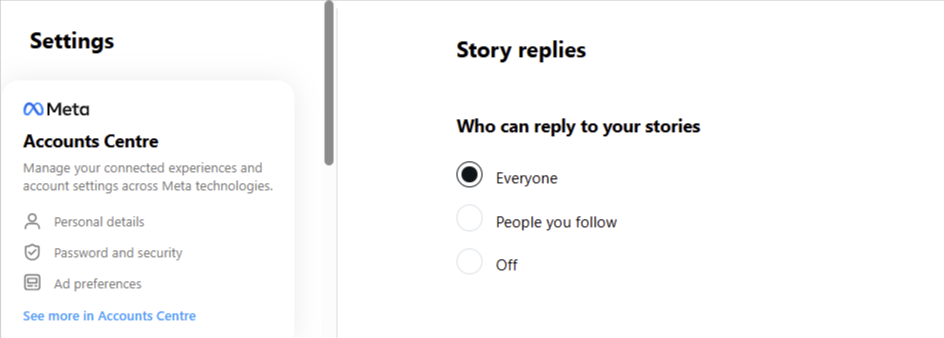
Replies and Interactions: When you set this, only followers who can view your story can reply or react. If your account is private, non-followers won’t be able to respond to your stories.
Although these settings are highly effective, some people can watch your Instagram stories anonymously with the right approach.
Highlights
Highlights are stories saved on your profile, but their visibility depends on the original story settings. For example:
- If you shared your story with close friends, it will remain visible only to them in the highlight.
- If the story is public, it will remain visible to anyone who visits your profile.
If you have a private account, only approved followers can view your Instagram highlights, even if they remain on your profile permanently.
Reels
You determine who can see your Instagram Reels based on your account privacy setup. Here’s how it works:
- Private Accounts: Your reels are only visible to approved followers and won’t appear on the explore page or hashtag feeds.
- Public Accounts: Anyone can discover your reels, but you can limit who can interact with them by adjusting your privacy settings.
Who Can Message, Tag, or Mention You?
Instagram has various privacy settings that help you control how others interact with you beyond just viewing your posts. These settings help prevent unwanted messages, spam, and excessive tagging while allowing meaningful engagement.
Here are the privacy settings for Instagram DMs, mentions, and tags:
New End-to-End Encryption Changes
Instagram’s end-to-end encryption change for direct messages took effect on May 8, 2026, so check your message settings now, because some older message options may have changed or stopped working. Also, review the platform’s privacy controls and opt out of data sharing for AI training if you don’t want your activity used that way.
Finally, look for the Google search visibility toggle, because some accounts now allow public content to appear in search results unless you switch that setting off. You can see mine is still on in the screenshot below.
Direct Messages (DMs)
You can regulate who can send you direct messages on Instagram using these settings:
- Everyone: Anyone, including strangers, can send you message requests, but they will appear in your Message Requests folder until you approve or ignore them.
- People You Follow: Only users you follow can send you direct messages, keeping your inbox free from unsolicited messages.
- No One: You can disable message requests entirely, ensuring that only existing conversations or approved contacts can reach you.
Instagram Privacy Settings: Mentions and Tags
Mentions and tags are how other users include you in their content, but Instagram offers settings to limit who can use them. Here’s what it looks like:
- Everyone: Any Instagram user can tag or mention you, even if they don’t follow you.
- People You Follow: Only accounts you follow can tag or mention you in posts, comments, or stories.
- No One: This setting disables mentions and tags entirely, preventing others from linking your profile to their content.
You can also manually review tags and approve/decline before they appear on your profile by enabling the Tag Review feature.
How to Manage Who Can See Your Instagram Activities
Even for private Instagram accounts, certain actions and details about your activities may still be visible to others. Understanding how these settings work can help you maintain control over your privacy and online presence.
Here’s how it works for different activities:
Likes and Comments
When you interact with a post by liking or commenting, the visibility of your activity depends on whether the post is public or private.
For example, if you like or comment on a public post, your username and interaction will be visible to everyone, even if they don’t follow you. This means anyone viewing that post can see your engagement.
However, if you engage with a post from a private account, only that account’s approved followers will see your likes and comments.
Following and Follower Count
When your account is public, your followers and follower count are visible to everyone. People can click on your followers or following to see who follows you and who you follow.
However, when your account is private, this is what happens:
- Your follower list is only visible to people who follow you. Non-followers cannot see who follows you or who you follow.
- Your following count is visible to everyone. While non-followers can’t see your followers or who you follow, they can see how many people you follow and how many follow you.
You can read my extensive article on hiding followers on Instagram.
Activity Status
Instagram’s Activity Status shows when you were last active on the platform. This status is visible to:
- People you follow.
- People you’ve messaged.
However, you can turn off this feature by going to:
Settings >>> Privacy >>> Activity Status.
Toggle the button to disable it. If you’re on mobile, go to “Messages and story replies,” click “Activity Status,” then toggle it on or off.
Turning off your activity status prevents others from seeing when you were last online. This also means you won’t be able to see their activity status.
How Instagram’s Privacy Settings Impact Business and Creator Accounts
Business and creator accounts have different privacy limitations.
Here’s how Instagram privacy settings affect both:
- Business Accounts: Instagram requires all business accounts to be public. This means their posts, reels, and stories are visible to everyone. However, you can restrict who can comment and send messages to you.
- Creator Accounts: Creator accounts have more flexibility than business accounts. You can set them to be private or keep them public to increase their visibility.
- Replies and Interactions: When you set this, only followers who can view your story can reply or react to it. If your account is private, non-followers won’t be able to respond to your stories.
Conclusion: Master Your Instagram Privacy Settings
Instagram offers users various privacy controls, but knowing how to use these settings is crucial to prevent unwanted exposure. This is especially true for personal accounts that should be visible only to you and a few others.
If you have a brand, keeping your account public is a great way to maximize your reach and connect with more people. Maintaining a public profile for your business offers numerous benefits.
You might only consider privatizing if you’re managing an exclusive or invitation-only business.
Have you ever made your Instagram account private? How did that go for you? I’d love to hear about it in the comments below. 👇
Frequently Asked Questions About Instagram Privacy Settings
Open Instagram, tap your profile picture, then the three-line menu in the top right. Tap Settings and activity, then go to Account privacy under “Who can see your content.” Turn the Private account toggle on or off and confirm. You can also control messaging, tags, mentions, and story visibility from the same Settings menu.
No. Instagram Notes are only visible to people who follow you (and, depending on your settings, sometimes only your Close Friends). Non-followers cannot see your Notes.
No. Instagram does not show a list of who viewed your regular Reels or video posts. Viewer lists are only available for Stories (and some Live features). For Reels and regular videos, you can see view counts but not the individual people who watched.
Non-followers can see your profile photo, username, name, bio, and follower/following counts. They cannot see your posts, Reels, Stories, Highlights, or follower lists.
Go to Settings and activity → Tags and mentions. You can set who is allowed to tag you and who is allowed to mention you (Everyone, People you follow, or No one). You can also turn on Manually approve tags so tagged posts don’t appear on your profile until you approve them.
Business accounts cannot be private. Creator accounts can be set to private. To make a business account private, you must first switch it back to a personal account (Settings → Account type and tools → Switch account type), then turn on Private account.
Disclosure: This Inspire To Thrive blog post contains affiliate links. I may earn a commission from qualifying purchases at no extra cost to you. Some sections were drafted with AI tools and carefully reviewed/edited by me.
Enjoy this content? Help me show up more often in Google by adding Inspire To Thrive as a Preferred Source: