Annoying notifications can interrupt comments, group posts, birthday reminders, and Marketplace activity.
Learning how to stop Facebook notifications doesn’t mean disappearing from social media. You can silence nonessential alerts while keeping messages, customer questions, Page comments, and security-related alerts.
The controls are available in the Facebook app, on desktop, and in your phone settings. A few smart changes can put you back in charge of when Facebook gets your attention.
Estimated reading time: 7 minutes
Table of Contents
Core Points
- Review Facebook notification categories individually rather than turning off all alerts at once.
- Keep notifications for direct messages, customer questions, Page activity, comments that need replies, and account security.
- Mute busy groups, Marketplace updates, birthdays, memories, and other low-value alerts that interrupt your day.
- Use your iPhone or Android notification settings, Focus mode, Do Not Disturb, and quiet hours to control sounds, banners, badges, and previews.
- Review your Facebook notification settings regularly, especially after app updates or changes to your work routine.
How to Stop Facebook Notifications You Do Not Need
In the Facebook app, open Menu, then Settings and privacy, Settings, and Notifications. On desktop, click your profile picture, then find Settings and notification controls.
Review each category instead of switching everything off at once. Use your alert preferences to select specific activities and decide which ones deserve an interruption. Turn off notifications for low-value categories rather than disabling every alert.
Facebook lets you manage alerts for:
- Comments, tags, friend requests, friend updates, and mention notifications
- Facebook groups, Pages, events, and birthdays
- Videos, Marketplace activity, and memories
- Email, push notifications, and SMS alerts
Keep required notifications, such as security or account-related alerts. Labels can move after an update, but Facebook’s notification settings guide explains how to adjust what you receive and how it’s delivered.
For bloggers, keep post comments and mentions. For a small business, keep Page messages and customer questions. Birthday reminders and random group activity can wait.
Turn off alerts from specific Facebook features
Don’t want notifications from a busy group? Open the group, tap or click the notification option, then choose Highlights, Friends’ posts, or Off, depending on what Facebook shows you.
You can do the same with Pages you follow, events, videos, Marketplace listings, memories, and friend updates. Facebook also explains how to change notifications for people or Pages you follow.
This targeted setup is much better than muting everything. You stay available for networking, community conversations, and real customer service without hearing your phone buzz every few minutes.
Manage notifications for Facebook Pages and professional work
Your personal profile and Facebook Page need different attention. A Page owner or manager should review alerts for new messages, comments, mentions, reviews, and assigned tasks.
Set one or two times each day to check Page activity. You don’t need to answer every alert the second it arrives. That habit can break up focused work faster than you realize.
If you’re updating your brand details too, see how to change your Facebook Page name. A clear Page name and a sensible notification routine make business management much easier.
Keep alerts that need a response. Mute alerts that only ask you to look.
Save Time by Limiting Facebook Push Notifications
Facebook decides what to send. Your mobile settings and device settings control how those alerts appear as banners, sounds, badges, or lock-screen previews.
In the Facebook app, compare its app preferences with your phone’s controls. These phone controls determine whether Facebook push notifications appear as sounds, banners, badges, or lock-screen previews.
On an iPhone, open Settings, choose Notifications, and find Facebook. You can disable Facebook notifications completely by turning them off, or mute only sounds, badges, and previews. On Android, open Settings, tap Apps, select Facebook, then choose Notifications to adjust app notifications and alert behavior.
Use Do Not Disturb, Focus mode, or a notification schedule during work hours. Use Focus mode to mute push alerts during work blocks. Also review email notifications and SMS notifications separately. Turning off push delivery may not stop every message Facebook sends.
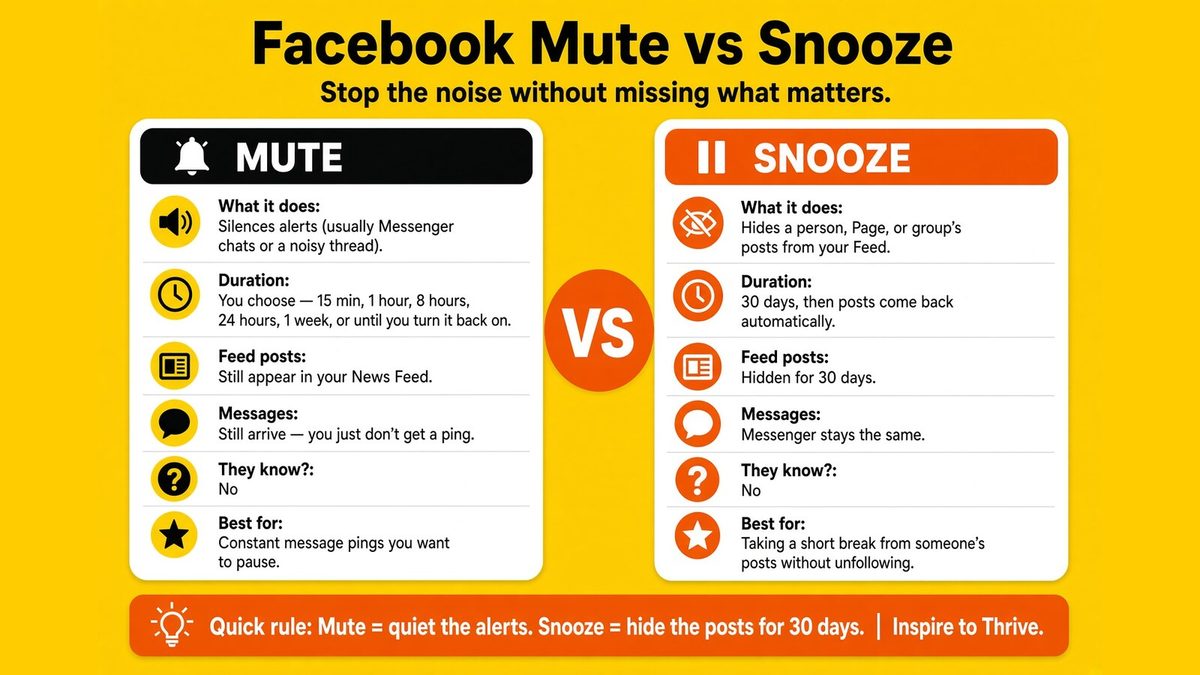
Mute or Snooze?
One of the most common questions people ask when trying to quiet Facebook is: What’s the difference between Mute and Snooze? They’re not the same thing, and using the wrong one can leave you still getting pings or missing posts you actually want to see.
Here’s a quick side-by-side to help you choose the right tool for the job.
Choose quiet hours instead of turning everything off
Facebook may offer a quiet mode or temporary pause, depending on your app version. Use it when you need time to work, sleep, or enjoy dinner without a stream of social updates.
A practical routine for business owners is simple:
- Allow messages and important Page activity during business hours.
- Pause social alerts overnight and during deep-work blocks. (I sometimes leave my Android in a room far away from the one I’m working in.)
- Review nonurgent updates in batches instead of reacting to batch mentions one by one.
- Allow alerts for Facebook page reviews.
Adjust your notification frequency to stay responsive without reacting to every sound. Facebook is useful when you use it on your schedule, not the other way around.
Build a Facebook Notification System That Works for You
The best notification system is not a one-time cleanup. Review your notification settings monthly, especially after Facebook adds a feature or changes a menu.
Keep alerts tied to real goals: customer questions, comments that need replies, mentions, important group activity, account recovery, and security notices. Turn down the volume on everything else.
Treat account recovery, security warnings, and password-reset alerts as required notifications. Never ignore suspicious login alerts, password reset messages, or messages from Meta. They may be annoying until the day they protect your account.
A quick notification cleanup checklist
Try this quick reset, then see how it feels after one week:
- Disable profile alerts that don’t need action.
- Temporarily disable Facebook notifications when you need a complete break.
- Mute groups or people that post too often.
- Limit Marketplace and Page updates to what matters.
- Turn off sounds and lock-screen previews.
- Set quiet hours for work, sleep, and family time.
- Keep direct messages and security warnings enabled.
- Check browser notification permissions, review account settings, and sign out of unused sessions.
Track which alerts you actually use before removing more. If you never act on a notification, it probably doesn’t deserve front-row access to your day.
Frequently Asked Questions
On an iPhone, open Settings, tap Notifications, and select Facebook. On Android, open Settings, choose Apps, select Facebook, and tap Notifications to control sounds, banners, badges, and lock-screen alerts.
Open Facebook’s notification settings and review each category separately. Turn off alerts that do not require action while keeping messages, important Page activity, comments, and security notifications enabled.
Yes. Open the group, choose its notification settings, and select Highlights, Friends’ posts, or Off, depending on the options shown. This lets you stay in the group without receiving every update.
Use Facebook’s quiet mode or temporary pause feature if it appears in your app. You can also use your phone’s Focus mode, Do Not Disturb, or notification schedule to silence alerts during work blocks and overnight.
Keep direct messages, customer questions, important Page activity, comments that need replies, account recovery alerts, security warnings, and password-reset notifications. These alerts may require a timely response or help protect your account.
Take Back Control of Facebook Alerts
You don’t have to stop notifications completely to get your time back. Keep alerts that require action, then silence annoying notifications that pull you away from work, customers, or family.
Spend a few minutes cleaning up your Facebook, Page, browser, and phone settings today. Your attention is worth more than another unnecessary buzz.
Are your Facebook notifications on or off? I’d love to hear more about your notification settings in the comment section below. 👇

- Is It Too Late for Holiday SEO? What Still Works in November - October 25, 2026
- Is Benable Legit? My Honest Benable Review & Earnings Proof - October 24, 2026
- Instagram Privacy Settings: What Others Can and Can’t See - October 24, 2026
Enjoy this content? Help me show up more often in Google by adding Inspire To Thrive as a Preferred Source: