How to change a Facebook Page name in 2026: you must be an admin. Then use Page settings, Meta Business Suite, or the Facebook app. Facebook reviews every name change. It can take minutes or a few days. If they reject it, pick a name that complies with Meta’s rules and resubmit.
You are changing the public Page name (what people see). That is not the same as the username (facebook.com/yourpage).
Let’s get started, as I recently helped a client change her business Page name after she moved her location in town.
(Updated September 6, 2026.)
Estimated reading time: 7 minutes
Table of Contents
Key Facebook Page Takeaways
- You can change a Facebook Page name in Page Settings, in Meta Business Suite, or in the mobile app; all routes go through the same review process.
- Admin access is required; editors and moderators can’t request a name change.
- Facebook reviews every name change request, so approval isn’t instant; it can take anywhere from minutes to a few days.
- If a name change is denied, you can resubmit with a name that follows Meta’s naming rules.
Reasons To Change Your Business Name
Maybe you’re expanding your product line, merging with another company, or simply rebranding to resonate better with your audience. A name that once worked might no longer accurately represent your business.
Updating it ensures that when users find your Page, they immediately understand what you offer, enhancing both clarity and engagement.
Don’t let an outdated name hold back your online presence; your Page’s name should mirror your brand’s current focus and future aspirations.
Page Name vs Page Username
Your Facebook Page name is the public label people see on your Page and in search, so it should match your business name and stay consistent with your branding.
Your Page username (also called your handle) is the unique @name that creates your custom link, like: facebook.com/YourName, and it’s what people tag when they mention you. The key difference: Your Facebook page name can be shared by other businesses, but your username must be one-of-a-kind.
If you want better findability and cleaner links, grab a short username that matches your Page name (and your other social handles) as soon as it’s available; it can get taken fast.
How to Change a Facebook Page Name (Step-by-Step)
To change your Facebook business Page name directly from the Page:
- Click your profile picture/avatar in the top right of any Facebook page, and make sure you’re acting as your Page, not your personal profile.
- Click Settings & Privacy, then click Settings.
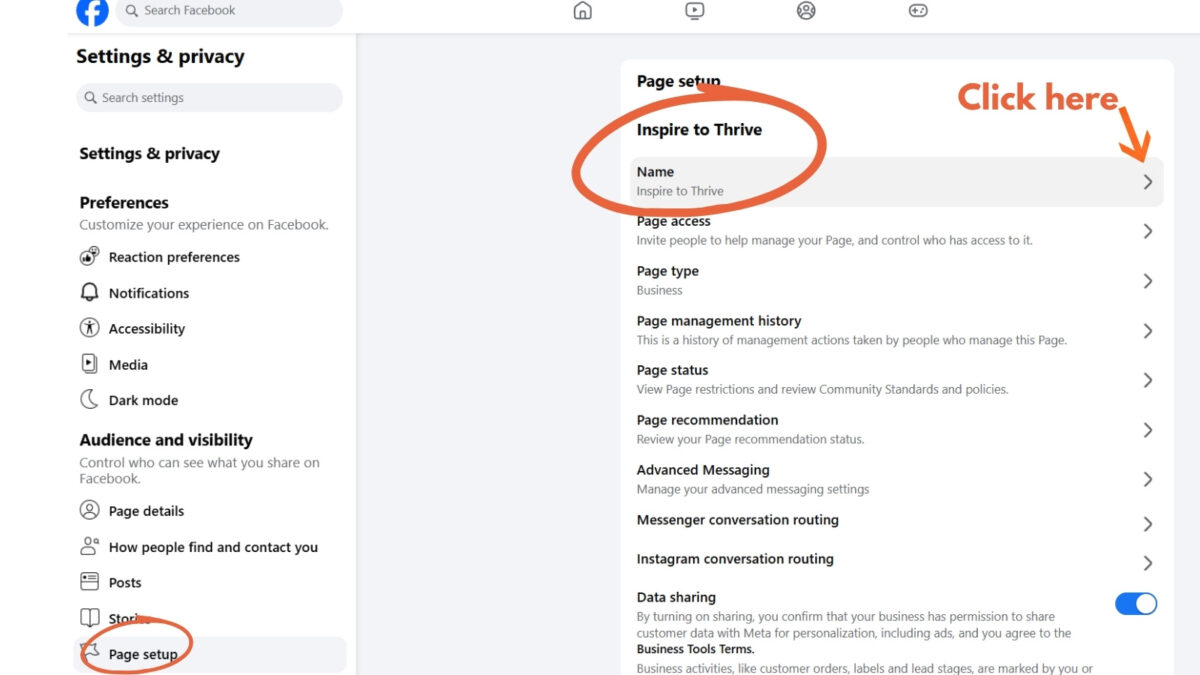
- In Settings, click Page setup in the left sidebar.
- Find your Page name and click the arrow/Edit next to it.
- Type in your new name, review it, and hit Submit.
Facebook will review your request, which may take a few days. However, ensure your new name complies with Facebook’s guidelines to avoid delays or rejections.
How to Change Your Facebook Page Name in Meta Business Suite
If you manage your Page from Meta Business Suite, which Meta now recommends, especially if you run more than one Page or manage ads from the same dashboard. You can rename it without ever opening the Page’s public view:
- Go to business.facebook.com and log in.
- Select your Page from the account dropdown in the top left.
- Open Settings from the left-hand menu, then find Page info (sometimes listed as Page settings).
- Click Edit next to your current name, type the new name, and save.
- Confirm to send it for review; it goes through the same approval process and timing as changing it directly on the Page.
This is the better option if you manage several Pages, since you can rename from the same dashboard you already use to post and run ads.
How to Change Your Facebook Page Name on Mobile
- Open the Facebook app and tap the menu icon.
- Tap Pages, then switch into the Page you manage.
- Tap your Page’s profile photo to open its profile, then tap Edit or About.
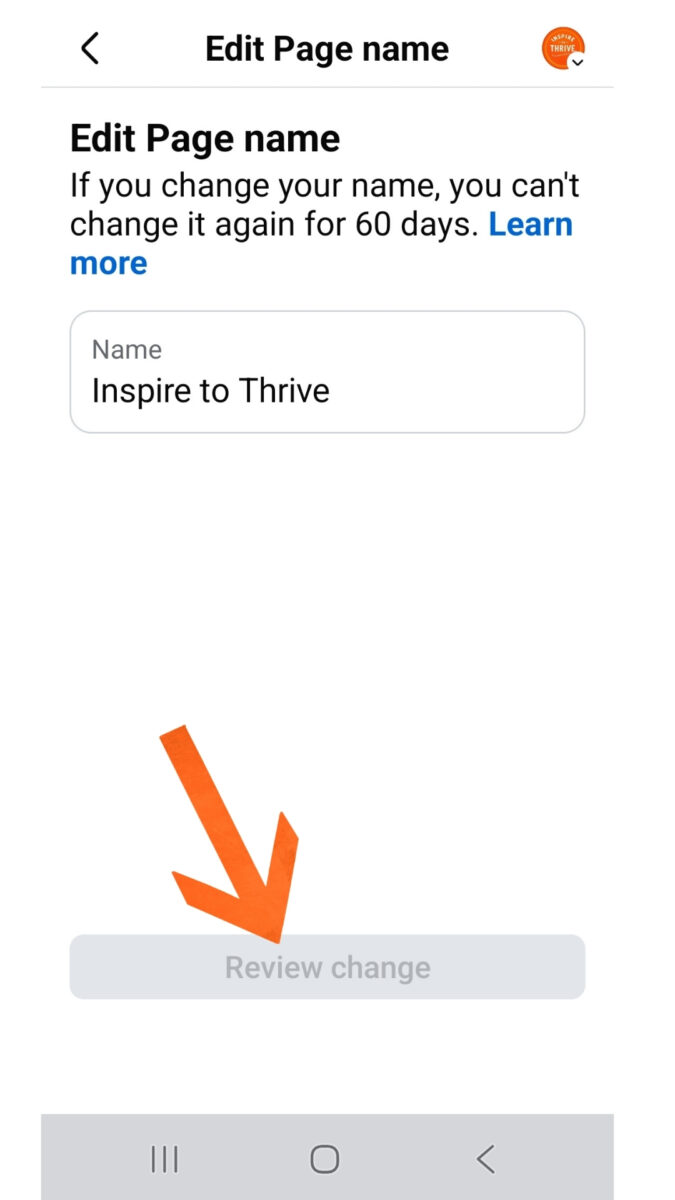
- Tap the Name field and enter your new name.
- Tap Review, then submit. The mobile flow goes through the same approval process as the desktop flow.
Reasons Why Your Page Name May Not Be Able To Be Changed
You might not be able to change your business Page name for several reasons:
- Your Page is under review.
- You don’t have admin rights for the Page.
- The name doesn’t comply with Facebook’s guidelines.
- The Page is flagged for violating terms.
- You changed the name too recently. You can only change it every 60 days.
- A large following may make Facebook cautious about causing confusion among users.
- Your Page is a regional page under a global page.
- Certain characters or unusual capitalization aren’t allowed in Page names.
Pick Memorable Names To Stand Out
Picking a name for your Facebook Page is crucial to standing out. Start with a name that’s memorable and easy to spell. Avoid long, complicated words. Make sure it reflects what your Page is about.
Use keywords that people might search for. Adding a touch of humor or creativity can make your name more engaging. Always check if anyone else is using the name to avoid confusion.
Keep it short and snappy so it sticks in people’s minds. A good name will help attract more followers and keep your Page growing.
Conclusion: Changing Your Facebook Page Name
Changing the name on your Facebook Page for your business is a straightforward yet impactful step toward refining your brand’s identity. Whether you do it directly on the Page, through Meta Business Suite, or from your phone, the same review process applies; so plan the change before a big launch or rebrand date, not the day of.
Stay proactive and adapt to maintain a strong online presence by keeping your Facebook business page up to date. Think of Facebook as another search engine, since people search your brand out there too.
Frequently Asked Questions About Changing a Facebook Page Name
You can do it three ways: directly on the Page (Settings & privacy → Settings → Page setup → Edit Name), through Meta Business Suite (Settings → Page info → Edit), or from the mobile app (Page profile → Edit/About → Name). All three submit the same request for Facebook’s review. You must be an admin on the Page to complete it.
The most common reasons are role limits (you’re not an admin), Meta’s restrictions on how often a Page can change its name, or a name that doesn’t comply with Meta’s Page name rules. If the Page recently changed its name or the new name is misleading, Facebook may block or deny the request.
Facebook Page name changes are reviewed, so approval isn’t always immediate. Review time can range from minutes to a few days, depending on the Page and the request.
Once approved, the Page displays the new name across Facebook, and the update may take some time to appear everywhere. If you share the Page link elsewhere (your website, directories, social bios), update your branding and any text references to match the new name.
Yes, Page name and username are separate settings. Your Page name is the public title people see, and your username is the handle used in the Page URL. If your branding changes, update both so your name and URL match.
Yes, only admins can request a Facebook Page name change, whether from the Page, Meta Business Suite, or mobile.
Yes, your Page name must be at least 5 characters long and can be up to 75 characters.
Disclosure: This Inspire To Thrive blog post contains affiliate links. I may earn a commission from qualifying purchases at no extra cost to you. Some sections were drafted with AI tools and carefully reviewed/edited by me.

- Mastering a Content Gap Analysis with AI: A Step-by-Step Guide - October 9, 2026
- What Is Pillar Content? A Practical Strategy to Rebuild Blog Traffic - October 9, 2026
- How To Create Engaging Social Media Posts And Strategy - October 8, 2026
Enjoy this content? Help me show up more often in Google by adding Inspire To Thrive as a Preferred Source: