Recreated on iOS + a Business account, September 2026. Preview had sound. After publishing, one test Reel showed “Audio unavailable.” Replacing the audio kept the views.
Switching the Business category to Entrepreneur changed the music library. Original audio never vanished.
Estimated reading time: 10 minutes
Have you ever wondered why you cannot add audio to your Instagram Reels? Let’s look into the reasons behind this limitation.
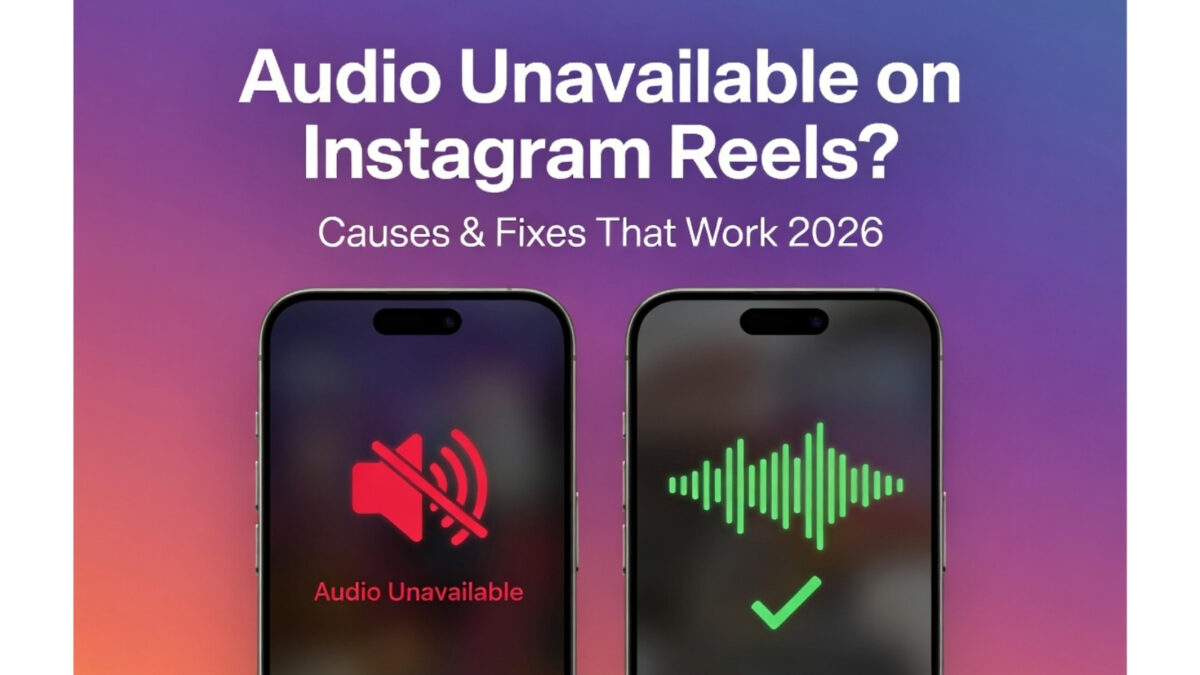
Table of Contents
Reels Already Posted
Tap the live Reel → Audio unavailable → Replace audio. Steps below. Views stay.
Story
Same “track not allowed” message, different buttons. Pull the music sticker off and add another song, or delete the Story and post again. This page does not walk through Stories.
Why Instagram Says “Audio unavailable” After You Post
- Licensing or rights changes: Instagram’s agreements with music labels can change at any time. A song that was cleared when you posted can later be restricted.
- Rights holder actions: The artist or label can block usage.
- Instagram bugs: Temporary glitches often cause audio to drop on published Reels.
- Account flags: Business accounts and branded content are more likely to be muted after publication.
Fix it Without Deleting the Reel
Use Instagram’s Replace audio on the live Reel. That keeps the views.
- Open the published Reel.
- Tap Audio unavailable.
- Tap Replace audio and confirm.
- Pick a new track, or try the same one again.
- Tap Done twice.
Do not delete and repost the same file. That often mutes again and resets reach.
Common Scenarios
- The same track works on a new Reel—yes, this frequently happens. Try creating a fresh Reel with the same song.
- It fails again on the new Reel — Switch to a different track or original audio (likely a licensing/account restriction).
👉 Pro Tip: Avoid deleting and reposting the exact same video; it often causes the same muting issue. Editing the existing Reel is almost always better.
Temporary Bugs and Widespread Issues
Many “Audio unavailable” issues on Instagram Reels are not caused by your account or device; they are temporary platform bugs affecting many users simultaneously.
Signs It’s a Widespread Bug
- The issue suddenly affects multiple Reels (or all of them).
- Audio works in Stories but not in Reels (and vice versa).
- The problem started right after an Instagram app update.
- Other creators are reporting the same issue at the same time.
What to Do When It’s Widespread
- Check Downdetector Instagram Status to see if others are experiencing outages.
- Search “Instagram audio down” or “Reels sound unavailable” on X (Twitter) for real-time confirmation.
- Wait — Most of these bugs resolve themselves within a few hours to 1–2 days.
- In the meantime, use basic fixes: update the app, clear the cache, or restart your phone.
- Report the problem in the Instagram app (Help → Report a Problem), this can help Instagram prioritize the fix.
👉 Good news: When it’s a platform-wide issue, your audio will often return automatically without you needing to replace or repost anything.
How to Adjust Audio Settings for Instagram Reels
To ensure an optimal experience when using Instagram Reels, it is essential to adjust the audio settings.
Here’s a comprehensive guide on adjusting audio settings to enable sound in Instagram Reels.
Check for App Updates
Keeping your Instagram app updated is crucial to accessing the latest features, including audio settings for Reels.
- To do this, visit the app store on your device.
- Then search for Instagram and tap “Update” if an update is available.
By staying up to date with app updates, you ensure you have access to the latest audio features. These audio features can enhance your Reels experience.
Verify Sound Settings
To check and adjust your device’s sound settings for audio playback in Instagram Reels, open your device’s settings.
- Adjust the media volume to an appropriate level and ensure the device is not in silent mode.
- By verifying and adjusting your device’s sound settings, you can enhance the audio experience in Instagram Reels.
- You may be surprised to know how often that happens. I’ve been helping clients who forgot that they had turned down the sound on Instagram or Facebook.
They never turned it back on. (The same happens often on Facebook Reels, too.)
Clear Cache and Data to Check If Unavailable On Instagram Reels Is Old
If you encounter audio playback issues in Instagram Reels, clearing the Instagram app’s cache and data can help resolve them.
Start by accessing the settings on your mobile device, then navigate to the application settings and locate Instagram. Tap on “Storage” and then select “Clear Cache” and “Clear Data.”
Furthermore, if you are using a desktop to access Instagram, you may need to clear your browser cache.
This process can help eliminate potential glitches affecting audio playback in Instagram Reels.
Alternatives to Resolve Audio Issues in Instagram Reels
Are you encountering audio issues while creating your Instagram Reels? Don’t worry, there are alternative methods to address this inconvenience while keeping your content engaging and entertaining.
Utilizing Creative Audio Techniques
When traditional music options are unavailable, get creative with other audio elements to enhance your Instagram Reels. Experiment with adding voiceovers, sound effects, or ambient noise to give your videos a unique twist.
By using these non-music audio elements, you can captivate your audience in unexpected ways. It can greatly amplify the impact of your visual storytelling.
Remember, the key is to keep your content engaging and your audience captivated, regardless of the audio limitations you may encounter. Embracing these alternative methods will empower you to craft compelling Instagram Reels that resonate with your viewers.
Create your Reel (with working audio) outside Instagram
When Instagram’s audio keeps failing, many creators simply edit the video elsewhere and upload the finished file with the sound already mixed in.
FlexClip makes this easy:
- Turn a longer video into multiple short Reels (trim, rearrange, add captions or voiceover)
- Design custom Reel covers/thumbnails so the post still looks polished in the feed
- Add your own original audio or royalty-free tracks so you avoid the “audio unavailable” problem entirely
- Export in the correct 9:16 vertical format ready for Instagram
👉 Try FlexClip for FREE – no install needed, works right in your browser.
Quick Decision Guide: What Should You Do?
| Situation | Best Action | Why? | When to Use |
|---|---|---|---|
| Audio mutes right after posting | Replace Audio in-place | Keeps existing engagement & views | Most cases |
| Audio disappears on older Reels | Wait 1–2 days first | Often, a temporary bug or licensing change that resolves itself | Widespread issues |
| Only one Reel is affected | Replace Audio or edit | Likely track-specific restriction | Single Reels |
| Multiple / all Reels affected | Check Downdetector + Wait | Usually, a platform-wide bug | Widespread |
| Active campaign or client Reel | Replace the audio immediately | Protects brand & schedule | Business use |
| Same song fails again on new Reel | Use a different track or original audio | Licensing or account limitation | Repeated failures |
| Nothing works after troubleshooting | Report in app + Reinstall | Persistent app or account issue | Last resort |
Quick Rule of Thumb: Try “Replace Audio” first on live Reels. Wait if it looks like a widespread bug. Only delete and repost as a last option.
Troubleshoot with Instagram Support
In the event of persistent or specific audio-related issues in Instagram Reels, reaching out to Instagram support can provide valuable assistance.
Instagram support may offer guidance and troubleshooting steps tailored to your individual concerns. Therefore, ensure that you can enjoy uninterrupted audio playback in Reels.
To seek support, visit the Instagram Help Center. However, you can also reach out through the app for prompt and personalized assistance with any audio-related issues in Instagram Reels.
Troubleshooting Checklist
- Check your account type. Business accounts often lose access to popular tracks. Switch to Creator if you need licensed music.
- Confirm regional availability. Music features and catalogs vary by country due to licensing.
- Update the app. Outdated Instagram builds break audio features. Install the latest version.
- Test your network. Weak Wi-Fi or cellular data can prevent the music library from loading.
- Check Instagram’s status. Outages happen. See DownDetector for IG for current issues.
- Clear the cache and restart the app. A corrupt cache can hide the music sticker or audio tab.
- Review audio rights on your post. Copyright flags can mute or remove a track after upload.
- Use the in-app library. Third-party edits with embedded songs are often muted upon upload.
- Try a different track. Some sounds are limited, expired, or owner-restricted.
- Check device settings. Turn off Silent mode, raise the volume, and disconnect Bluetooth if needed.
- Confirm app permissions. Allow the microphone and storage so Instagram can process audio.
- Remove branded content tags. Branded posts can restrict licensed music.
- Avoid restricted keywords in captions. Certain terms can trigger automatic muting.
- Try the original audio. Record your voice or sounds if licensed tracks won’t load.
- Recreate the Reel. Drafts can glitch. Start a new reel and add the track again.
- Use royalty-free sources. Try Instagram’s Sound Collection for safe tracks: facebook.com/sound/collection
- Check age settings. Underage or newly created accounts may have limited access to music tools.
- Reinstall Instagram as a last step if logging in and out didn’t work. A fresh install fixes persistent audio bugs.
If You Still Can’t Use Trending Music, Pick One of These Options
- Record original audio (talking head, voiceover, storytelling)
- Use someone else’s “Original audio.”
- Pre-edit outside Instagram (then upload)
- Use royalty-free music sources
- Consider switching account type (and what you give up)
Conclusion: Fixing Your Audio Unavailable On Instagram Reels
Most “Audio unavailable” problems after posting are licensing changes, account-type limits, or short-lived Instagram bugs, not a broken video. Start with Replace audio on the live Reel so you keep the views. Wait a day if it looks widespread. Use original audio or a pre-edited file when the same track keeps failing.
FAQS: Instagram Reels Audio Unavailability
Instagram pulled the track after the Reel (or Story) went live. That is usually a licensing change, a Business account limit, or a short-lived bug. The video file is fine. The song is no longer allowed on that post.
Do not delete and repost. Open the published Reel → tap Audio unavailable → Replace audio → pick a new track (or try the same one) → Done. Views stay on that URL. I did this on a Business account in September 2026; preview had sound, the live Reel was muted, and Replace audio kept the views.
Stories do not have the same Replace-audio flow as Reels. Remove the music sticker and add a different track, or delete the Story and post again with original audio or a still-available song. This article is the Reel-after-posting fix.
No. Audio unavailable is Instagram blocking that track on the post. No sound is often due to the phone being on silent, in-app volume down, or a playback glitch. Check Silent/Focus and the volume slider before you replace audio.
Preview can use a track that is not cleared for the live post, especially on Business accounts. After publishing, the rights check runs again and the audio drops. Replace audio on the live Reel.
No. Replacing audio edits the same Reel. Deleting and uploading again resets reach and often mutes again.
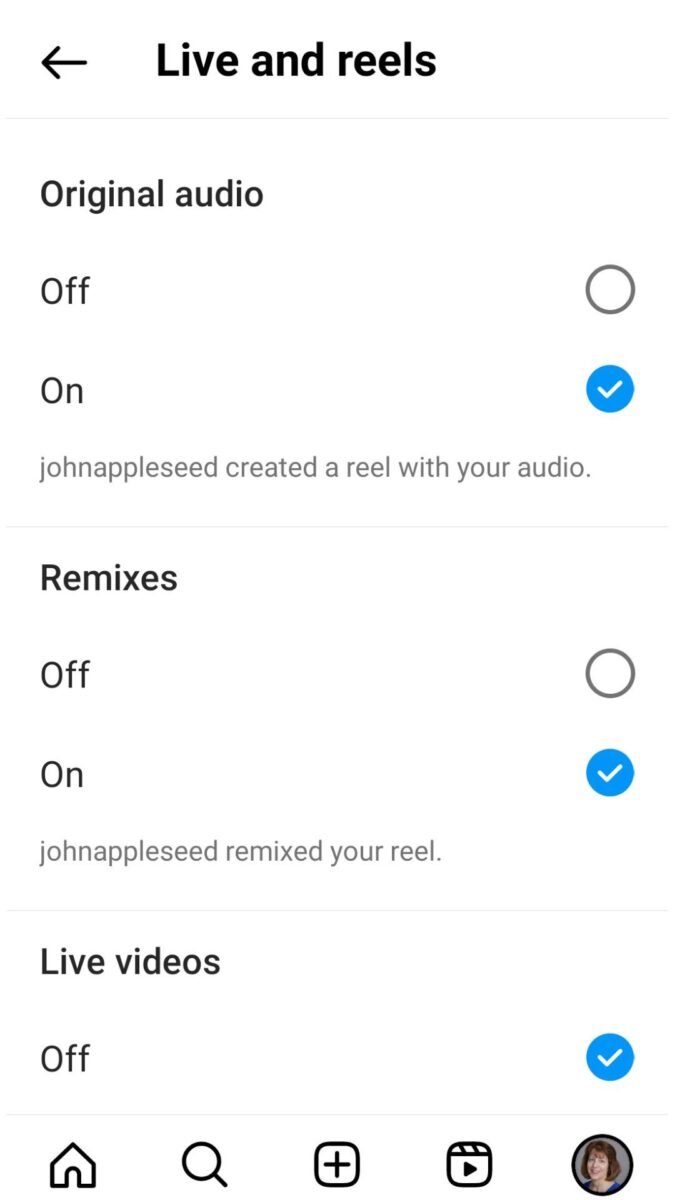
Yes. The music library is smaller on many Business profiles. In my test, switching the category to Entrepreneur changed which tracks showed up. Original audio (your voice) did not disappear.
Disclosure: This Inspire To Thrive blog post contains affiliate links. I may earn a commission from qualifying purchases at no extra cost to you. Some sections were drafted with AI tools and carefully reviewed/edited by me.

- What’s the Real Secret to Successful Affiliate Marketing? - October 10, 2026
- Why Blogging Websites Need Blogging Networks to Thrive - October 10, 2026
- Mastering a Content Gap Analysis with AI: A Step-by-Step Guide - October 9, 2026
Enjoy this content? Help me show up more often in Google by adding Inspire To Thrive as a Preferred Source: