Planning Instagram content in a browser is faster than bouncing between apps if you have the right tools.
A design can look polished in Canva or Photoshop and still feel off once it lands in the actual Instagram feed. Captions that seemed fine in a doc can suddenly look too long. A carousel that worked on desktop can feel cramped on mobile.
And sending a half-finished idea to a client or teammate for approval usually means extra screenshots, extra messages, and extra back-and-forth. That’s why browser-based planning tools are useful.
You can preview the post, check the grid, mock up comments, test captions, and get a closer look at how everything will actually appear without publishing anything or logging into Instagram first.
Estimated reading time: 8 minutes
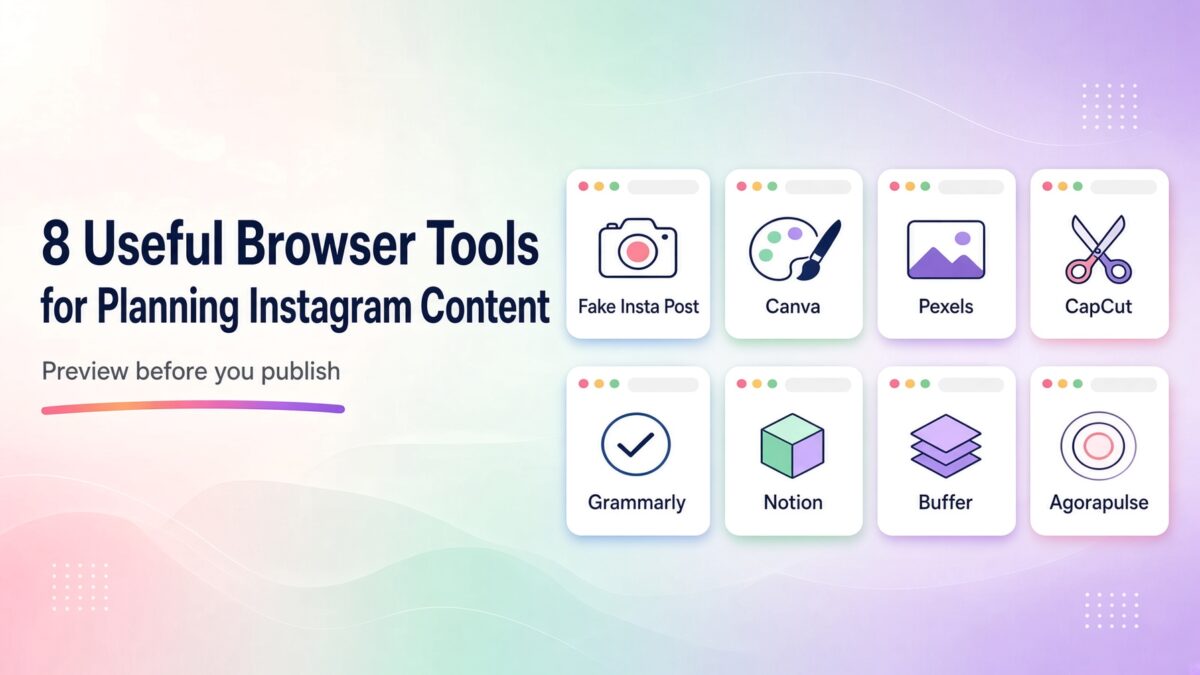
Table of Contents
Best Instagram Content Planning Tools in a Browser
The eight tools below all work in your browser. They’re built for that last check before you hit publish.
Here’s a closer look at each one.
1. Fake Insta Post
A design can look complete inside an editor but feel different once placed inside an Instagram interface. Fake Insta Post addresses that last visual check by generating an Instagram-style post mockup with a custom username, avatar, caption, image, likes, and comments.
The resulting preview can help a creator or marketing team review the presentation before anything is published.
This type of preview is useful when a campaign concept needs approval from another person. Readers who want a concise overview of the generator can check this out before using it.
IG Tools Directory lists the service under content creation and describes it as a free browser-based Instagram post screenshot generator that does not require an Instagram connection.
2. Canva
Canva is useful when an idea has to become a finished static post or carousel. Its Instagram editor includes customizable templates, stock images, graphics, photo editing, text, and layouts. Designs can start from a template or from a blank canvas.
The practical advantage appears when several posts belong to the same campaign.
Reusing typography, spacing, visual elements, and layout patterns reduces small design differences between posts. Teams can also collaborate on designs before export or publication.
Templates are most useful as starting structures rather than finished answers. A creator can replace stock visuals, rewrite the text, simplify crowded sections, and adapt the composition to the actual message.
That keeps the design connected to the content instead of forcing the content into a template.
3. Pexels
Pexels can fill visual gaps when original photography is unavailable. The site provides free stock photos and videos, and its license permits modification and personal and commercial use, although separate rights related to people, brands, or trademarks may still apply.
This makes it useful for background footage, supporting images, mood references, and early campaign concepts.
4. CapCut
Static design is only one part of Instagram production. CapCut provides a browser-based video editor for trimming clips, changing sequence, adding text, working with audio, and preparing captions.
Its online editor can therefore handle much of the practical assembly work behind a Reel.
The editing stage should begin with the message rather than effects. A short video often needs a clear opening frame, readable text, useful pacing, and an ending that completes the point.
Transitions and decorative elements can then be evaluated according to whether they support those parts.
5. Grammarly
Grammarly has a web editor that allows text to be created, uploaded, and edited directly in a supported browser. For Instagram planning, its most useful role is not generating an entire content strategy.
It can provide an additional editing pass for captions, campaign notes, calls to action, and text that will appear inside graphics.
6. Notion
Content planning often becomes difficult before the design stage begins. An idea may exist, but its owner, status, format, deadline, and caption draft may sit in different places.
Notion can be used in a web browser and supports database calendar views tied to date properties.
A simple database can give each Instagram idea its own record. Fields might include publication date, content format, campaign, draft status, visual status, caption status, and final approval.
The calendar then shows when those items are intended to move into production.
This structure also exposes weak spots early. Five posts scheduled for one week may look organized until the calendar shows that four require video editing on the same day.
Planning then becomes a workload question, not merely a list of ideas.
7. Buffer
Buffer can be used to draft Instagram posts, Reels, Stories, and carousels, then place them into a publishing schedule. Its composer also generates a preview while a post is being prepared.
That makes it useful near the end of the workflow, when media, caption, format, and timing need to be checked together.
Not every Instagram feature can be handled through automatic publishing. Buffer notes that some content involving music, stickers, links, collaborators, and other Instagram features may require notification-based publishing and final work inside Instagram.
That distinction is worth checking before a content calendar is considered finished.
8. Agorapulse
Agorapulse can be used in a browser to plan, preview, and schedule Instagram posts from a shared calendar. Its composer shows the post as it is being built, so media, caption, format, and timing can be reviewed in one place before anything goes live.
That makes it useful when multiple people access the content. A draft can sit on the calendar for review; comments can be handled in the same workspace; and publication can wait until the post is approved. For a solo creator, the same calendar still helps keep Reels, carousels, and static posts from colliding on the same day.
Agorapulse is not only a queue. It also includes a social inbox, so comments and messages can be handled without leaving the planning environment. Some Instagram features still need a final step inside the Instagram app. That limit is worth checking before a week of content is treated as fully scheduled.
If Buffer is already covering a simple publishing queue, Agorapulse becomes more useful when the missing piece is collaboration, inbox work, or a clearer view of what is already planned.
You may also want this one-line change in the workflow list, so Agorapulse is not left out:
- Test a proposed feed presentation with Fake Insta Post when needed.
- Review the final post inside Buffer or Agorapulse.
- Schedule publication or prepare the remaining Instagram steps.
How These Instagram Content Planning Tools Fit One Workflow
Using eight services for every post would add unnecessary work. Their value appears when each one solves a specific production problem. A single photo post may need only three of them.
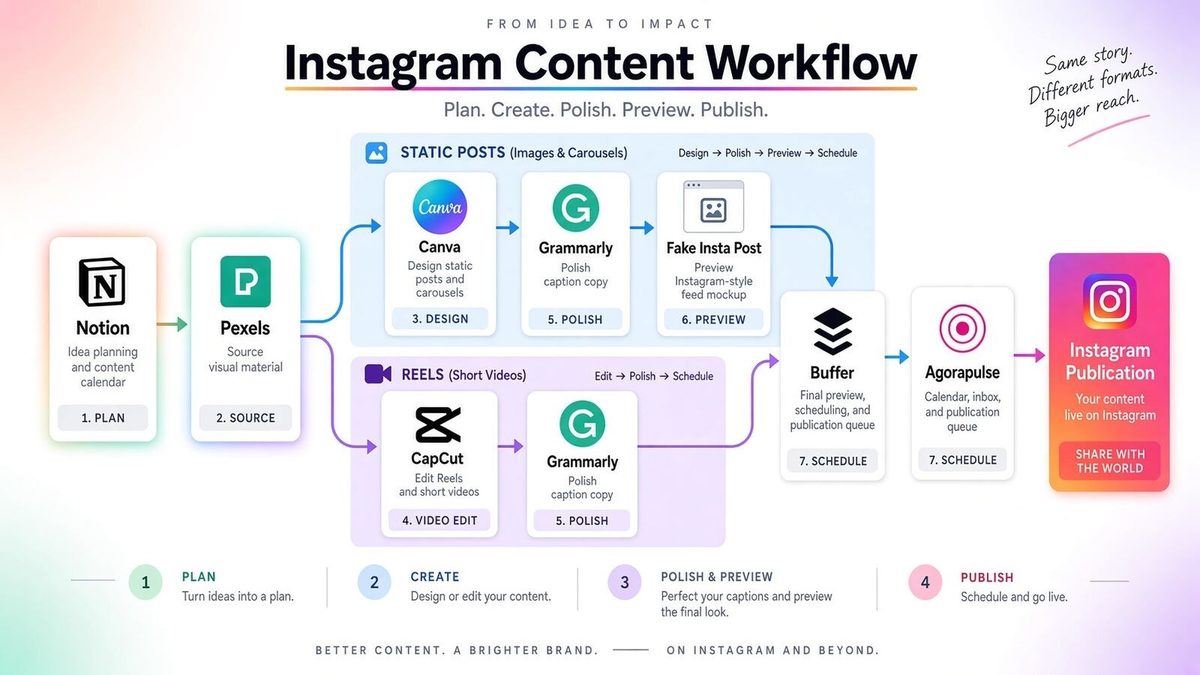
Planning can begin in Notion, where ideas receive dates and statuses. Pexels can supply supporting visual material when original assets are missing. Canva can then turn the selected material into a finished static design.
Video follows a slightly different route. Clips can be collected first and assembled in CapCut. The caption can be reviewed separately in Grammarly while the edit is being finalized.
Why Mockups Help Instagram Content Planning
A mockup becomes useful when appearance matters before approval. A fake Insta Post can show how a proposed feed post sits inside an Instagram-style interface. Buffer can handle the later preview, queue, and scheduling stage.
A practical sequence could therefore be:
- Record and schedule the idea in Notion.
- Find missing visual material through Pexels.
- Build static designs in Canva or edit video in CapCut.
- Review caption copy in Grammarly.
- Test a proposed feed presentation with Fake Insta Post when needed.
- Review the final post inside Buffer.
- Schedule publication or prepare the remaining Instagram steps.
A Smaller Instagram Content Planning Stack Often Works Best
The useful question is not how many browser services a creator can add to a workflow. It is where errors, delays, or unnecessary revisions often occur before publication.
One team may need stronger visual approval, another may need better scheduling, while a solo creator may mainly need faster video editing.
A good setup therefore stays selective. Each service should remove a specific problem between idea and publication. When every step has a clear purpose, Instagram content planning becomes easier to repeat without turning preparation into another project.
Have you tried any Instagram content planning tools? I’d love to hear about it in the comments below. 👇
FAQ
Fake Insta Post builds an Instagram-style mockup in your browser: username, photo, caption, likes, and comments, s o you can check how a post will look before anyone publishes it. Use it when a design looks finished in Canva, but you still need a feed-style preview for yourself or for client approval. It does not connect to Instagram or post anything.
The app is enough to publish. Browser-based Instagram content planning tools help before that step: preview the feed, batch captions, check the calendar, and get approval without posting by mistake.
Start with three. Use Notion for dates, Canva or CapCut for the assets, and Buffer or Agorapulse for the final preview and queue. Add Fake Insta Post only when a mockup is needed for approval.
Yes. CapCut’s browser editor can handle trim, text, captions, and audio. Grammarly can review the caption separately. Schedule the Reel in Buffer or Agorapulse, then finish any music, stickers, or collaborator tags inside Instagram if the scheduler flags those limits.
Usually no. Pick one scheduler. Buffer is enough for a simple queue. Agorapulse is the better extra when you also need a shared calendar, approvals, or an inbox.
Disclosure: This Inspire To Thrive blog post may contain affiliate links. I may earn a commission from qualifying purchases at no extra cost to you. Some sections were drafted with AI tools and carefully reviewed/edited by me.

- TikTok Viewer: How to Watch Public Videos Anonymously (2026 Guide) - October 16, 2026
- Find Broken Links on Site Fast: Scan, Fix, and Protect Your SEO - October 15, 2026
- 8 Best AI Ranking & Visibility Tracking Tools for Bloggers (2026) - October 15, 2026
Enjoy this content? Help me show up more often in Google by adding Inspire To Thrive as a Preferred Source: