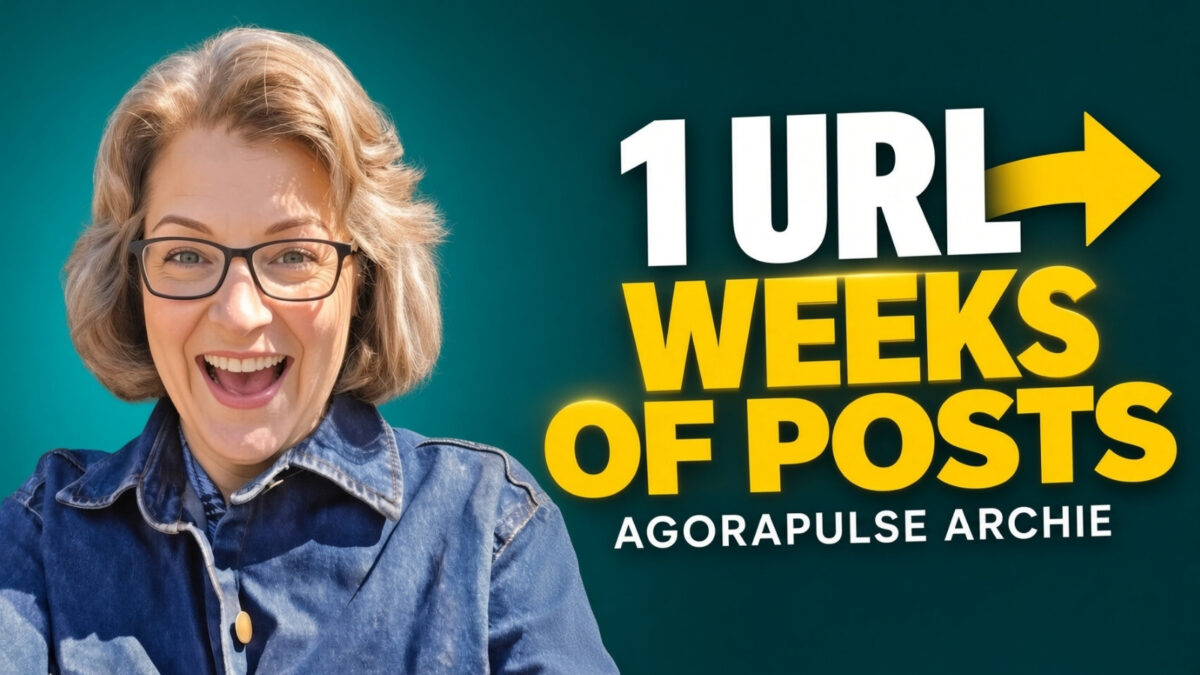
Archie by Agorapulse can turn a blog URL, a top social post, or a video into a batch of drafts. If you are staring at a blank screen every Monday, you may not need a new idea. Some of your best posts are already in content from the last 30 to 90 days.
This tutorial is about Archie, the content studio within Agorapulse. It is not the other tools named Archie. Archie reads a source you already published, suggests angles, and drafts platform posts, images, and short clips. You still review the copy before anything goes on the calendar.
I used it to batch drafts from a blog URL, refresh a top post from the last 90 days, and pull a short clip from a longer video. The video below is the same walkthrough. Archie is free during beta, with no credit card required. Agorapulse says paid plans will come later.
Estimated reading time: 14 minutes
Table of Contents
What Is Archie by Agorapulse?
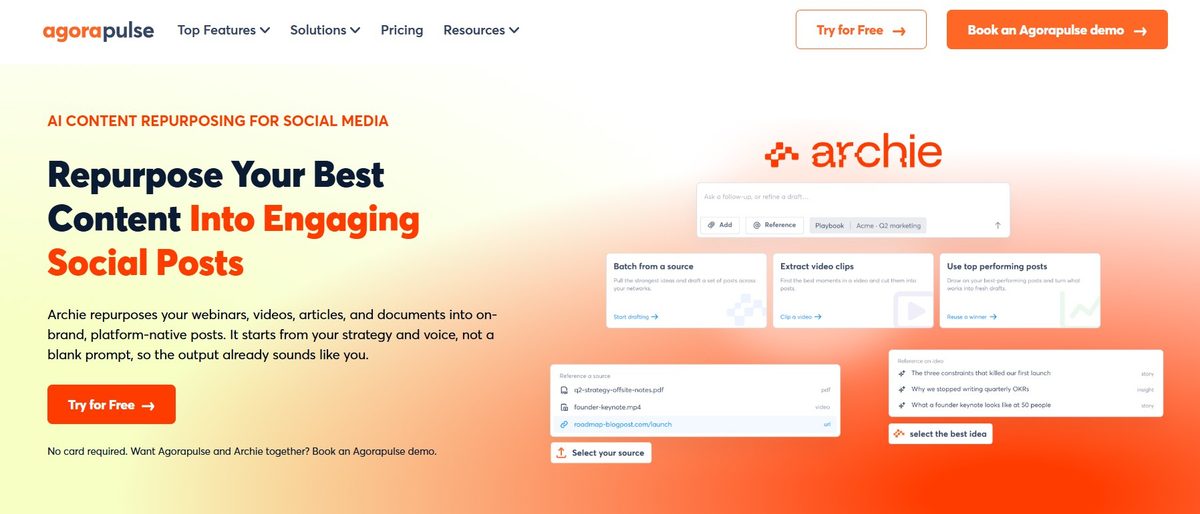
Archie by Agorapulse is the AI content studio inside Agorapulse that turns a blog URL, a top social post, or a video into platform-ready drafts for Instagram, Facebook, LinkedIn, and more.
Key Takeaways
- Archie AI can turn a blog URL, top-performing social post, or longer video into multiple social media drafts.
- Use Playbooks, Audience, Goals, Voice, and Style to create a repeatable workflow and keep content consistent across platforms.
- Always review the generated copy, hashtags, images, video clips, links, and brand voice before publishing.
- Suggested publishing times are a starting point; your own audience data and experience should guide the final schedule.
- Staying about two weeks ahead gives you ready-to-publish content without making the calendar too difficult to adjust when news or priorities change.
Archie vs the Writing Assistant vs ChatGPT
Archie and the Writing Assistant are not the same tool. One starts with something you already made: a blog URL, a top post from the last 90 days, or a video. It pulls angles and drafts several posts. The Writing Assistant sits in Composer and rewrites one draft: shorter, longer, a new tone, or a translation.
ChatGPT can draft a post from a prompt, then you copy it over. The Archie draft stays in the Agorapulse calendar, builds the image or clip with the copy, and uses your Playbook for audience, goals, voice, and style. I still edit. In this walkthrough, I rejected a clip because my eyes were closed in the first frame, and I rewrote a countryside post to make it sound like me.
Is Archie free?
Archie is free to use during beta, and Agorapulse says no credit card is required. Paid Archie plans are planned for later. Right now it can draft for LinkedIn, Facebook, Instagram, and YouTube. X, Threads, and TikTok are listed as coming later. Confirm the plan on your own account before you build a month of posts around it.
Start With a Blog URL, a Top Post, or a Video
The idea here is simple. Start with a source asset, let Archie analyze it, choose an angle, and create several social drafts. Use the Playbook as a repeatable workflow, with Audience and Goals guiding the angle and Voice and Style keeping everything consistent.
Four drafts can give you close to a month’s worth of content if you post one per week. You can have your graphics ready ahead of time, or ask Archie to create them as you go.
The workflow shown uses:
- A blog post URL as the source.
- The social profiles selected for publishing.
- A suggested angle and your connected Agorapulse account settings.
- New graphics, visual hooks, or infographics.
- Dates and times from the Agorapulse calendar.
This workflow assumes your Agorapulse subscription includes the relevant creation and publishing features. It works for a standalone user or someone managing client accounts. If you already use Agorapulse social media management, you can keep the draft, visual, calendar, and scheduling process in one place.
Batch Social Posts From a Blog URL
Add One Source and Let Archie Analyze It
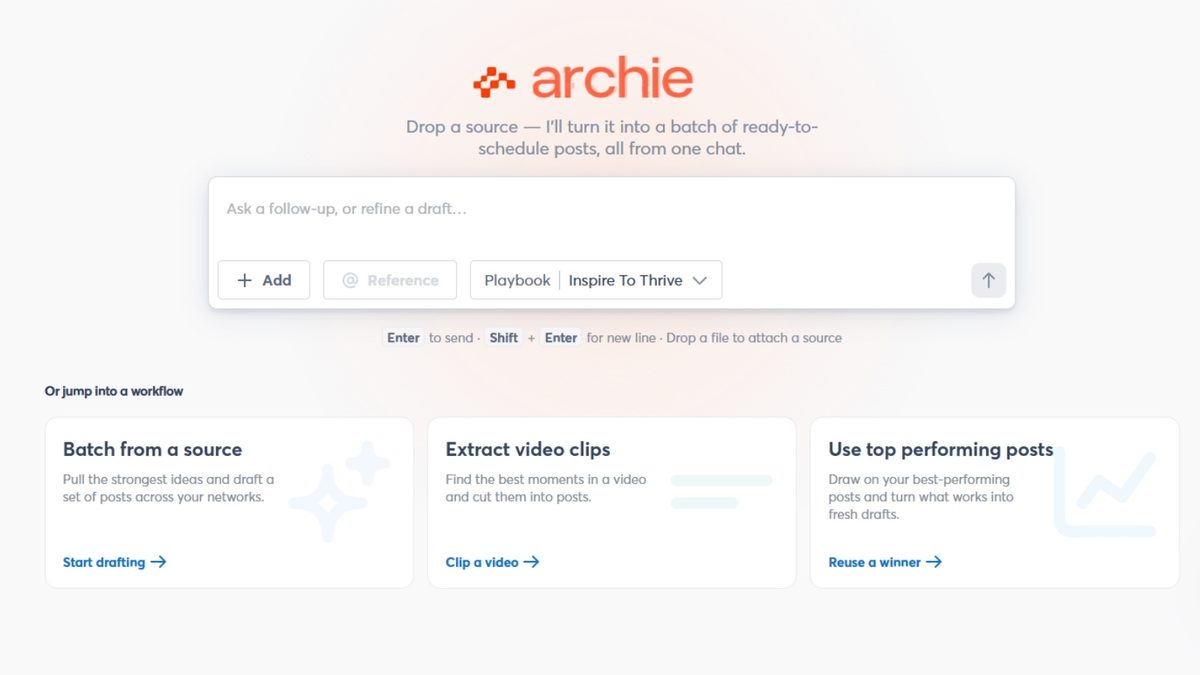
Start in Archie’s content creation studio by pasting the website URL for a blog post. Choose the option to extract one source, then wait while Archie analyzes the page.
Once it finishes analyzing the selected source asset, choose the social networks for your drafts. In this walkthrough, the drafts were prepared for Instagram and Facebook.
Archie then suggests angles based on the source. One suggested angle focused on a no-team, zero-budget, organic approach. Pick the angle that fits the post you want to share.
You can also apply a Playbook before generating drafts to follow a repeatable content workflow or preset.
The basic process goes like this:
- Paste in the blog URL.
- Extract and analyze the source.
- Choose the social accounts.
- Select a suggested content angle.
- Generate the drafts.
In Composer, you can assemble and review the drafts. Writing Assistant can also help refine the generated copy before publishing.
For this example, Archie was asked to generate four drafts for two accounts. It takes a little time to draft them, but it sure beats staring at a blank screen asking, “Okay, what should I do next?”
You can find Agorapulse’s platform to see the broader publishing setup behind the workflow.
Review the Drafts Before Scheduling
Edit the Copy, Hashtags, and Message
Archie gives you draft copy, but you don’t have to use every word exactly as it appears. Open each post in Composer and check the text before it goes out.
One Instagram draft included five hashtags. Review those alongside the message, the tone of voice, and whether the post fits the platform.
Always review AI-generated copy before publishing. A draft is a starting point, not the final version.
You may need to adjust wording, remove something that feels off, or make the post sound more like you. The Writing Assistant can help refine the wording after Archie creates the initial draft. (Something I didn’t do in the video for lack of time.)
A Playbook can also guide consistent copy and visual-review steps, especially when you’re managing social media for clients.
Create a Visual Hook or an Infographic
The video shows a few visual choices inside Archie:
- AI-powered visuals.
- A visual hook.
- An infographic.
For the Facebook drafts, Archie created both a visual hook and an infographic. The images came together quickly, and one infographic-style graphic looked especially good for Facebook.
Before keeping an image, check that its brand theme matches your business. You can also edit the draft around it, delete it, or generate another version. You’re not locked into the first image that comes up.
Schedule the Drafts in the Calendar
From the draft, open the calendar and choose a date. The calendar marks days with scheduled posts using small dots, helping you avoid overloading a single day.
The walkthrough scheduled posts across several September dates:
- The 8th
- The 10th
- The 16th
- The 23rd
- The 30th
Archie also calculates suggested or optimal publishing times. In the video, some Instagram recommendations were late at night. That didn’t align with the creator’s experience, so those times were treated as tests rather than rules.
For Facebook, a suggested 9:00 a.m. time felt right. A LinkedIn suggestion of 11:00 a.m. also made sense.
If your Playbook includes a repeatable publishing cadence, compare it with Archie’s suggestions. Your audience data should take priority.
Use the suggested time as a starting point, then compare it with what you’ve seen from your own audience.
Once the date and time look good, choose Schedule and move on to the next draft.
Find Your Top Posts From the Last 90 Days
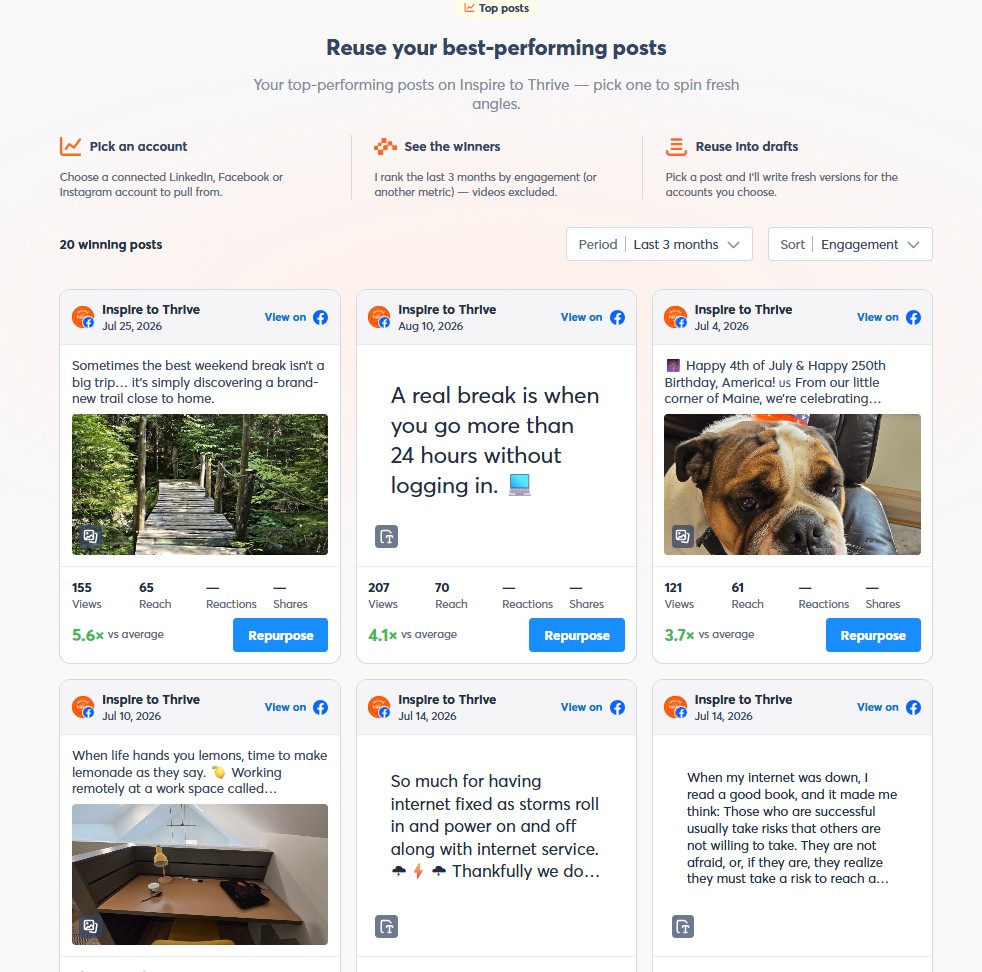
Archie isn’t only for turning blog URLs into social content. It can also find your top-performing posts from the last three months for content repurposing. This turns proven ideas into fresh opportunities without copying them verbatim.
In the walkthrough video, the request was to show the top 20 posts over the past 90 days. That brought up posts from July, August, and September, including one from August 10, a hazy day, a porch photo, a tornado post, and a countryside post from my rural area life blog.
This is helpful when you need ideas and don’t want to start over. Review what performed well, then decide whether the topic still makes sense to revisit.
Skip Posts Tied to Old Dates or Expired Offers
Not every strong post should be reused. A real estate client may have posts about open houses or new listings that are no longer active. Those aren’t good choices to refresh later.
A repeatable Playbook can help you identify safe opportunities to revisit. Focus on evergreen content instead of expired listings or event-specific updates.
Other posts can work well again, especially when they aren’t tied to a past event, listing, or date.
Good candidates in this workflow include:
- Evergreen observations.
- Helpful posts that performed well.
- Content that can be rephrased without changing the meaning.
- Posts that still fit the audience today.
This is similar to the idea behind repurposing content for maximum effectiveness, but check whether the original post still works before reusing it.
Refresh an Older Post With the Tool
Generate a New Version of a Top Performer
Choose a post from the top-performing list, then select the option to repurpose it or generate a draft. Archie usually rephrases the post instead of copying it word for word.
In the video, a post about the quiet of the countryside was refreshed into a new draft about having actual silence in the countryside, without the constant humming of engines. The main thought stayed the same, but the wording was different.
This repeatable Playbook lets you revisit content that performed well while preserving the original message and changing the wording.
Read the Draft Out Loud Before You Schedule It
Even when the refreshed wording looks good, read it closely. Check that it matches your brand voice and tone.
Rephrasing only helps when the result still sounds like the business or client. One earlier draft didn’t match the client’s voice, so it needed editing before it could be used.
Use the Writing Assistant in Composer to refine the draft before saving or scheduling it.
AI can help with the draft, but you’re responsible for the final voice and details.
Archie may also add an image to the repurposed post. If you don’t want it, open Edit, delete the image, save the draft, and then schedule the post for a future date.
Use Archie With Different Platforms
The social platforms visible in Agorapulse include TikTok, YouTube, Facebook, Instagram, LinkedIn, and BlueSky. Available options depend on your configuration and the accounts connected to your Agorapulse account.
The same source can be adapted for different networks. In the video, blog-based social drafts were posted to Facebook and Instagram, while a video clip was tested on LinkedIn. Platform optimization shouldn’t erase your consistent tone of voice.
Archie also showed a Playbook while working through the content. It can support platform-specific adaptations, but every draft still needs a human review for voice and accuracy.
Extract Short Video Clips From a Longer Video
Add an MP4 Video File
Archie can also work with a video file. In the walkthrough, an MP4 was selected, though supported file types may depend on your current product setup.
This is similar to taking a longer video and pulling out shorter video clips. Archie identifies possible moments, but you still make the final choice. The creator mentioned using FlexClip to screen-record and turn long-form videos into short-form videos. Canva was also used for editing because it was already familiar and part of the daily workflow.
Archie gave several possible clips from the longer video.
Watch the Clip Before You Schedule It
Don’t assume every suggested clip is ready to post. One clip was rejected because the creator’s eyes were closed in the opening frame.
Another version looked better and was selected. The visual part still matters, even when AI suggests the clip idea.
Check the suggested video for:
- A good opening frame.
- A natural-looking expression.
- The right part of the original video.
- A clip that fits the platform you chose.
Generate and Schedule a LinkedIn Video Post
After selecting the clip, the first attempt didn’t schedule as expected. The clip was saved as a draft, then generated again for LinkedIn.
That version produced platform-optimized copy for LinkedIn. The video could also be downloaded if needed.
This creates a repeatable Playbook: select the source, review the suggested clip, adapt the copy for the target network, and schedule it.
The LinkedIn post was then scheduled for a Tuesday at 11:00 a.m. after checking the suggested best time. You can always return to the calendar and review the post after scheduling.
Generate Better Images When the First One Doesn’t Fit
Archie can create AI-powered visuals for fresh drafts and refreshed top-performing posts. In one example, an image was generated for a post about a preferred news source.
The first infographic-style result didn’t fit the message or the post’s visual identity. It had the wrong feel, so it was canceled rather than used.
A second try using a visual hook worked much better. That image matched the preferred news source post and was kept.
A simple Playbook can help you decide whether to keep, revise, or delete each image:
- Start with an infographic if it fits the topic.
- Switch to a visual hook if the first image fails to convey the message.
- Delete the image and publish without one if you don’t like the result.
You don’t have to keep a graphic just because Archie created it.
Add the Blog Link in the First Comment
For the preferred news source post, the full article link was added in the first comment during scheduling.
The wording used was:
Read the full post on Inspire to Thrive.
This was done for LinkedIn, and the video noted that Facebook may also support a first-comment link. Add the link after the main post copy is ready, so you don’t forget it.
The walkthrough also showed that Facebook content doesn’t have to use the same format every time. You can mix text posts, images, videos, infographics, and links to blog articles.
Don’t Schedule Too Far Ahead with Archie AI
You can build a month of content quickly with Archie. Four posts from one blog source, refreshed top performers, video clips, and generated visuals can fill your calendar fast.
But there was one important warning in the video. If big news breaks, you may need to pull back content scheduled weeks ahead.
That’s why staying about two weeks ahead was the preferred approach. You still have content ready to go, but leave enough room to react when plans change.
A repeatable Playbook looks like this:
- Choose a blog URL, a top-performing social post, or a video.
- Add it to Archie.
- Select the platforms for the content.
- Pick an angle or visual style.
- Generate several drafts.
- Review the copy and make edits.
- Keep, replace, or delete the generated image.
- Add a link in the first comment when needed.
- Pick a date and review the suggested publishing time.
- Schedule the post.
Archie by Agorapulse FAQ
Archie by Agorapulse is the AI content studio inside Agorapulse that turns a blog URL, a top-performing social post, or a video into platform-ready drafts for Instagram, Facebook, LinkedIn, and more.
Archie can analyze a blog URL and create multiple social media drafts for selected platforms. It can also suggest content angles and generate visual hooks, infographics, or other images.
Yes. Archie can identify top-performing posts from the last 90 days and create refreshed versions with different wording. Choose evergreen content and avoid posts tied to expired listings, past events, or outdated details.
No. AI-generated content should be treated as a starting point. Review the copy, tone, hashtags, images, links, and platform fit before scheduling each post.
Not necessarily. Use them as a starting point, then compare them with your audience data and past performance before choosing a final date and time.
The walkthrough recommends staying about two weeks ahead. This gives you a useful content buffer while leaving room to respond when news or business priorities change.
Put Your Existing Content Back to Work
The strongest aspect of this workflow with Agorapulse Archie AI tutorial is that you don’t have to start from scratch every time you need a social post. A blog URL can become several social media posts, older posts can get a new version, and a longer video can become a shorter clip for another platform.
Keep reviewing the content, images, timing, and voice before anything is published. Then you can schedule a couple of weeks ahead without letting the calendar get too far away from what’s happening right now.
Your content from the past 30 to 90 days may already include the next posts you need.
Have you tried Archie AI with Agorapulse? I’d love to hear about it in the comments below. 👇
Disclosure: This Inspire To Thrive blog post contains affiliate links. I may earn a commission from qualifying purchases at no extra cost to you. Some sections were drafted with AI tools and carefully reviewed/edited by me.

- Which Instagram Monitoring App Wins? EyeZy vs Peekviewer - October 20, 2026
- How to Use Social Media for the Best Black Friday Deals of 2026 - October 19, 2026
- How to Identify and Prioritize Your Money Pages (And Why I Just Updated Mine in Link Whisper) - October 19, 2026
Enjoy this content? Help me show up more often in Google by adding Inspire To Thrive as a Preferred Source: