
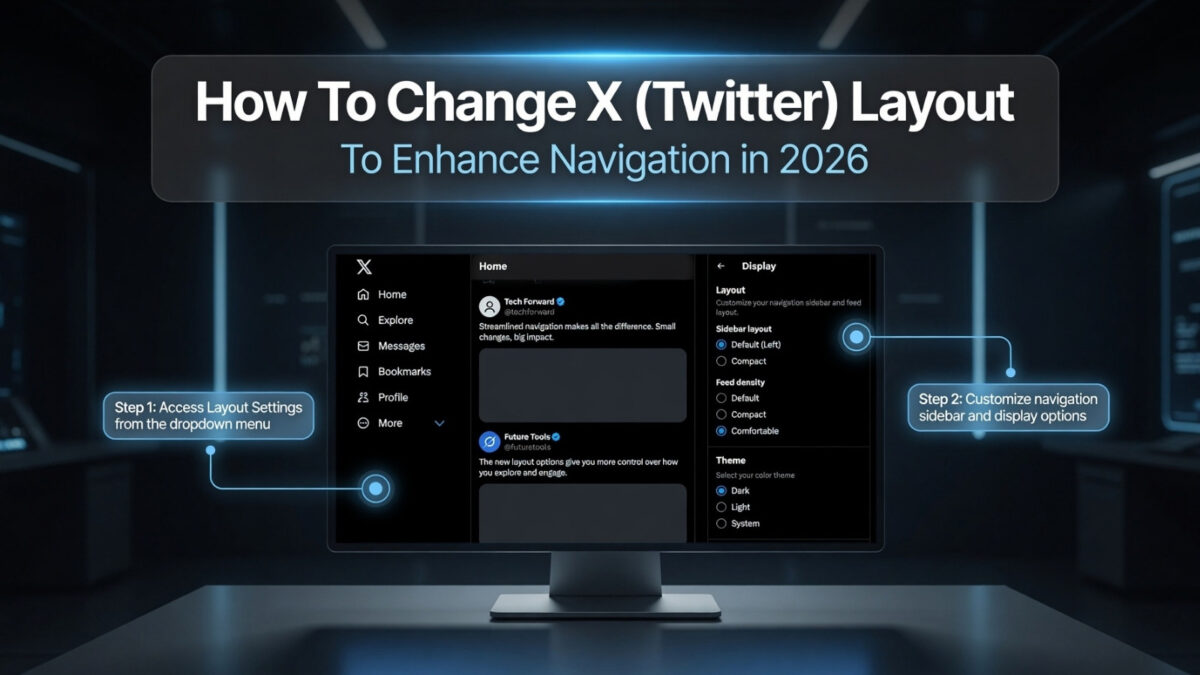
X (formerly Twitter) offers several ways to customize your layout and display settings to improve navigation, reduce clutter, and create a more comfortable experience on desktop or mobile. These tweaks help you better manage your feed, lists, bookmarks, and key interactions.
In this Inspire To Thrive guide, I’ll walk you through how to change the X layout step by step to make navigation easier and get more out of the platform, whether you’re a seasoned user or just getting started.
Estimated reading time: 8 minutes
Table of Contents
Accessing X Settings
Navigating to the “More” Tab.
- Once logged into your X account, navigate to the top-right corner of the screen, where you will find your profile picture.
- Click on your profile picture. This will open a drop-down menu.
- In the drop-down menu, scroll down and click on the “More” option. This will take you to the settings and privacy section of your X account.
That’s it! You have successfully accessed the X settings by navigating to the “More” tab.
How To Change X Layout
Selecting “Display”
From there, choose “Display” from the menu on the left-hand side. This will open up various options to personalize your X interface. (Note: On mobile, go to Settings and Privacy → Accessibility, then Display.)
Customizing Layout Options
Once you’ve accessed the “Display” settings, you can begin to customize your layout. You’ll be able to adjust the font size, choose a color scheme, and even toggle the “Dim” option to reduce the interface’s brightness.
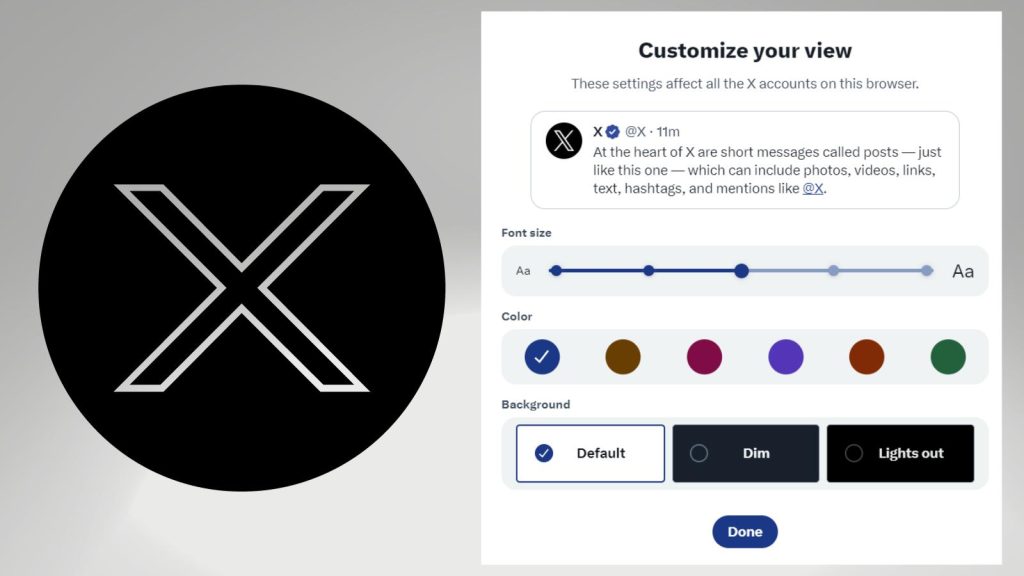
To begin customizing your X layout, log in to your account and click your profile picture in the top-right corner. A dropdown menu will appear; select “Settings and Privacy.”
Experiment with these options to create an X layout that suits your preferences and enhances your navigation experience. Changes usually apply instantly; refresh the page or app if needed.
X Premium users get additional options, such as custom navigation, under Premium → Preferences.
Utilizing X Lists and Bookmarks
Navigating through X can be simplified by utilizing lists and bookmarks effectively. These tools allow you to organize accounts and posts based on your preferences, making it easier to access the content that matters most to you.
Let’s look at how you can make the most of lists and bookmarks to streamline your X experience.
Creating and Managing Lists
When browsing through a multitude of accounts on X, creating lists can significantly streamline your experience. Lists enable you to categorize accounts based on specific criteria, such as interests, industry, or demographics.
To create a list, navigate to the Lists tab on your profile, click “Create new list,” and select the accounts you want to add.
Once created, you can easily access and manage your lists, keeping your X feed organized and tailored to your preferences.
Using Bookmarks for Efficient Navigation
Bookmarks on X are a handy feature that allows you to save posts for later reference. Whether it’s a valuable resource, an informative thread, or simply a post you want to revisit, bookmarks enable you to store these posts in a dedicated section for easy access.
To bookmark a post, click on the share icon and select “Add post to Bookmarks.” You can then access your saved posts from your profile menu, making it effortless to revisit content that resonates with you.
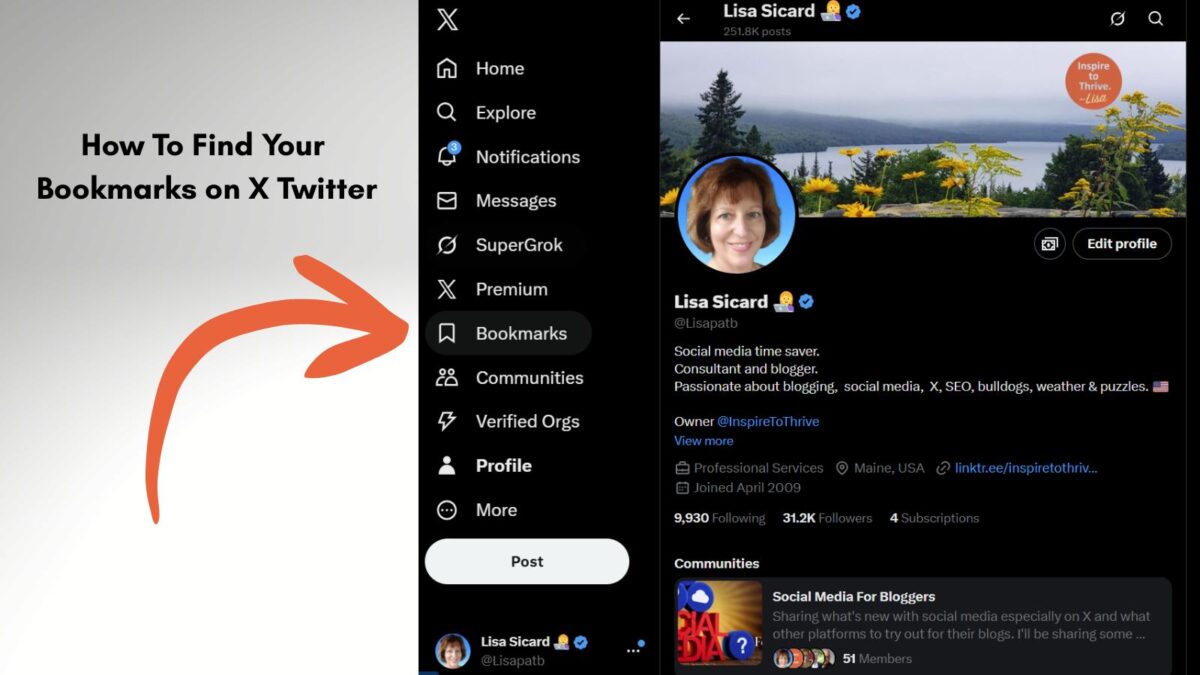
If you have an X subscription, you can manage many bookmarks in folders for each category.
👉 By leveraging lists and bookmarks, you can curate your X experience to align with your interests and priorities, ultimately enhancing your overall navigation and interaction on the platform.
Optimizing X Notifications
In a bustling platform like X, staying on top of your notifications is crucial.
Customizing your notification settings can help you prioritize what you see, keeping you informed without feeling overwhelmed.
Customizing Notification Settings on Your X Layout
X allows you to customize your notification settings to tailor your experience. You can choose to be notified about new followers, likes, reposts, mentions, and more.
By adjusting these settings, you can ensure you receive notifications about the interactions that matter most to you, helping you navigate the X platform more efficiently.
Managing Muted Words and Conversations
Managing muted words and conversations is another useful feature for optimizing your X experience. This tool allows you to mute specific words, phrases, usernames, emojis, or hashtags from your notifications, timeline, and more.
By muting irrelevant or sensitive topics, you can streamline your feed and focus on the content that aligns with your interests, making it easier to navigate and engage on X.
Enhancing Search and Explore on X
Leveraging Advanced Search in X Layout
X’s advanced search feature lets you refine your queries and filter results by parameters such as hashtags, phrases, user accounts, and dates.
By using advanced search, you can efficiently find relevant conversations and topics that align with your interests or business objectives.
Exploring Tailored Trends
X’s tailored trends feature provides a personalized experience by displaying trending topics tailored to your location and interests.
By exploring tailored trends, you can stay up to date with the latest discussions and popular hashtags in your niche, enhancing your overall X experience.
These posts are called “FOR YOU” on your X account today.
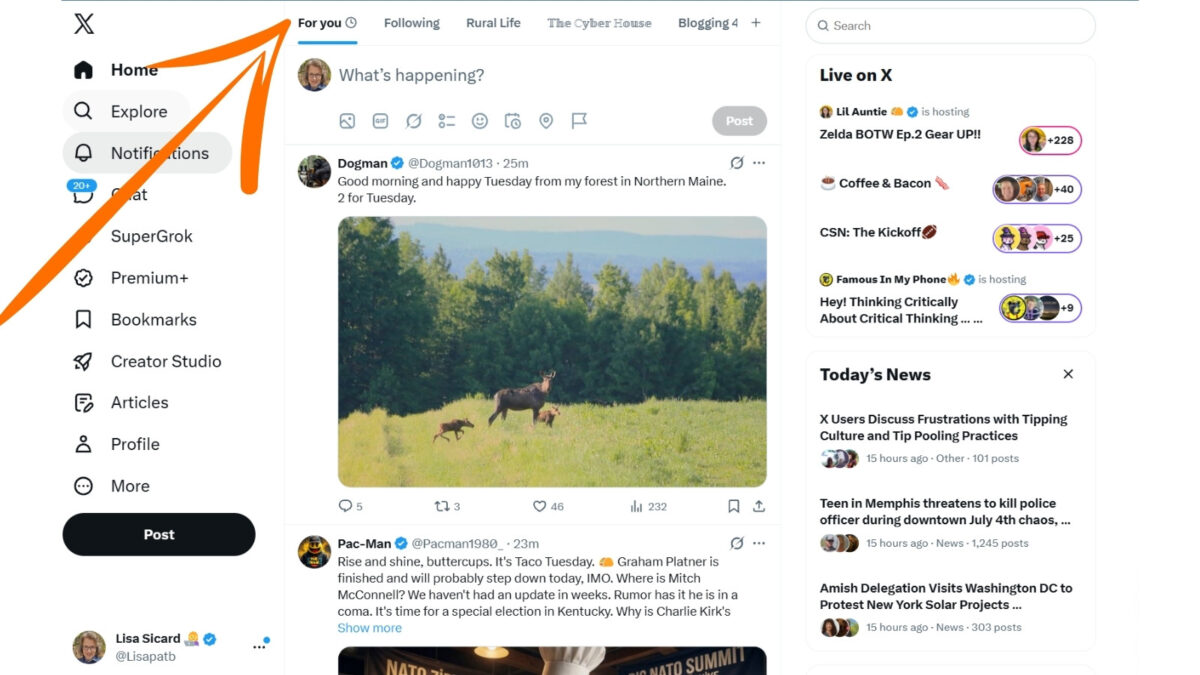
This feature helps you discover relevant content and join conversations that matter to you, ultimately increasing your engagement and visibility on the platform.
Limitations, Risks & Troubleshooting
What you cannot easily change: The core global layout structure, the deep feed algorithm, or the ability to create fully custom content blocks.
Common issues:
- Changes not showing? Refresh, log out/in, or update the app.
- Missing options? Check for X Premium or try on desktop vs. mobile.
- Revert anytime via Display settings.
Full Workflow
- Note current pain points.
- Adjust Display + set up Lists/Bookmarks.
- Test on desktop and mobile.
- Review after a day of use.
Conclusion: How To Change X Layout
In conclusion, changing the layout of your X account can significantly improve your navigation experience on the platform. By following the simple steps outlined here, you can customize your X layout to better suit your preferences and make it easier to access the features that are most important to you.
Whether you prefer a cleaner, more streamlined interface or want to prioritize specific elements on your X profile, customizing the layout can help you navigate the platform more easily.
Embracing these layout changes can lead to a more efficient and enjoyable X experience. Do note that if you are a seasoned user and you want to change your profile, you may have to wait 4 days to be approved on X.
What changes have you made to your X layout recently? I’d love to hear about it in the comments below. 👇
FAQS: Updating Your X Layout
To update your X profile picture, click on your current profile picture on your profile page. Then select “Edit profile” and click your current profile picture again to upload a new one from your device. However, note that it may take 4 days for X to approve any changes to an account.
To update your X header image, go to your profile page and click on the “Edit profile” button. Then, click on the header image and upload a new one from your device. This too may take up to 4 days to be approved on X.
The recommended dimensions for an X profile picture are 400×400 pixels, and for the header image, they’re 1500×500 pixels. Make sure to use images that are within these dimensions for the best results.
Yes, you can customize the colors and fonts on your X profile. Go to your profile page, click on “Edit profile,” and then select “Theme color” to choose a color scheme. Unfortunately, customizing fonts is not an option on X unless you have a premium account.
Yes, it is easy to pin a post. Click the 3 dots in the upper-right corner of your post, then click Pin Post. You can change your pinned post every 48 hours on X.
X and Twitter are used interchangeably in this article, as many still refer to X as Twitter.
Disclosure: This Inspire To Thrive blog post contains affiliate links. I may earn a commission from qualifying purchases at no extra cost to you. Some sections were drafted with AI tools and carefully reviewed/edited by me.
Comments are from previous years; the post was fully updated in July 2026 👇


- How to Use Social Media for the Best Black Friday Deals of 2026 - October 19, 2026
- How to Identify and Prioritize Your Money Pages (And Why I Just Updated Mine in Link Whisper) - October 19, 2026
- How to Build a Strong Online Presence for Solopreneurs in 2026 (Without Spreading Yourself Thin) - October 17, 2026
Enjoy this content? Help me show up more often in Google by adding Inspire To Thrive as a Preferred Source:



Hello Lisa,
The update is designed to make it easier to move around Twitter. Most noticeable change is the organization and layout of the Twitter home screen itself, which you have explored here very nicely.
With the update, the new navigation menu includes – Home, Explore, Notifications, Messages, Bookmarks, Lists, Profile and more will surely enhance user’s experience.
Thanks for sharing you amazing information with us.
With best wishes,
Amar Kumar
Hi Amar, it sure does make it easier to use Twitter now. One thing I figured out yesterday with going back and forth with someone tweeting is threads. They were hard to find but now you can look above their profile and see a little line. When you click on it you can see the original tweet and then you can respond back. It took a while to figure that one out! You are most welcome Amar. Thanks for coming by and have a great weekend.
Hi Lisa, thanks for this post. I obviously needed it as this is the first time I hear of Twitter Analytics. Silly me, I didn’t know Twitter had this feature. So I just turned it on for the first time. Thanks again, Lisa!
Hi SEO Services, what is your name? Next time this would end up in spam without a name. But you mentioned mine so I allowed it. Yes, I love the Twitter Analytics and they recently just updated them too. Enjoy the info!
Thanks for explaining the new Twitter layout, Lisa!. Definitely, some cool features here and I like the choice of colours.
Hi Debbie, you are most welcome. Yes, I love the feature of knowing on the feed who is following you or not. So much easier than any 3rd party tool. The colors are very neat! Thanks for coming by and enjoy the rest of your week Debbie.
Frankly speaking, I don’t have much idea about this feature. In fact, I am not that regular with Twitter as well. But I found this a very useful resource and features are quite good. Thanks for sharing useful information and educating us through your blog. Keep up the good work.
Hi Santanu, welcome to Inspire To Thrive. You are not alone in not knowing about these new Twitter features. I hope you will start to use Twitter reguarly and find it more useful after learning about these features and tips. Have a great day.
Hi Lisa!
Thank you for an overview of all of these changes. I actually wasn’t aware of all of them yet, now I’ve gone back to look for them. Very useful stuff.
My partner will be very happy that she’ll finally be able to turn the UI purple, hahaha.
Anyway, great to see how Twitter has been improving in recent months and look forward to even more improvements going forward!
– James McAllister
Hi James, you are most welcome. Yes, I thought the same thing and it took me a little while to uncover all of the features. Yes, any color you would like there on Twitter now James. I agree, loving the improvements! Thanks for coming by and have a great rest of your day there!
Hi Lisa,
I’m not using the new Twitter platform, but I will now that I see all the cool features.
It’s great to see where tweets are coming from and all the display options available.
I’m especially interested in exploring the Media Studio.
Thanks for this timely update… I’m on it.
-Donna
Hi Donna, YOU will LOVE It. I love these new features. And it is easier to use once you do for a day or so. The Media Studio is also cool and something I hope to use more of and talk about more in upcoming posts, stay tuned! Hope you are staying cool today as it is warming up out there as it should do in August. Enjoy the rest of your day Donna!
Hi Lisa,
I noticed that there were many changes over time on twitter. But I am not looking or posting often there and did not see the latest layout. Thank you for sharing, I will have a look at it.
Erika
Hi Erika, welcome to Inspire to Thrive. If you have a blog or a business you may be missing out on lots of traffic via Twitter Erika. It’s often my #1 source of traffic here and was my largest sale when I had a retail website years ago. It’s what got me going all about Twitter. Love to know your thoughts after you check it out! Have a great rest of the weekend! PS. I just visited your blog – I was just in Germany a few weeks ago, love travelling!!
Hello Lisa,
Thanks for the Mention. I am really thankful to you. Yes, I also like the new look of Twitter and That’s why I immediately pinged you about the changes. Since you have good command on Social media sites. So, It’s worth to see your views on it. New changes are definitely reducing the dependency of third party tools as you mentioned in this post. It definitely saves time and money as well. Thanks for sharing this beautiful post with us.
Regards,
Vishwajeet
You are most welcome and thanks again Vishwajeet. Yes, that is my favorite part – not needing those 3rd party tools anymore to find the source of the tweets and knowing if folks follow you back or not. Enjoy the weekend!
Hey Lisa mam,
Great post with great tips to use the new twitter layout. I really like the post and the tips that you have listed. Not only i like the tips mentioned by you but also gain information about how to use new twitter layout.I also like an idea of using Reviewz’n’Tips apps, whereas it is a great tool to know about who is following on twitter.
Really helpful post and thanks for sharing.
Hi Aadarsh, thank you. Yes, that was my favorite when I discovered it last week, to be able to see where others are sharing my tweets from. Thank you for coming by on this one and for your input. Have a great day!
Hi Lisa,
thanks for this post. I obviously needed it as this is the first time I hear of Twitter Analytics. Silly me, I didn’t know Twitter had this feature. So I just turned it on for the first time. Thanks again Lisa!
Hi Nikola, you are most welcome. I hope you also checked the link on the Twitter Analytics post I did a while back that is still valid today. They offer a wealth of info and I try to check mine monthly as they do change from time to time. Have a great day Nikola!
Hi Lisa, Did you know that I didn’t notice the changes to the new layout? Yes, I didn’t know about it until I read Simon Zaku’s tweet. Then I went to check things out. What fascinates me is the feature that shows where tweeps are tweeting your content from. It reveals those who are really supporting your marketing efforts.
Bytheway, thank you for adding a tweet from my feed. Well appreciated!
You are most welcome Moss.
Hi Moss, yes, the were subtle until you really starting clicking here and there. I love that feature! No more 3rd party apps to use and most were no longer working with the Twitter API. Thanks for coming by Moss and have a great day ahead!
Hi Lisa, I have used the Twitter Media Studio and you will find all of your media there from past Tweets. Images, Gif and videos can be stored there too. It makes things super easy to retweet something you shared before with new text!
One downside of the new layout is for people who use Twitter Moments. They are really hard to update (you have to know where to find them first) and based on that change I don’t think Twitter is showing much love to those Moments we have curated over the last couple of years since they were introduced.
Thanks for the post Lisa! Happy tweeting.
Hi Ileane, Nice to know, thank you. Oh yes, those moments have not been too easy to use or do. I would agree that Twitter may even phase those Twitter moments out. You are most welcome and have a marvelous Monday Ileane!
This is fantastic, Lisa! I noticed mine updated a few weeks back but haven’t noticed on mobile yet. Maybe I better take a peek! When the beta version came out and didn’t really care for it. But now that I’ve used it, I’m liking it more and more. The extra features are a major plus! Thanks for sharing this! I have Twitter open in another tab and I’m going to tweak it a bit more. Happy Monday!
Thank you Bren. Correct – not everything is on mobile but if you open the tweets up you will see it, I double checked after reading your comment here. These Twitter features are definitely a major plus in my book! You are welcome. Best of luck tomorrow, Bren. I will be thinking of you!