Broken links send readers to dead ends and make Google waste time on pages that no longer exist. The fastest way to find broken links is a simple scan → fix → rescan workflow that fits a busy publishing schedule.
This guide walks you through the exact process I use on Inspire To Thrive: start with Google Search Console, then scan with a WordPress plugin or an external crawler depending on your setup. You’ll see when Link Whisper is the better choice (and how to get $15 off with code INSPIRE), plus free alternatives if you’re not on WordPress or prefer a desktop tool.
Use the comparison table and priority order below to fix the links that matter most first.
Estimated reading time: 9 minutes
Table of Contents
Key Takeaways
- Broken links hurt user experience, SEO, and website trust by increasing bounce rates and wasting crawl budgets.
- To find broken links on the site, use tools like Link Whisper to find them fast.
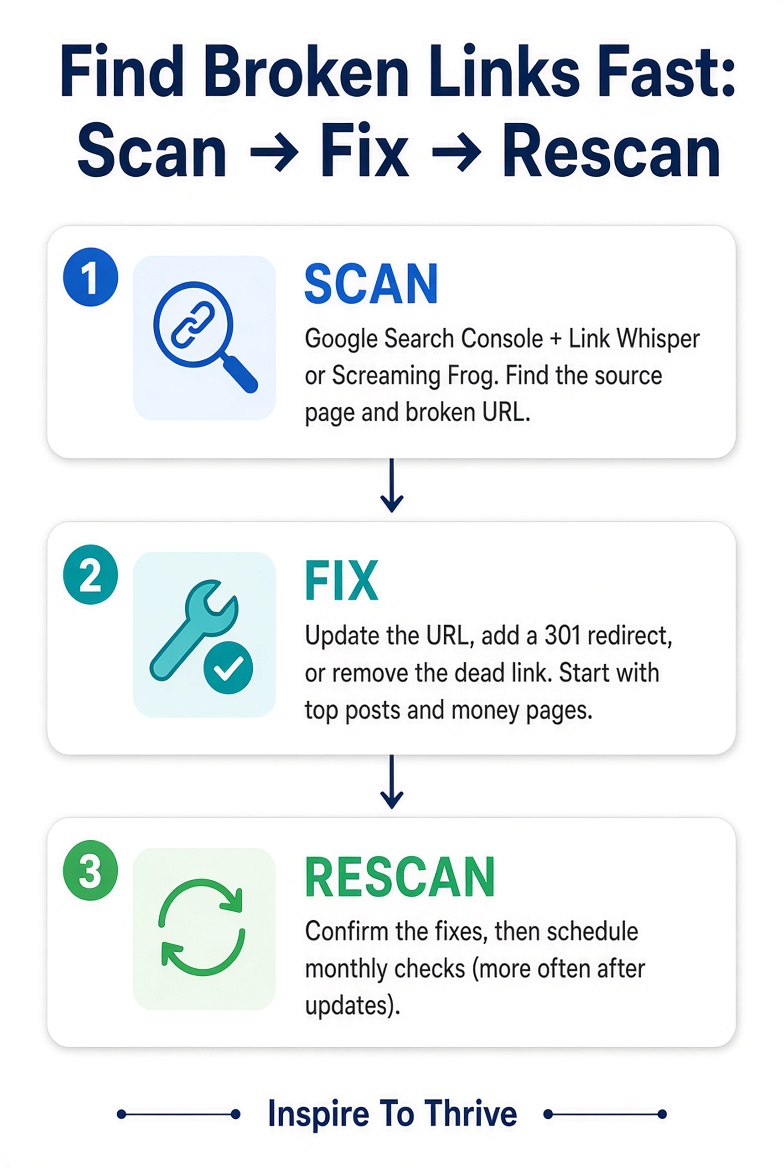
- Regular scans help identify issues quickly; schedule monthly checks and increase frequency after major updates.
- Fix broken links by updating URLs, using 301 redirects, or removing dead links to maintain a clean link profile.
- Implement a simple workflow: scan, fix, and rescan to keep your links functional.
Why Finding Broken Links On Site Matters for SEO and Readers
Google Search Console is a useful free first step. Go to Pages, filter to Not found (404), and look for URLs that still get impressions. Those are pages Google tried to crawl and couldn’t reach.
That is all Search Console does for this task. It does not give you a complete, up-to-date list of every broken link on your site, and it does not show you the source page that contains the bad link. A crawler or link-checking tool is better for finding the exact broken destination and the page that links to it so you can fix it.
Use Search Console as the discovery step, then follow up with a full scan (Link Whisper, Broken Link Checker, or Screaming Frog) to locate and repair the actual links.
When you find broken links early, you protect both user experience and crawl efficiency.

Which Tool Should You Use? (Quick Comparison)
Finding broken links is straightforward once you pick the right tool for your setup. Here’s a simple side-by-side look at the options I use or recommend most often.
| Tool | Platform | What it checks | Free access | Best for |
|---|---|---|---|---|
| Google Search Console | Any site | 404s Google already crawled | Free | First discovery step |
| Link Whisper | WordPress | Broken links + internal link suggestions | Free / Paid | WordPress linking + fixes |
| Broken Link Checker | WordPress | Internal + external links | Free | Ongoing WP monitoring |
| Screaming Frog | Desktop (any site) | Full crawl + source page | Free to 500 URLs | Small sites or one-off audits |
| BrokenLinkCheck or Dead Link Checker | Online (any site) | Quick broken-link scans | Free tiers | Fast checks, no install |
| Ahrefs or SEMrush | Cloud | Site audit + external data | Limited free / Paid | If you already use the suite |
Note on Google Search Console: It surfaces URLs Google already knows about that returned a 404. It is not a full-site broken-link inventory and does not show the source page. Pair it with a crawler or plugin for the complete picture.
My go-to for WordPress sites is Link Whisper, which scans for broken links and suggests smart internal links within the same workflow. Use code INSPIRE at checkout for $15 off. If you’re not on WordPress or prefer a pure crawler, Screaming Frog or one of the free online checkers works well.
Fewer 404s Means Better UX, More Clicks, and Stronger Rankings
Broken links don’t automatically tank your rankings, as some older advice claimed. A normal 404 is not a ranking penalty. The real problems are practical: visitors hit dead ends, internal navigation breaks, and Google can waste crawl budget on unimportant URLs.
👉 Cleaning them up improves user experience and keeps your site easier for search engines to crawl.
Quick Signs You Have Links That Are Broken
You see 404 error pages in analytics. Readers leave comments about dead resources. Google Search Console flags not-found errors and broken outbound links.
Google Search Console is the free first pass. Open Pages, filter to Not found (404), and start with URLs that still get impressions.
Set a monthly check as your baseline, and increase to weekly after site updates or migrations.
Fast Ways to Find Broken Links on a WordPress Site
To find bad URLs on your WordPress site, start with a rapid scan, then confirm with a second pass.
Keep it simple and fix the issues in batches using these URL checkers.
Scan and Fix with Link Whisper (fast internal link wins)
Use Link Whisper, an SEO tool, to quickly scan and repair links. It spots broken internal and external links and lets you fix URLs or unlink them from one report.
👉 It crawls a site to suggest smart internal links that strengthen your site structure and uncover link-building opportunities.
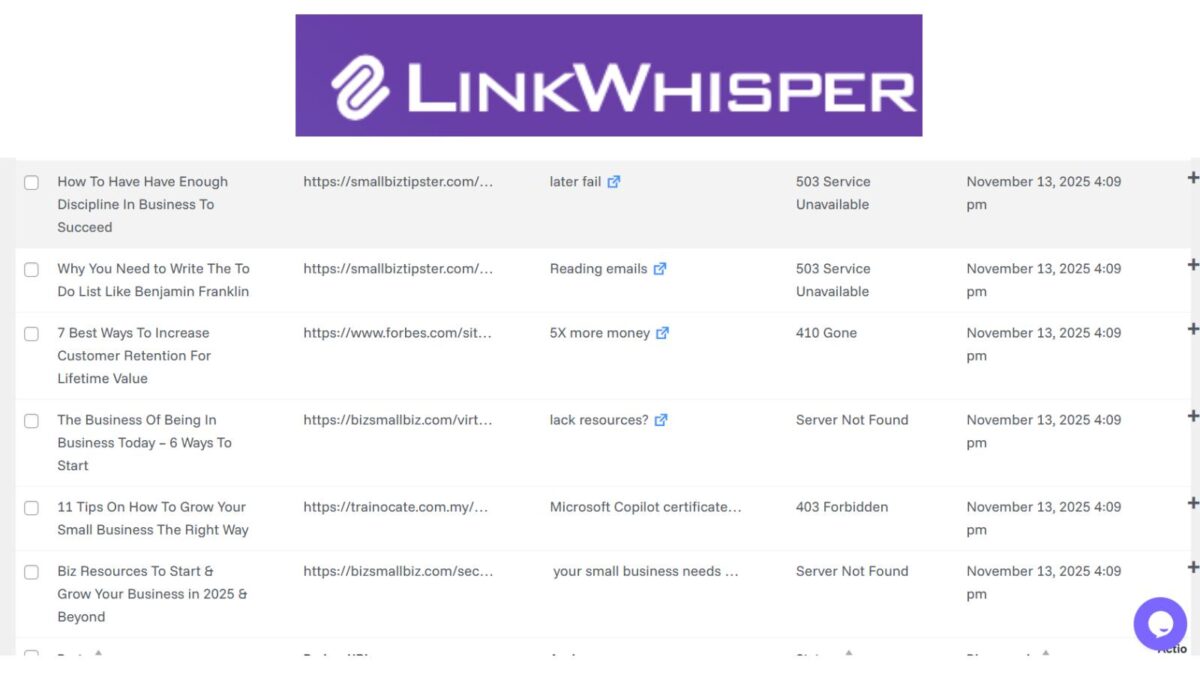
A scan can sometimes flag a URL that is only temporarily unavailable, redirected, or blocked. Before you remove a link or change a URL, open the source page yourself and test the destination. Confirm it’s truly broken before you edit.
Use Broken Link Checker for Automatic Alerts and Bulk Edits
Use Broken Link Checker, a link-checking plugin that checks posts, pages, and comments for dead or redirected URLs. You can edit the link in place or remove it from a single dashboard.
👉 Tip: After a big round of fixes, pause or deactivate the plugin to keep your site speedy.
Double-Check with Ahrefs, SEMrush, or Dead Link Checker
To verify external links, run an external crawl to catch misses. These secondary checkers are useful for scanning the underlying HTML code.
The free Ahrefs Broken Link Checker, an online tool with the largest live backlinks database, quickly lists broken outbound links you can sort and prioritize.
For a lightweight second opinion, try Dead Link Checker, a site validation tool, and export data from the results. Sort by top posts and money pages first.
Fix Broken Links and Pages Fast: Update, Check for Redirects, or Remove
Use a simple flow to fix issues, save time, and protect rankings. The fastest way for most people to find broken links is to start with Search Console and then run a full scan.
Fixing broken links is one piece of a bigger recovery. Once you find broken links, prioritize internal ones on your top posts first.
If your site is not on WordPress:
- Check Google Search Console for any 404s Google already knows about.
- Run a crawl with Screaming Frog (free version covers up to 500 URLs) or an online tool such as BrokenLinkCheck.com.
- Export the results, fix the high-priority URLs first, then crawl again to confirm.
Screaming Frog is especially useful because it shows you the exact source page for every broken link.
👉 If your organic traffic has dropped, start with the full 30-day plan in How to Revive a Struggling SEO Strategy.
Update the URL or Replace the Source When There is a Better Match
If the target page moved, paste the new URL. To fix dead weblinks, if the resource is gone, replace it with a similar, trusted source. Test the link after the change.

Add a 301 Redirect for Moved or Renamed Pages
If the dead link points to your site, set a 301 to the closest match. This recovers link equity, guides users to the right place, helps mitigate the impact of 404 errors, and cleans up future scans.
Remove Dead Links and Rescan; Schedule Weekly Checks
A monthly scan is a solid baseline for most sites. Scan more often after a migration, permalink change, redesign, or major content update. Once you’ve cleaned things up, you can often drop back to monthly.
Conclusion: Fix Broken Pages Fast
Scan, fix, rescan, then schedule ongoing checks. Start with the links on your top posts and money pages. A simple monthly habit is usually enough once the big issues are cleaned up.
Ready to move faster on the internal-link side? I use Link Whisper on my own sites because it finds broken links and suggests better internal links in one place. Use code INSPIRE for $15 off.
FAQs: Finding and Fixing Broken Links on a Website for Better SEO
Not as a direct ranking penalty. Google treats normal 404s as a normal part of the web. What actually costs you is the click that dies, internal links that stop passing visitors to your best pages, and crawl time spent on dead URLs.
Start with Google Search Console (Pages → Not found). Then run one site scan with Link Whisper or Broken Link Checker. Fix the links on your top posts and money pages first. Search Console shows URLs Google already tried to crawl; a plugin or crawler shows you the exact source page so you can fix it.
Once a month is enough for most small sites. Scan again after a redesign, a URL or permalink change, or a big content cleanup.
Internal. Those are your paths to money pages, contact pages, and cornerstone posts. Then update or remove dead outbound links so recommended resources still work.
Use Google Search Console first, then crawl the site with Screaming Frog (free version covers up to 500 URLs) or a free online tool such as BrokenLinkCheck.com. Export the results, fix the highest-priority URLs, and crawl again to confirm.
Disclosure: This Inspire To Thrive blog post may contain affiliate links. I may earn a commission from qualifying purchases at no extra cost to you. Some sections were drafted with AI tools and carefully reviewed/edited by me.

- Social Media Lead Generation: Strategies for Success in 2026 - October 27, 2026
- How to Reset Your Facebook Feed in 2026 (No Magic Button) - October 27, 2026
- Website Bounce Rate: What It Means in 2026 (and How to Improve It) - October 26, 2026
Enjoy this content? Help me show up more often in Google by adding Inspire To Thrive as a Preferred Source: