You can publish a great video and still get disappointing clicks. That stings, especially when you know the content deserves more attention. In most cases, the culprit is the thumbnail.
That’s exactly why I’ve been actively using Thumbs.ai for the past few weeks on my own YouTube videos and client projects. This AI-powered tool lets you create thumbnails with Thumbs.ai in seconds, whether starting from a text prompt, an existing image, a video frame, or even generating different facial expressions. No more hours stuck in Canva or Photoshop.
In this honest review, I’ll walk you through the key features, show real results I’ve seen, share what works well (and what doesn’t), and help you decide if Thumbs.ai is worth it for your workflow in 2026.
Estimated reading time: 14 minutes
Table of Contents
Why Better Thumbnails Matter for YouTube Growth and Social Media Clicks
A thumbnail is the front door to your content. If the cover doesn’t catch attention, people may never find out how good the video is.
That’s why this matters so much for YouTubers, solopreneurs, and small business owners. You’re already writing, recording, editing, posting, and promoting. Spending another hour trying to make one decent thumbnail can feel like too much. When a tool helps you move faster and still look polished, that’s a big win.
Most creators don’t struggle because they lack ideas. They struggle because packaging takes time. You know what the video is about, but turning that into a clean, clickable image is another job on top of everything else.
Sometimes the thumbnail is too busy. Other times it’s dull, off-brand, or hard to read on mobile. And if you post often, consistency becomes its own battle. One video looks sharp, the next one looks rushed, and the whole channel starts to feel uneven.
That gap between good content and weak presentation hurts more than people realize. You can be helpful, entertaining, and on-topic, yet still get passed over in a crowded feed because the visual didn’t stop the scroll.
This is where an AI thumbnail tool makes sense. It doesn’t replace your judgment, but it can reduce the time it takes to reach a better option.
What makes a thumbnail worth clicking
The thumbnails that pull attention usually do a few simple things well. They have contrast. They have one clear focal point. They often use a face, an expression, or a short phrase that gives the viewer a reason to care.
You don’t need a wall of text. In fact, less is usually better. A strong expression, a clear subject, and a visual cue like an arrow or a circle often do more work than a crowded layout full of tiny details.
That showed up clearly in the examples. A fun text prompt about being on a thumbnail with a dog produced multiple directions, each with a different feel. Some were playful. Some leaned into emotion. That matters because people react to emotion fast.
Consistency matters too. Even small design choices can make a channel easier to scan. The same idea applies to custom playlist thumbnails that help viewers sort content faster. When people recognize your look, your content feels more familiar before they even click.
How Thumbs.ai Compares to Other Tools
I’ve been using both Fliki (which I covered in my earlier guide on creating video thumbnails) and Thumbs.ai side by side.
Fliki is excellent when you’re already creating the full video on the platform; it automatically generates three solid thumbnail options based on your video transcript, streamlining your workflow. However, Thumbs.ai is a dedicated thumbnail specialist.
Thumbs.ai gives you far more control and creative power: you can recreate thumbnails from existing images or old videos, generate custom facial expressions, clone styles from other creators, and fine-tune details with much greater precision.
If you just need quick auto-thumbnails while making videos, Fliki is convenient. But if you want higher-quality, more clickable results and the ability to refresh older videos on your channel, Thumbs.ai stands out as the stronger dedicated tool.
Thumbs.ai vs Fliki Pricing Comparison (2026)
| Feature | Thumbs.ai (Dedicated Thumbnail Tool) | Fliki (Video Creation Tool) |
|---|---|---|
| Free Plan | Yes – 20 trial credits (~10 thumbnails) | Yes – Limited minutes + watermarks |
| Starter / Lowest Paid | Premium: $11/mo (or $137/year) – 160 credits | Standard: $21–$28/mo (yearly) |
| Mid Tier | Ultimate: $29/mo (most popular) | Premium: $66–$88/mo |
| High Tier | Master: $71/mo | Higher tiers / Enterprise (custom) |
| Best For | Creators who need high-volume, high-control thumbnails | Creators who want full AI video + basic thumbnails |
| Thumbnail Focus | Excellent – specialized tools (recreate, face swap, style clone) | Good but basic – 3 auto-generated options per video |
| Credit System | Credits per thumbnail generation | Credits based on video minutes |
Notes:
- Thumbs.ai is significantly cheaper if your main need is thumbnails only.
- Fliki makes more sense if you’re already using it for full video creation (text-to-video, voiceovers, etc.).
- Both offer yearly discounts (Thumbs.ai saves ~40%).
A Quick Look at How to Create Thumbnails with Thumbs.ai
The dashboard gives you several paths right away. You can start with text-to-thumbnail, image-to-thumbnail, thumbnail recreation, face generation, style options, and a YouTube thumbnail downloader. It doesn’t feel overly technical, which is part of the appeal.
If I can use it, you can too. The basic flow is simple. You enter a prompt or upload an asset, choose a style, pick how many versions you want, set the ratio, and let it generate. From there, you compare the options, check the scores, and pick the one that best fits your video.
Text to thumbnail for fast idea generation
This is the fastest way to get started when you know the idea but don’t have a visual yet. You type a prompt, choose whether to include your face or another asset, pick a style, and generate a few versions at once.
One example used a playful prompt to show my dog and me in a thumbnail, with an excited face added. The result was four different options, all built from the same starting idea. That alone is helpful because a single concept can lead to several creative directions in seconds.
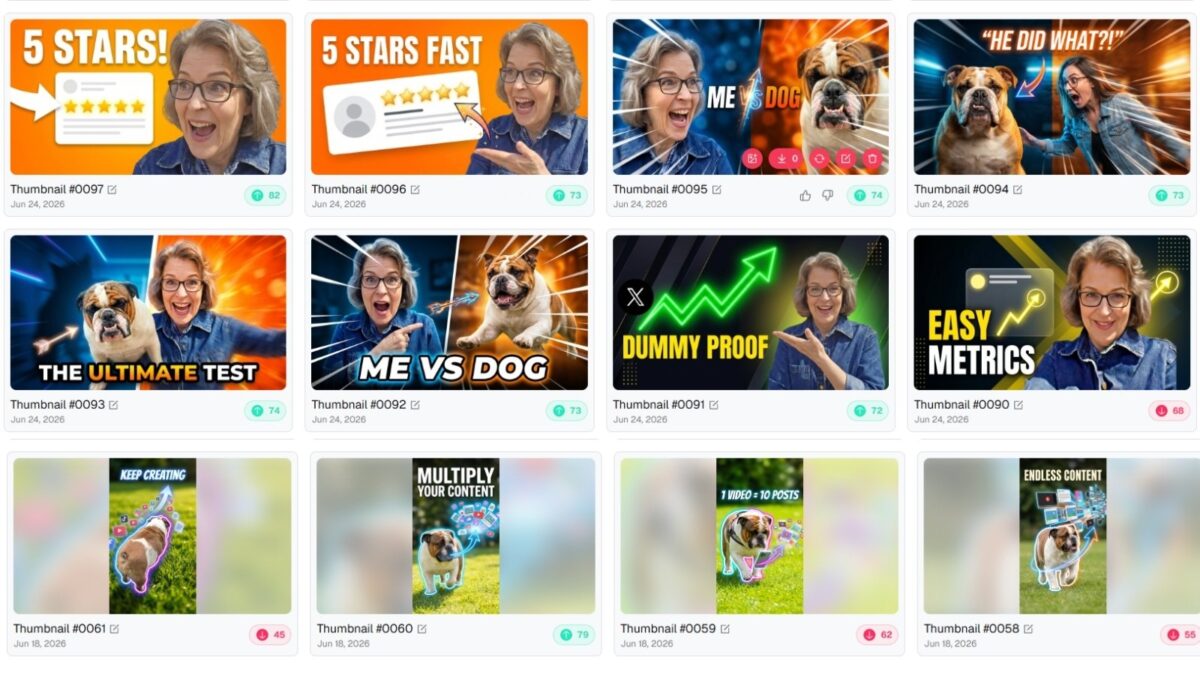
The style choices also make a difference. Options like pop-out effects, arrows, and circles can push a thumbnail toward a more YouTube-friendly look without you having to build that layout manually. You also choose the ratio based on where the image will be used, such as standard long-form YouTube video sizing.
What I liked here is the speed. You don’t have to sit there blankly staring at Canva, wondering where to begin. If you’ve got the concept in your head, you can get it into thumbnail form fast.
Image to thumbnail for turning existing assets into stronger covers
This feature is handy when you already have a photo, screenshot, or graphic that needs more punch. Instead of starting over, you feed the image in and tell the tool what kind of result you want.
One example reworked an existing asset into a Google review-style thumbnail while still keeping my face in the design. That kind of prompt is practical. You’re not asking for art for art’s sake. You’re asking for a better wrapper for a real topic.
The generated versions looked more polished and more intentional. One of them even pulled in my orange branding, which I loved. That’s the kind of detail that helps a thumbnail feel as if it belongs on your channel rather than looking random.
If you’ve got old screenshots, client assets, headshots, or half-finished ideas sitting in folders, this can help turn them into usable covers much faster.
Face generator, style cloning, and thumbnail recreation
Thumbs.ai also includes a face generator, which is useful if you want different expressions without having to shoot a bunch of extra photos. You can take a profile image and create versions that look happy, upset, excited, and more. For creators who often use their faces in thumbnails, that opens up a lot of flexibility.

- The style cloning side is about consistency. If you already have a channel that works, this can help you stay in that lane instead of reinventing your design every week. That matters more than people think. A consistent look makes your content easier to recognize in a crowded feed.
- Then there is thumbnail recreation, which ended up being my favorite feature. You can upload a thumbnail or paste a video link, and use that video as the starting point for a refresh. If your older covers feel dated, dingy, or just no longer fit your current brand, this is where the tool gets fun.
One small but important note, in my own testing, long-form videos seemed to benefit more than Shorts. I didn’t notice a big lift from custom Shorts thumbnails on the few I tested. For Shorts, the opening frame often matters more than it does on my 2 YouTube channels. (Yes, I have another one for Rural Area Life.)
If your Shorts cover catches you mid-weird-face, go back and fix that first frame. That can matter more than a fancy design.
The Thumbs.ai Features That Save the Most Time
The biggest benefit here isn’t only that the tool can make thumbnails. It can shorten the part of the process that usually drags on. When you’re publishing often, shaving off decision time matters.
A few features stood out because they fit real creator workflows, not fantasy ones.
Regenerate old thumbnails without starting over
This is the one I keep coming back to. Paste a YouTube video link, let the tool grab the current thumbnail, describe the video, add your face if you want, choose a style, and generate fresh options.
That’s much easier than rebuilding an old video cover from scratch. It also makes it realistic to go back through your library and update content that still has value but looks dated. A lot of creators have older videos sitting there with weak covers from years ago. The content may still help people, but the thumbnail isn’t doing it any favors.
One example used an older video about enhancing posts on X with Grok AI. Instead of leaving the original cover alone, the tool created new directions based on the same topic. That gave the video a fresh chance without changing the content itself.
If you’ve been meaning to clean up older videos but keep putting it off, this feature removes a lot of the friction.
Clone a channel style for a more consistent look
Brand consistency sounds boring until you don’t have it. Then every video looks like it was made by a different person.
Style cloning helps bring your thumbnails into closer visual alignment. Maybe your channel uses bold faces, arrows, circles, or a certain color direction. Maybe you always want a specific type of pop-out effect. When those elements repeat in a smart way, viewers start recognizing your content faster.
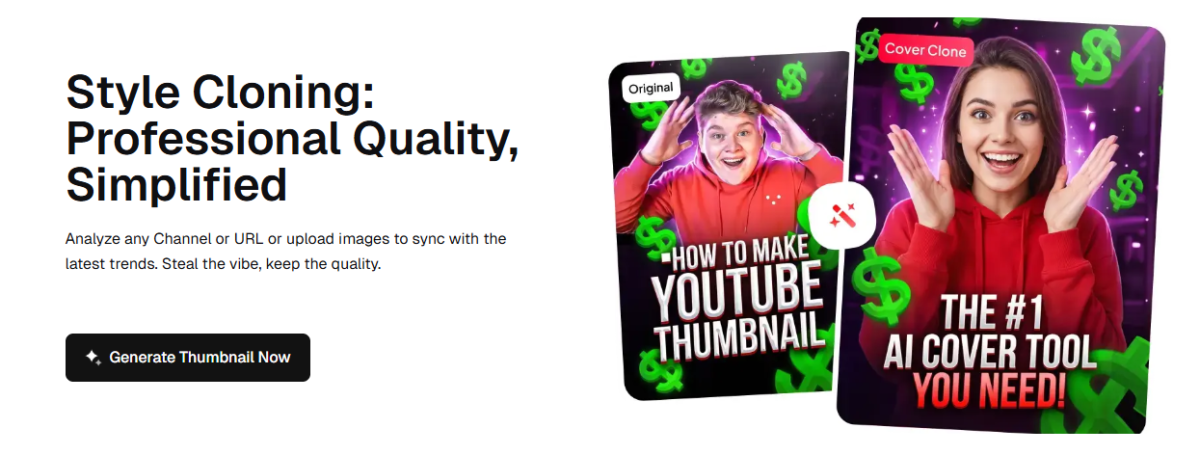
That doesn’t mean every thumbnail should look identical. It means they should feel related. Think of it like a bookshelf. The books don’t need the same cover, but they should look like they belong in the same collection.
👉 For busy creators and small businesses, that kind of consistency is hard to maintain by hand. A tool that helps hold the visual line can save a lot of back-and-forth.
Download and extract thumbnails in one place
The downloader is one of those quiet little extras that proves useful. You paste in a YouTube link, and it extracts the highest-resolution original cover image with one click.
That helps if you want to save a reference, review your past work, compare before-and-after versions, or keep a library of assets on your desktop. It also makes channel audits easier. Instead of hunting around for files, you can pull what you need quickly.
I also liked that the platform keeps your uploads and generated assets visible, so you can go back, review what you’ve made, and revisit earlier versions when needed.
How the Grading and Preview System Helps You Pick the Best Thumbnail
Generating thumbnails is one thing. Choosing the best one is where people often get stuck.
Thumbs.ai adds a grading layer that helps with that. When you generate several options, the tool scores them, which gives you a quick visual nudge about which ones may be stronger.
Why having multiple thumbnail versions is useful
Seeing several versions side by side is better than forcing yourself to fall in love with the first draft. One thumbnail might have a better expression. Another might frame the text more clearly. A third might simply feel more on-brand.
That showed up in the examples. Some versions looked great. A few didn’t quite match my face the way I wanted. One hairstyle felt off. Another one nailed the concept. That variety is useful because it gives you choices rather than locking you into a single interpretation.
This also helps when you’re testing tone. Do you want the thumbnail to feel urgent, curious, playful, or polished? Generating multiple versions helps you answer that without opening a design app and rebuilding everything piece by piece.
How to use grading without overthinking it
The score is helpful, but it isn’t the boss. It’s there to reduce guesswork, not replace your judgment.
In the demo, the higher-performing options were marked more clearly, and the stronger ones showed up in green. In one case, the version I liked best was also the one that graded best. That’s a nice confidence boost, especially if you’re stuck between two choices.
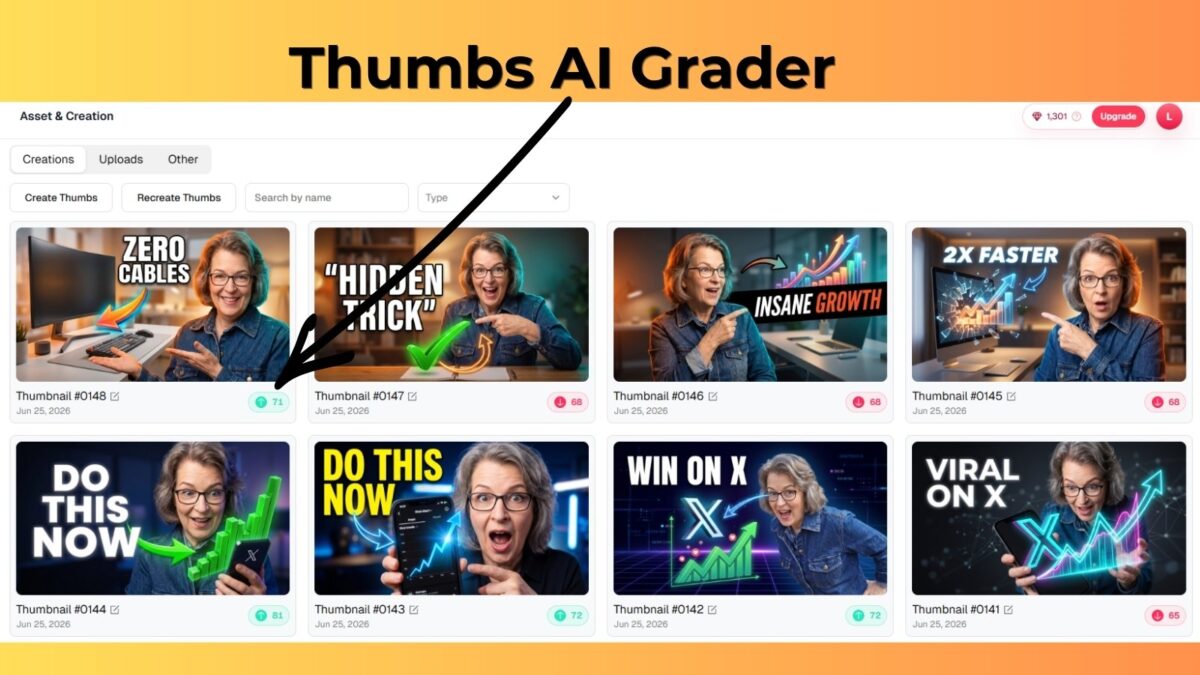
Still, you should use the grade as a guide. Your thumbnail has to fit your topic, your audience, and your brand. If the “best” score doesn’t look like something you’d put on your channel, skip it.
A grading system can save time. Your audience still gets the final vote.
Pricing, Free Credits, and Who Thumbs.ai is Best For
If you want to test it without committing right away, there is a free trial with 30 credits. That’s enough to get a feel for the workflow and see whether the tool fits the way you create.
Here is the simple pricing snapshot mentioned in the walkthrough:
| Plan | Price | What stood out |
|---|---|---|
| Free trial | 30 credits | Good for testing the generator before paying |
| Yearly plan | $137 per year, about $11 per month | Lower-cost entry point for regular use |
| Ultimate | $353 per year, about $29 per month | Includes commercial use rights and priority queue |
| Master | Available | Includes more advanced options |
👉 The main takeaway is simple. You can start small, then upgrade if you need more.
Which plan features matter most
Most creators don’t need to overthink this at the start. What matters first is whether you like the output and whether the time savings are real for you.
After that, look at the details that match how you work. If you create for clients or use thumbnails in commercial work, commercial use rights matter. If you publish often and want faster processing, a priority queue might matter too. If you’re still testing the waters, the starter level is probably enough.
👉 The nice part is you can begin with Thumbs.ai’s free credits and see how far it takes you before paying for more.
Is it a good fit for YouTubers and Instagram creators
YouTubers will probably get the most direct value here, especially if you publish long-form videos and want better-looking covers fast. The text-to-thumbnail, image-to-thumbnail, and recreate tools all fit that workflow well.
Instagram creators can still get good use out of it, too. Even if you’re not making standard YouTube thumbnails every day, the tool can help with promo graphics, cover-style visuals, and branded content ideas. It gives you fast visual directions when your own design energy is running low.
👉If you’re a busy solo creator, a small business owner, or someone managing multiple channels or clients, this is the kind of tool that can save time where it counts.
Final Thoughts
Good content deserves a strong first impression. A weak thumbnail can quietly sabotage even your best videos.
After using Thumbs.ai for several weeks, I can confidently say it makes it much easier to create thumbnails that look professional, stay on-brand, and are made in a fraction of the time.
My favorite feature remains the Recreate Thumbnail tool; it’s one of the fastest ways to breathe new life into older videos. I’ve already refreshed several underperforming thumbnails on my channel, and the results have been noticeable.
👉 Bottom line: If you want more clicks without spending hours on design, Thumbs.ai is worth trying. Start with your existing videos; a better thumbnail is often the quickest win you can get on YouTube or Instagram in 2026.
Have you tried Thumbs.ai yet? Drop your thoughts (or your biggest thumbnail struggle) in the comments below. 👇
Frequently Asked Questions
Yes, especially if you regularly create YouTube videos or Instagram content. It saves significant time and helps produce better-clicking thumbnails compared to manual design or basic auto-generators.
Fliki is convenient for quick auto-thumbnails while making videos. Thumbs.ai is much stronger as a dedicated tool; it offers more control, style cloning, face variations, and better results for refreshing old videos.
The Ultimate plan ($29/mo or $353/year) is the sweet spot for most people. It provides plenty of credits and priority access.
Yes. While it’s optimized for YouTube, the thumbnails export cleanly and work great for Reels, TikTok, and other social platforms.
Yes, you get 20 trial credits when you sign up (roughly 10 thumbnail generations) with no credit card required.
Absolutely. The interface is straightforward, and features like text-to-thumbnail and recreate make it very beginner-friendly while still powerful enough for experienced creators.
Disclosure: This Inspire To Thrive blog post contains affiliate links. I may earn a commission from qualifying purchases at no extra cost to you. Some sections were drafted with AI tools and carefully reviewed/edited by me.

- Is It Too Late for Holiday SEO? What Still Works in November - October 25, 2026
- Is Benable Legit? My Honest Benable Review & Earnings Proof - October 24, 2026
- Instagram Privacy Settings: What Others Can and Can’t See - October 24, 2026
Enjoy this content? Help me show up more often in Google by adding Inspire To Thrive as a Preferred Source: