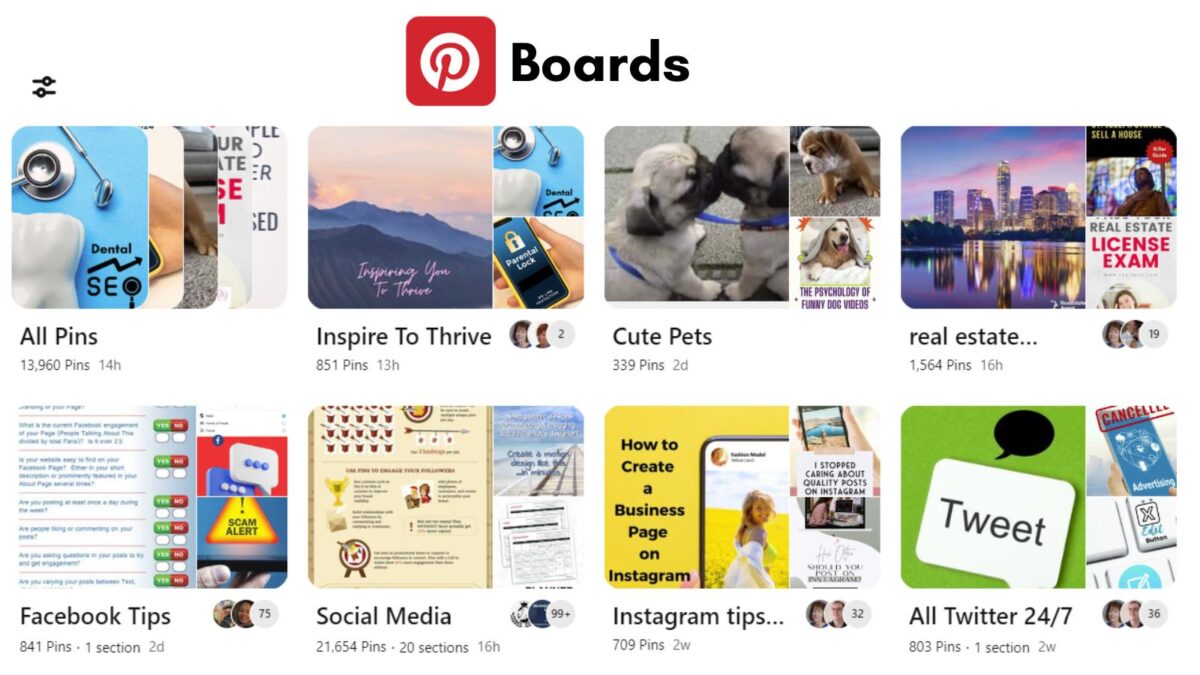
If you’re an active Pinterest user, you already know how important it is for your Pinterest links to point to the right destination. Broken or incorrect Pinterest affiliate links can frustrate users, hurt your traffic, and reduce the effectiveness of your pins.
But don’t worry—fixing a wrong Pinterest URL isn’t as complicated as it might seem. Here’s everything you need to know to get it right.
Estimated reading time: 8 minutes
Table of Contents
Key Takeaways
- Pinterest links are the destination URLs attached to pins, boards, or profiles. They should send people to the exact page promised by the pin image and text.
- Wrong Pinterest links often result in 404 errors, broken pages, unwanted redirects, or mismatches between the pin and the landing page.
- You can fix a wrong Pinterest link by editing the destination link on pins you created (you cannot change destination links on pins you saved from other accounts).
- If an old link points to a URL that no longer exists on your site, a 301 redirect can send visitors to the correct page and recover lost traffic.
- Prevent link issues by testing URLs before publishing and auditing older pins when you move, update, or delete website pages.
Pinterest Link vs. URL vs. Destination Link
What Are Pinterest Links? A Pinterest URL is the web address linked to a specific pin, board, or profile. Every pin you save or create should direct users to a relevant page, whether it’s your blog, product listing, or landing page.
Since Pinterest pins last forever and your blog posts may not, it’s a good idea to check out your old pins. I found one of my older pins had a lot of clicks, but I was not seeing it in my Google Analytics traffic.
Not sure how? I have a video on how you can set yours up to check traffic.
As I clicked on my old Pinterest pin, I found it linked to an image, not a blog post. That’s not good! I wanted to share how to check and fix your own Pinterest pins.
The link connects the visual content on the pin to the resource it’s promoting. A correct Pinterest URL ensures users can easily find the details they’re looking for.
Whether the Pinterest pins point to your website or are Pinterest affiliate links, you want them to be found quickly.
If you don’t have your GA set up with explorations, I have a YouTube video that shows you how to do so. If I can do it, you can too.
Why Correct Pinterest Links Are Important
Think of Pinterest as a map that guides your audience to your content. A wrong Pinterest link is like leading them to a locked door—it’s frustrating and often causes them to leave without engaging further. Incorrect URLs can result in:
- Lost traffic: If users can’t get to your content, you miss out on potential pageviews.
- Damage to your reputation: Broken links make your profile look unprofessional.
- Poor user experience: Viewers expect a seamless connection between your pin and the destination page.
- Lost income from Pinterest Affiliate links that are incorrect.
The bottom line? A simple URL mistake can stop your content from reaching its full potential.
Identifying a Wrong Pinterest Link
Signs of Incorrect Pinterest Links
Before you can fix the issue, you need to spot it. Look for these common signs of a wrong Pinterest pin link to your website or affiliate links.
- 404 error pages: The destination page doesn’t exist, leaving users stranded.
- Broken links: The link doesn’t work, or the page fails to load properly.
- Redirects: The link sends users to an unintended page, like your website’s homepage instead of the specific post.
- Mismatch: The linked page doesn’t match the content or promise of the pin.
Testing Your URL
Not sure if your Pinterest link works? Here’s how to check:
- Copy the URL linked to the pin.
- Open it in a browser or an incognito window.
- Verify: Does the page load correctly? Does it match your pin’s content?
If the page doesn’t align with the pin’s content or it doesn’t load, you’ve got a problem to fix.
How to Fix a Wrong Pinterest Link
Once you’ve identified the issue, it’s time to take action. Here are two effective ways to fix a wrong Pinterest URL:
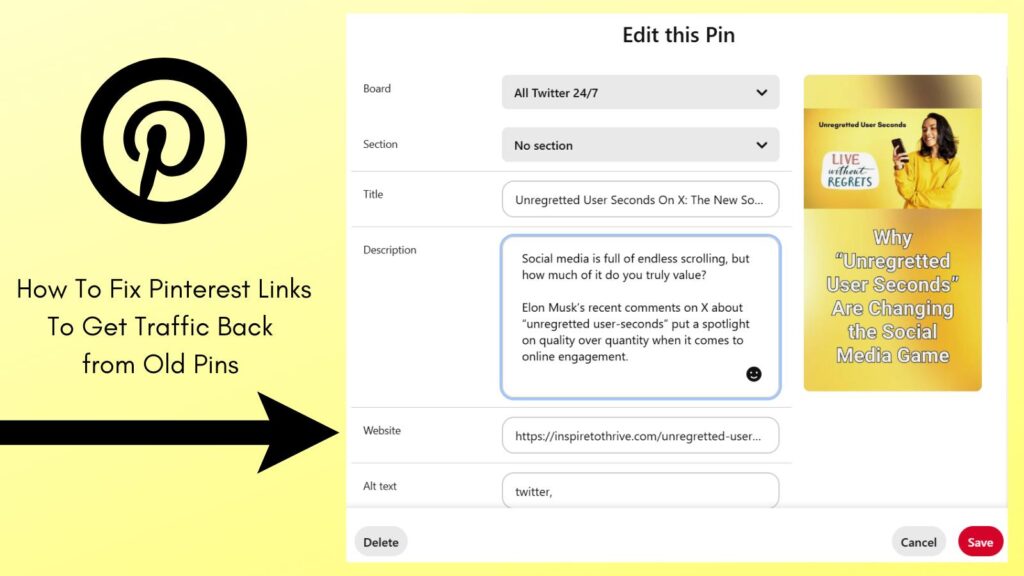
How to Edit a Pin’s Destination Link
Pinterest allows you to update links for pins you’ve created. Here’s how:
- Open your Pinterest account, then go to the pin with the incorrect URL.
- Click the pencil icon (Edit Pin) to enter editing mode.
- Remove the incorrect URL in the “Destination Link” field.
- Paste the correct URL.
- Save your updates.
This simple fix ensures your PIN points to the correct destination. Remember, you can do this only for pins in your collection that you created and NOT saved.
You can’t edit the links on pins coming from other users’ profiles.
Limitations of Updating Pinterest Links
There are 2 limitations of updating the links on Pinterest:
- You can only edit pins you created.
- Saved pins can’t be updated.
How to Add a 301 Redirect for Old Pinterest Links
If the wrong Pinterest URL points to your website, use a redirect to automatically send users to the correct page. Follow these steps:
- Log in to your website admin panel: If you use WordPress, install a redirect plugin such as “Redirection” or “301 Redirects.”
- Set up a 301 redirect: Use the plugin to redirect the broken URL to the proper one. A 301 redirect signals search engines that the link has permanently moved.
- Test the redirect: Try visiting the wrong URL to ensure it sends users to the updated page.
- Use Link Whisper: I found it really simple to use my Link Whisper (plugin) to put in the old URL that went nowhere to the new one for my old pin about X eggheads.
This method ensures that even old pins with the incorrect link still lead to the intended content. That’s what you want and need to generate traffic to your site from your Pinterest Pins.

Preventing Future URL Mistakes
Fixing wrong URLs is great, but it’s better to avoid them entirely. These tips will help you stay ahead of those old pin links.
Double-Check Before Publishing
Before pinning content, always confirm the link works properly. Copy and paste the URL into a browser to make sure it loads as expected. This extra step saves major headaches down the road and will help you generate more leads.
- Click the pin on desktop and mobile.
- Check for the right final URL after redirects.
Keep Your Pinterest Links Updated
If you reorganize your website or delete old posts, ensure you update your Pinterest links too. Regularly audit your older pins to ensure all URLs remain functional and relevant, keeping traffic coming from your pins.
Tools like Google Analytics, as mentioned above, or broken link checkers can help you quickly identify any issues.
A Simple Pinterest Audit Routine
Keep on top of the Pinterest broken lists with a simple audit routine every month or quarter:
- Using GA.
- Pinterest analytics.
- Use a link checker.
Conclusion: Fixing Links on Pinterest Pins
Fixing a wrong Pinterest URL isn’t just about saving a single pin—it’s about keeping your account professional and maintaining your audience’s trust. Start by pinpointing the issue, whether it’s a broken link, a mismatch, or a redirect.
From there, update your pin links or set up redirects to fix the problem. To avoid future errors, always test your links before publishing and stay on top of your content.
By taking these steps, you’ll not only restore lost traffic but also improve the overall user experience. Remember, every click on your pin is a chance to engage, inspire, or convert.
Don’t let a wrong Pinterest URL stop you from achieving your goals for 2025.
**A URL and a link are similar but not the same. The URL appears in the search bar and links to a specific location.
Frequently Asked Questions About Pinterest Links
A Pinterest link is the destination URL attached to a pin (and sometimes a board or profile). It’s the web address people land on after they click your pin, such as a blog post, product page, landing page, or affiliate offer.
Common signs include a 404 error page, a page that fails to load, a redirect to the wrong page (like your homepage), or a landing page that does not match what the pin promises. The fastest check is to copy the PIN URL and open it in an incognito window to confirm it loads and matches the PIN.
No. You can update the destination link only on pins you created in your own account. Pinterest does not allow you to change the destination link on pins you saved from other users.
Open the pin, click the pencil icon (Edit Pin), remove the incorrect URL in the Destination Link field, paste the correct URL, then save. After that, test the updated pin link in a browser to confirm it goes to the right page.
Yes, if the old Pinterest link points to a URL on your site that no longer exists or has changed. A 301 redirect forwards visitors from the old URL to the new one, and it signals that the move is permanent. After setting it up, visit the old URL to confirm the redirect works.

- How to Add Music to an Instagram Story in 2026 (Private & Business Accounts Included) - September 8, 2026
- How to View Private Instagram Accounts in 2026 (What Actually Works) - September 6, 2026
- UX for SEO in 2026: Why User Experience Still Cannot Be Ignored - September 5, 2026
Enjoy this content? Help me show up more often in Google by adding Inspire To Thrive as a Preferred Source: