Are you tired of managing a Facebook group that’s become more of a burden than a benefit? Whether it’s flooded with notifications, filled with off-topic chatter, or simply no longer aligned with your goals, deleting it can bring instant relief.
In this updated 2026 guide, I’ll show you exactly how to permanently delete your Facebook group in just a few minutes. The process works only on a desktop or a laptop (not the mobile app), and I’ll walk you through every step clearly.
You’ll also learn what happens after deletion, smart alternatives like archiving, and important tips to back up your content first.
Important: This action is irreversible; Facebook does not restore deleted groups.
Estimated reading time: 10 minutes
Table of Contents
Key Takeaways
- You can delete a Facebook group only from a desktop or laptop, not from the mobile app.
- To delete the group, remove all members first, then leave as the last member, and confirm deletion.
- Deleting a Facebook group permanently removes posts, comments, photos, and files.
- If you do not want to delete it, you can archive the group or transfer ownership to another admin.
- Back up any important content before deletion, because Facebook does not restore deleted groups.
Understanding Facebook Groups: Purpose and Functionality
Facebook groups are designed to bring people together over shared interests, causes, or activities. They create a space where members can interact, share information, and build communities around common goals.
These groups can be public, private, or secret, allowing for varying levels of privacy and accessibility. Whether it’s a group for hobby enthusiasts, professional networking, or social causes, Facebook groups offer a dynamic platform for connecting and engaging with like-minded individuals.
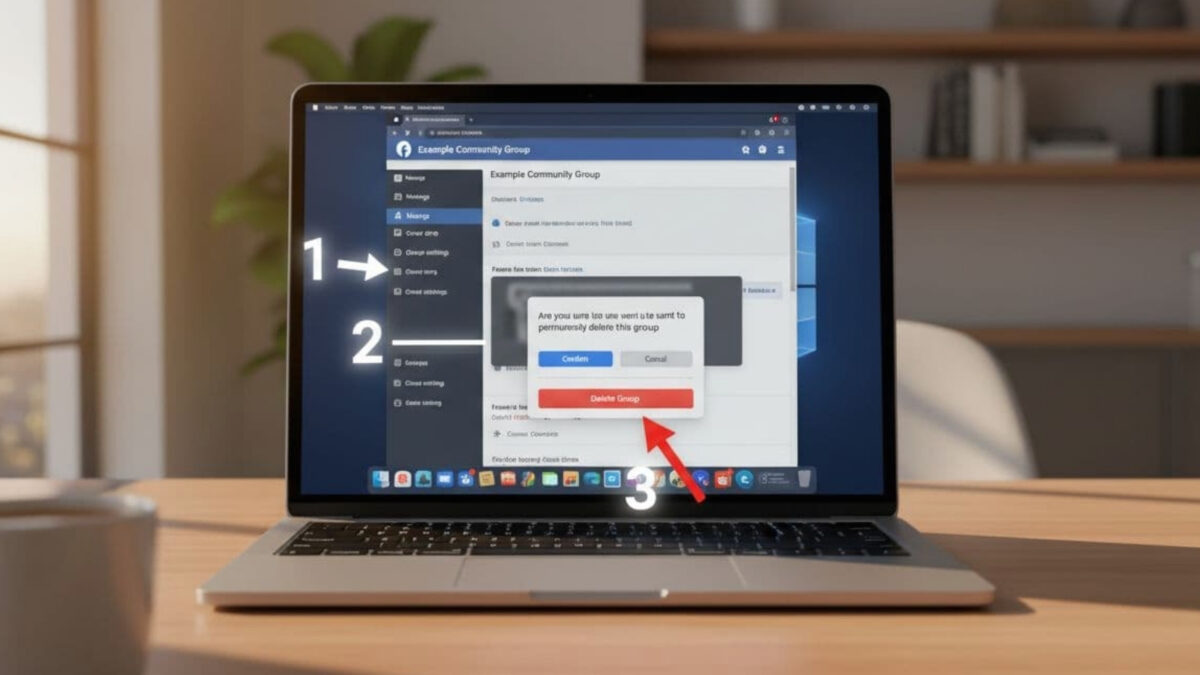
The functionality of a Facebook group is robust, offering features such as discussion threads, event planning, file sharing, and even polls to gather opinions.
However, managing a Facebook group requires a commitment of time and energy. As groups grow, the demands on admins and moderators increase:
- Approving new members and posts.
- Resolving conflicts and enforcing rules.
- Deciding whether to close the group.
While some groups thrive under active management, others may become dormant or chaotic, leading to the decision to delete the group.
Reasons for Deleting a Facebook Group
One common reason for deleting a Facebook group is inactivity. Over time, the enthusiasm that once fueled a group can wane, leading to fewer posts and interactions.
- An inactive group can become a digital ghost town, serving no real purpose and cluttering the admin’s online space. Deleting such a group can be a way to declutter and refocus on more active and engaging communities on Facebook or, like, on X/Twitter communities.
- Another reason might be the group’s failure to stay on topic or maintain a positive environment. Sometimes, groups can devolve into chaos with off-topic posts, spam, or negative interactions dominating the feed.
- Despite the best efforts of admins and moderators, managing it can become overwhelming, making deletion a practical solution to prevent further issues.
- Lastly, personal reasons might drive the decision to delete a group. Changes in personal interests, priorities, or life circumstances can make managing a group less appealing or feasible.
When the group no longer aligns with the admin’s interests or availability, deleting it can be a step towards simplifying one’s digital life and reducing unnecessary responsibilities.
Preparing to Delete Your Facebook Group
Before you permanently delete your Facebook group, take a few minutes to prepare. This helps avoid regrets and ensures the process goes smoothly.
1. Communicate with your members. Let your group members know about your decision in advance. Share why you’re closing the group and when it will happen. This transparency reduces surprise or upset reactions and gives active members a sense of closure.
2. Back up important content. Review the group and save anything valuable: posts, comments, photos, files, or documents. Since Facebook doesn’t provide an automated backup tool, you’ll need to do this manually. Download key discussions or media that you (or members) might want to keep later.
3. Check settings and admins. Review your group settings and membership list. If you have other admins, discuss the decision with them first and get their agreement. You’ll eventually need to remove everyone, including additional admins, before you can delete the group.
Taking these preparation steps minimizes stress and helps you move forward confidently. Once you’re ready, switch to a desktop or laptop (the deletion process isn’t available on mobile) and follow the instructions below.
Step-by-Step Instructions To Expunge Your Group
Deleting a Facebook group involves a few straightforward steps. Here’s a detailed guide to help you through the process:
Access the Group: Log in to your Facebook account and navigate to the group you wish to delete. Ensure you are using a desktop or laptop, as the option to delete a group isn’t available in the mobile app.
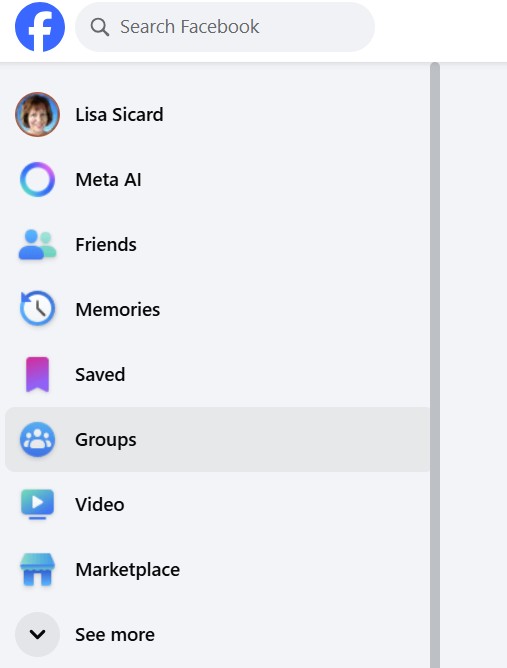
Remove Members: In the group, go to the “Members” section. Here, you will need to remove each member individually. Click on the three dots next to each member’s name and select “Remove from Group.” Repeat this step until all members, except yourself, have been removed.
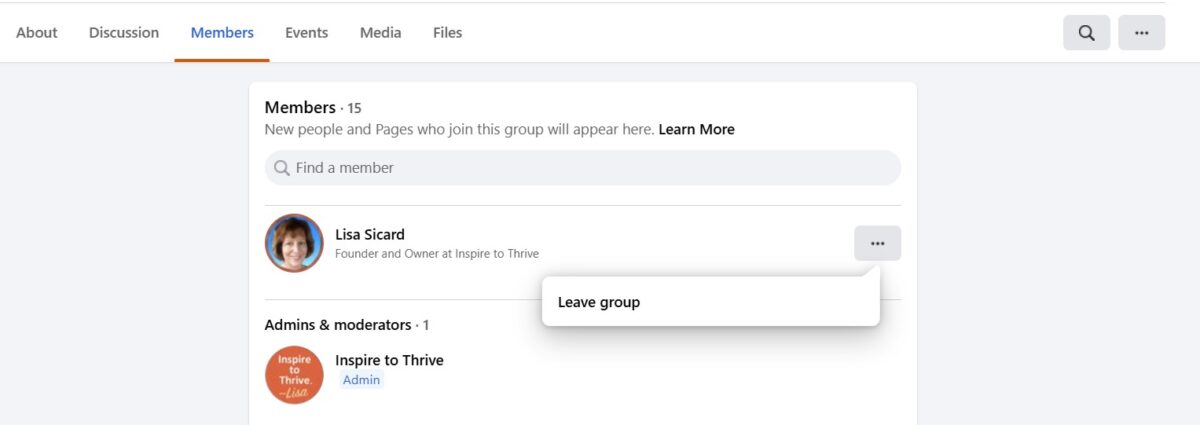
Leave the Group: Once you’re the last remaining member, locate your name in the members list. Click the three dots next to your name, then select “Leave Group.” A prompt will appear asking if you want to delete the group. Confirm that you want to leave and delete the group.
(Since I’m not deleting my group, I’m showing how to leave a group from another one.) It will look the same to leave as it does to delete your group page.
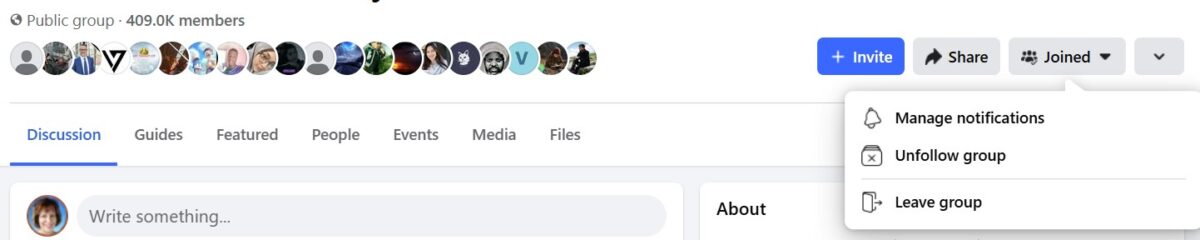
Deleting your group should only take a few minutes if you follow these steps. The group will be permanently removed, and all posts, comments, and files will be deleted.
This action is irreversible, so ensure that this is the desired outcome before proceeding.
What Happens After You Hit Delete?
Once you delete your Facebook group, all content associated with it will be permanently removed.
- This includes posts, comments, photos, and files shared by members.
- Members will no longer have access to the group, and it will no longer appear in their groups list.
- The deletion is immediate and cannot be undone, so it’s important to be certain of your decision before proceeding.
- Members of the group will not receive a notification when the group is deleted. However, they will notice its absence when they try to access it.
- If you communicated your plans to delete the group beforehand, members should be aware of the situation and understand why the group is no longer available.
Administrators who have deleted a group may feel a sense of relief from the burden of management. Digital clutter is reduced, allowing you to focus on more relevant and active groups or other online activities.
Deleting a group can mark the end of an era and the beginning of a more streamlined and organized Facebook presence.
Alternatives to Deleting Your Facebook Group
If you’re not ready to permanently delete your Facebook group, you have several good options. Here are the best alternatives:
1. Transfer Ownership: Hand the group over to another active member or admin who is passionate about it. This lets the group continue thriving without your involvement. Reach out to potential successors and formally transfer admin rights.
2. Reduce Activity (Pause Management): Keep the group, but make it less demanding:
- Change settings to require admin approval for all posts.
- Post an announcement explaining that you’re stepping back, and the group will become less active.
3. Archive the Group. This is often the best middle-ground solution. Archiving prevents new members from joining and new posts from being made, while keeping all existing content visible to current members. You can reverse archiving later if you change your mind.
| Option | Keeps Content | Allows New Posts | Best For |
|---|---|---|---|
| Transfer Ownership | Yes | Yes | Passionate members want to continue |
| Reduce Activity | Yes | Limited | You want minimal involvement |
| Archive Group | Yes | No | Preserve history without effort |
| Delete | No | No | Complete fresh start |
These alternatives give you flexibility while protecting the group’s history and your members’ experience.
How to Archive Instead
Archiving a Facebook group is a simple process and serves as a viable alternative to deletion. Here’s how to archive your group:
- Access the Group: Log in to your Facebook account and go to the group you wish to archive. Ensure you are using a desktop or laptop for this process.
- Group Settings: Once in the group, click on “More” under the group’s cover photo and select “Edit Group Settings.”
- Archive Group: Scroll down to the section labeled “Archive Group.” Click on “Archive” and confirm your decision. The group will be archived, meaning it will no longer accept new members or posts.
Archiving a group maintains its content and allows existing members to view past posts and discussions. This option can be particularly useful if the group contains valuable information or memories that members might want to revisit.
Archiving can also be reversed if you decide to reactivate the group in the future.
Do note: You may not have access to these settings if you set up your group from your page, as I did 6 years ago. That option is not available.
Tips for Managing Facebook Groups Effectively
Managing a Facebook group effectively can prevent the need for deletion and ensure a positive experience for all members. Here are some tips to help you manage your group successfully:
- Set Clear Rules: Establish clear rules and guidelines for the group. This helps set expectations for behavior and content, making it easier to moderate discussions and maintain order.
- Engage Regularly: Actively engage with your group members by posting regularly, responding to comments, and encouraging discussions. Your involvement can keep the group lively and relevant.
- Delegate Responsibilities: If managing the group becomes overwhelming, consider adding more admins or moderators to share the responsibilities. This can help distribute the workload and ensure the group runs smoothly.
- Monitor Content: Keep an eye on the content being posted in the group. Remove any spam, off-topic posts, or content that violates the group’s rules. Regular monitoring helps maintain the quality of discussions.
- Foster a Positive Environment: Encourage respectful and constructive interactions among members. Address conflicts promptly and fairly to maintain a welcoming and supportive atmosphere.
Effective management can enhance the group experience for all members and reduce the likelihood of issues that might prompt consideration of deleting the group.
Conclusion: Making the Right Choice for Your Facebook Group
Deleting a Facebook group is a significant decision that requires careful consideration. Whether due to inactivity, chaos, or personal reasons, deleting a group can bring relief and help declutter your digital life.
It’s important to weigh the alternatives, such as archiving the group or transferring ownership, before making a final decision.
Understanding what happens after deletion and exploring alternatives can help you make an informed choice.
Ultimately, the goal is to create a more streamlined and manageable online presence. Whether you choose to delete, archive, or transfer ownership, taking control of your Facebook group can lead to a more organized and fulfilling experience.
Frequently Asked Questions About Deleting Facebook Groups
A: No, once a Facebook group is deleted, it is permanently removed and cannot be recovered. If there’s content you want to save, back it up before you delete the group.
A: Members will not receive a notification that the group has been deleted. They will simply notice that the group is no longer available when they try to access it.
In the group after deletion?
A: All of that content is removed when the group is deleted. If the group has useful discussions or files, save them before proceeding with the deletion steps.
A: No, the delete option is not available in the Facebook mobile app. You need to use a desktop or laptop to remove members and delete the group.
A: You can archive the group, transfer ownership to another admin, or step back and reduce activity. Those are better choices if the group still has value or members you want to keep connected.

- How to Use Social Media for the Best Black Friday Deals of 2026 - October 19, 2026
- How to Identify and Prioritize Your Money Pages (And Why I Just Updated Mine in Link Whisper) - October 19, 2026
- How to Build a Strong Online Presence for Solopreneurs in 2026 (Without Spreading Yourself Thin) - October 17, 2026
Enjoy this content? Help me show up more often in Google by adding Inspire To Thrive as a Preferred Source: