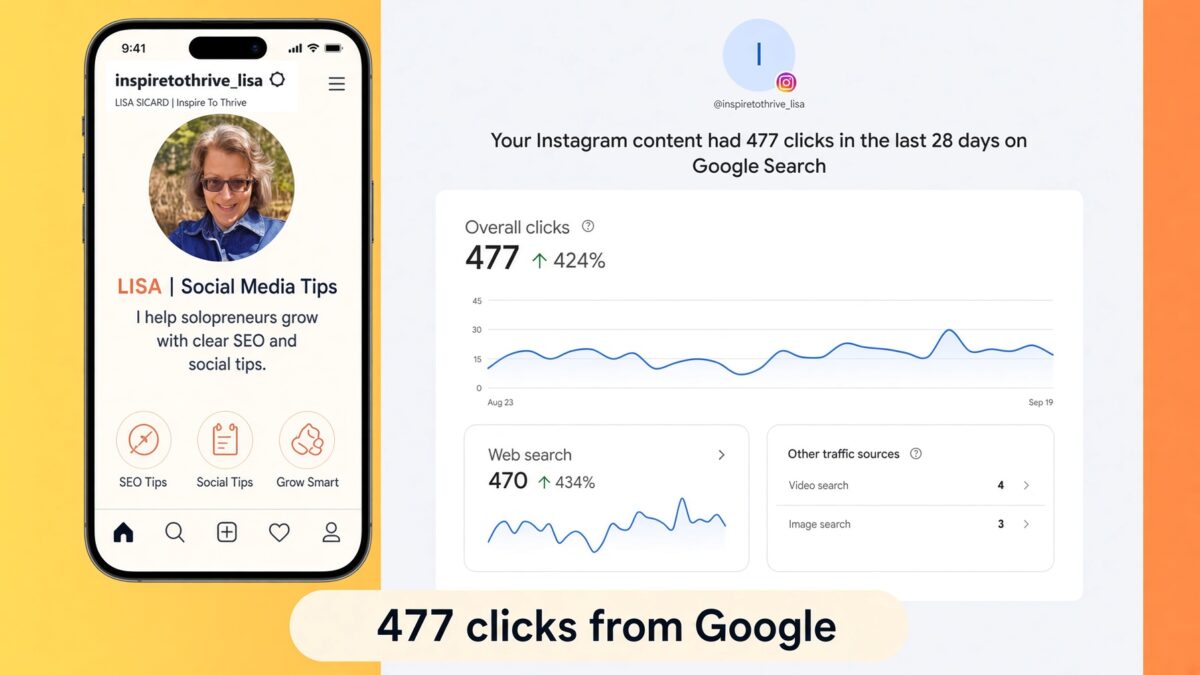
A great photo can enhance user experience by pulling someone into your post, but it can also hurt site speed and slow your site to a crawl if you upload it the wrong way. Image SEO for bloggers, a key part of Search Engine Optimization, is really about three things you can control: fast loading, clear context for search engines using structured data, and accessibility for readers who use screen readers (or when images fail to load).
The good news is you don’t need a fancy setup to do image SEO. You just need a repeatable workflow for format, file names, alt text, and compression that keeps your images sharp.
Estimated reading time: 10 minutes
Table of Contents
Key Takeaways
- Image SEO for bloggers focuses on fast loading, structured data, and accessibility to enhance the user experience.
- Start with the right image format and size to avoid slowing down your site; prefer JPG for photos and WebP for efficient loading.
- Use descriptive file names and alt text that help both readers and search engines better understand your images.
- Apply proper image compression techniques to reduce file sizes without sacrificing quality; aim for 100KB to 300KB for standard blog images.
- Implement a repeatable workflow to consistently optimize images, including resizing, exporting, compressing, and quality checks.
Start with the Right Image Format and Size Before You Upload
Most “bad quality” problems start before you even hit Upload. If you post a giant image straight from your phone or camera, your site has to push extra pixels and extra file weight for no reason. That wastes bandwidth and can hurt page speed.
First, check your theme’s content width (often around 700-900px for the main column). For featured images or full-width blocks, you may need 1200-1600px.
Resize to what your blog actually displays, then export. You’ll get faster pages and fewer compression headaches later. Run a quick check with PageSpeed Insights to confirm the performance boost.

Choose Formats That Look Good and Load Fast (JPG, PNG, WebP)
- Use JPG for photos because it handles color gradients well at small sizes.
- Use PNG for logos, icons, and text that needs transparency.
- Use WebP when you can; it usually looks the same as JPG but with a smaller file size.
Next-gen formats like WebP and AVIF can be even smaller, but only use them if your tools and theme support them. Also, don’t upload screenshots as huge PNGs unless you truly need crisp text at a large size.
Resize to the Display Size So You Are Not Shrinking a Giant Photo in the Browser
If your blog shows an image at 1200px wide, don’t upload a 5000px file and hope the browser “shrinks it” for responsive images. That still downloads the full file.
Maintain the aspect ratio as a key tip when resizing to preserve proportions. For featured images, export at the right size and always keep your original images as high-quality backups.
For retina screens, export at 2x only when it makes a real difference (like detailed screenshots). If you go 2x, compress more, and keep an eye on file size.
Use File Names and Alt Text That Help Real Readers and Search Engines
Think of file names and alt text like labels on storage bins. Without labels, everything becomes “misc stuff,” and you can’t find what you need later.
This Image SEO approach with file names and alt text provides key metadata, giving search engines extra context through Vision AI that processes visual content. File names aid organization, while alt text offers descriptions read aloud by screen readers for accessibility and appears when images fail to load, boosting search context.
Image SEO Examples:
Bad file name: IMG_4928.jpg
Better file name: how-to-compress-blog-images.jpg
Bad alt text: blogging
Better alt text: Blogger resizing a photo on a laptop before uploading
Use a Tool Like the Right Blogger for All Your Image SEO for Bloggers
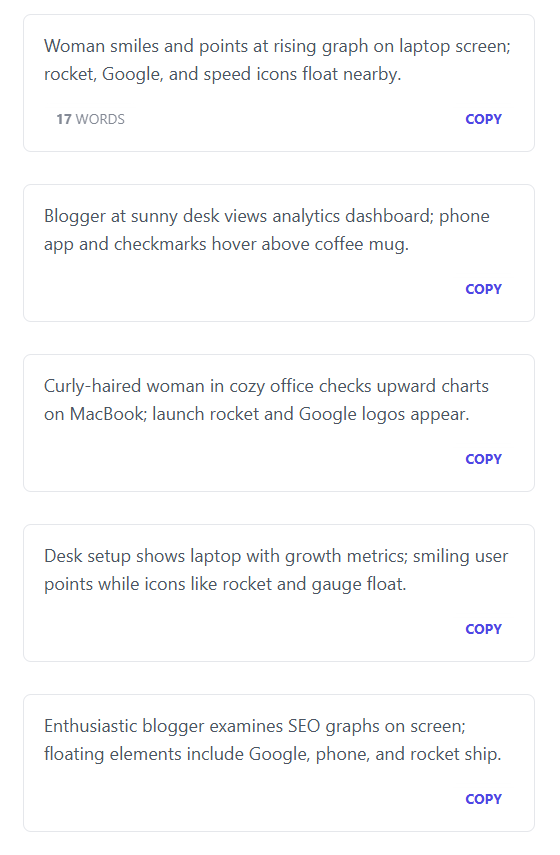
If you’re adding images to blog posts, social updates, or client work, alt text can eat up your time fast, and it’s too easy to skip. Use a tool like RightBlogger to generate clear, accurate alt text in seconds, so you keep moving without leaving accessibility behind.
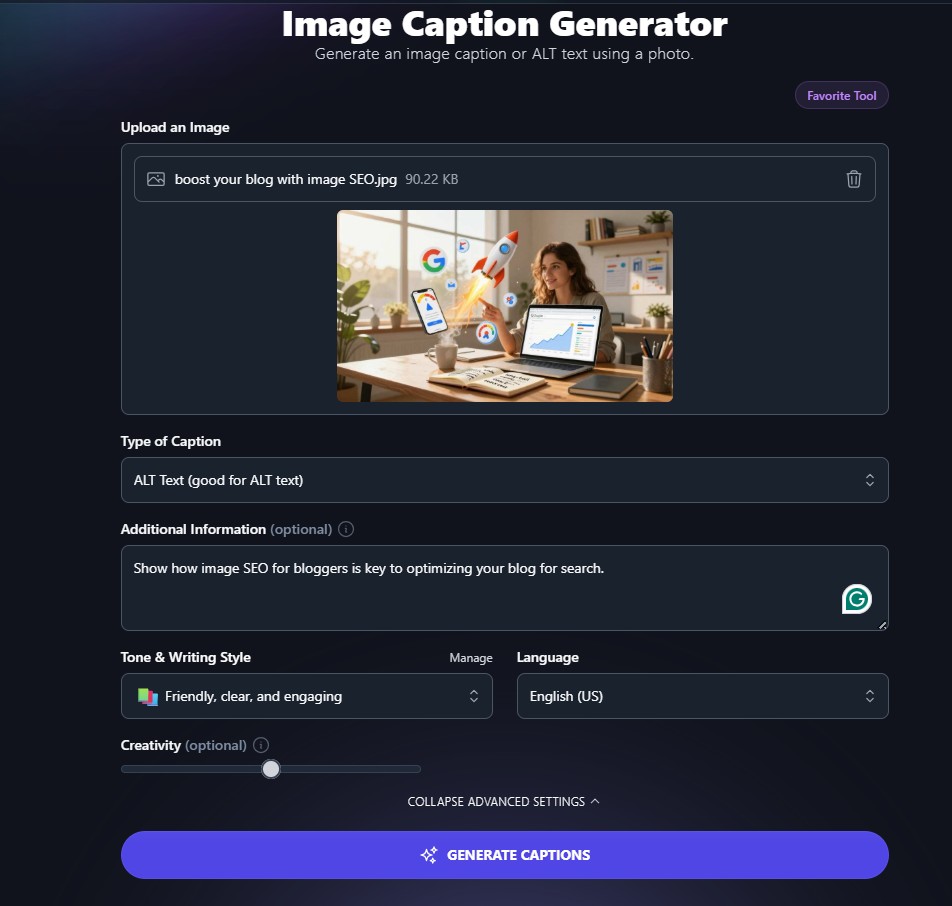
You still stay in control; You can edit the wording to match your tone, add the key detail that matters, and keep it short enough to read well. This also helps your SEO because search engines can better understand what’s on the page, and your images have a better shot at showing up in image search.
Make it part of your upload routine, paste, quick edit, then publish, and you won’t end up with a backlog of missing alt text later.
Write File Names Like Labels, You Can Find Later
Keep it simple, using keyword research to pick descriptive labels over generic camera names:
- Use real words, not random numbers
- Be specific, but not long
- Use hyphens (not underscores)
- Rename before upload, your media library gets messy fast
Proper file names also shine on platforms like Pinterest for social sharing.
Write Alt Text That Describes What Matters in the Image
Describe the subject and what’s happening, plus any detail that supports the post. Skip “image of” and don’t repeat your post title. Pair it with image captions for an extra layer of context readers love.
If an image is purely decorative (like a divider or background swirl), leave alt text empty so screen readers can skip it.
Image Compression: Compress Images without Making Them Look Crunchy
Compression is where you lose people’s trust fast. Too little compression, your page is slow. Too much, faces look blocky, and text turns fuzzy.
Lossless compression shrinks file size without significantly altering the image (great for PNG). Lossy compression removes some data to save more space (common for JPG and WebP).
As a general rule, aim for 100KB to 300KB for most blog images, and go larger only when detail matters.
A Simple Compression Workflow You Can Repeat Every Time
This workflow delivers strong Image SEO for bloggers with results you can repeat every time.
- Resize to your display width.
- Export as JPG or WebP (PNG only when needed).
- Compress using your editor, a WordPress image plugin, or a trusted online compressor.
- Compare before and after, then spot check.
- Enable lazy loading, check site speed on mobile with responsive images, then upload.
Consult Google Search Central for authoritative advice on quality standards. To ensure images are correctly indexed, use an image sitemap. Implement schema markup as structured data to boost visibility in Google Discover.
Add Open Graph tags for better social media previews. These steps tie Image SEO to structured data to enhance performance, even on Instagram.
Quick Quality Checks so You Do Not Ruin Your Photos
Zoom to 100 percent and look for blurry text, color banding in gradients, blocky edges around faces, and muddy shadows. Ensure good accessibility.
Then open the image on your phone; small screens can hide issues or reveal them fast. Keep the original file saved as a backup.
If you want quicker wins this week, update a few older posts: fix the size and format, clean up names and alt text, revise alt text for better descriptions, then compress with a fast quality check. (I know I have a lot of work ahead of me updating older images on Inspire To Thrive.)
You’ll often see faster load times and better engagement on Pinterest without changing a single word of your post, boosting Search Engine Optimization through Image SEO and improving user experience.
Conclusion: Managing Image SEO for Bloggers
Image SEO for your blog comes down to three habits you can repeat on every post:
- Name files with real keywords.
- Write alt text that explains the image for readers and screen readers.
- Compress images to keep pages fast.
When you do all three, you get a better shot at image search traffic without hurting your user experience. Pick one old post today, update the file names and alt text, then run a quick compression pass and re-upload.
Frequently Asked Questions About Image SEO for Bloggers, File Names, Alt Text, and Compression Without Killing Quality
Name your image files for humans first, then search. Use short, clear words that describe what’s actually in the photo, and separate words with hyphens. Skip generic names like IMG_4829.jpg because they don’t help search engines (or you) understand the image later.
Keep it tight and specific. If the image shows a step or result, say that. But, if it’s a product, include the product name. If it’s a screenshot, label it as a screenshot to ensure accuracy.
A simple example: if your post is about compressing photos for WordPress and the image is a screenshot of your settings, shortpixel-settings-lossy-compression.jpg is more helpful than settings1.jpg. Don’t stuff extra keywords. If you wouldn’t say it out loud, don’t force it into the file name.
Alt text should clearly describe the image for people who can’t see it (screen readers) and when the image doesn’t load. That’s the main job. SEO is a side benefit when your description naturally matches the page topic.
Write one sentence, sometimes two if the image has a key detail. Describe what’s in the image and include context only if it matters. If the image is decorative and adds no meaning, you can leave alt text empty (alt=””) so screen readers skip it.
Example: “Blogger compressing a JPEG in TinyPNG before uploading to WordPress.” That’s descriptive, it fits the topic, and it doesn’t cram in a list of keywords. Avoid writing alt text like “image SEO for bloggers best image SEO tips,” as it reads like spam and doesn’t improve accessibility.
They don’t need to be different just to be different, but they also shouldn’t be copies of the same sentence pasted everywhere. Each field has a separate purpose, and you’ll get better results when you treat them that way.
Alt text is for accessibility and an accurate description. A caption is for readers, so use it when it adds value (like a quick takeaway, a source note, or a short explanation). The title attribute isn’t a major SEO driver for most blogs and is often hidden from readers, so it’s fine to keep it simple or skip it, depending on your theme and workflow.
If you do use all three, let them work together. Your alt text can describe what it is, your caption can explain why it matters, and your title can stay short and organized for your media library.
Start by uploading the right dimensions for your layout. If your content area is 800 pixels wide, you usually don’t need a 4000-pixel photo. Oversized images waste bandwidth and slow down your pages, even after compression.
For formats, use JPEG for most photos, PNG for transparency or sharp text edges, and WebP when your site supports it (many WordPress setups do). WebP often looks good at smaller file sizes, but you still need to check the result because settings vary by tool.
Quality comes from balance, not “max quality” sliders. A slightly lower quality setting that looks the same to your readers is the win. After you compress, zoom in and check problem areas like text, gradients, and skin tones. If you see blur or blocky artifacts, back off the compression a bit.
What’s the safest way to compress images without ending up with blurry photos?
Use a tool that lets you choose a compression level and preview changes. “Lossless” keeps every detail but won’t shrink files as much. “Lossy” saves more space, but you have to keep an eye on artifacts. For most blog photos, a moderate lossy setting is often the sweet spot, as long as you check the output.
Also, avoid recompressing the same file repeatedly. Each round can degrade the image. Keep an original version stored somewhere (like a folder or cloud drive), then export a web-ready copy for your blog.
If your image includes text (like screenshots, Pinterest pins, or quote graphics), compression mistakes show faster. In those cases, resize first, then compress gently, and confirm that the text stays crisp. When you build a quick habit of previewing before upload, you’ll keep speed gains without the “why does this look fuzzy?” regret.

- Porn on X (Twitter): What’s Allowed and How to Block It - September 29, 2026
- Dolphin Radar Review 2026: Instagram Follower Tracker (What I Saw After 2 Weeks) - September 29, 2026
- 5 Reasons to Review Your Deleted Tweet History Before Your Next X Cleanup - September 29, 2026
Enjoy this content? Help me show up more often in Google by adding Inspire To Thrive as a Preferred Source: