Frustrated because your Instagram Reels are not posting to IG: Stuck on “uploading,” “processing,” or just won’t go live at all? You’re not alone. As a content creator and business owner, I’ve lost count of how many times a perfectly edited Reel refused to post, especially before we upgraded to reliable FIOS internet.
Whether it’s a weak connection, app glitch, file issue, or one of Instagram’s mysterious server hiccups, these problems kill your momentum and hurt your reach at the worst possible time.
In this updated 2026 guide, I’ll walk you through the most common causes plus 12 proven troubleshooting steps (more than most articles share). You’ll also get practical optimization tips to prevent future headaches so that you can post Reels confidently and consistently.
Ready to get your content live again? Let’s fix this.
Estimated reading time: 1 minute
Table of Contents
Key Takeaways: Fix & Prevent Instagram Reels Upload Issues in 2026
Here’s a quick-reference summary of the most effective solutions and prevention strategies from this guide. Bookmark it for those frustrating moments when your Reel refuses to post.
Top Troubleshooting Fixes (Try in This Order)
- Check your connection first — Switch between Wi-Fi and mobile data, toggle Airplane Mode for 30 seconds, or restart your router/phone. Unstable internet is the #1 culprit.
- Update everything — Keep the Instagram app, your device’s OS, and editing apps up to date to avoid compatibility issues.
- Clear cache & free up storage — Force-stop the app, clear the Instagram cache (or reinstall on iOS), and make sure your phone has at least 2–3 GB free.
- Enable high-quality uploads — Go to Instagram Settings → Account → Data Usage and turn on “Upload at Highest Quality.”
- Simplify your file — Use the correct specs (see below), reduce heavy effects/transitions, and test with a shorter version if needed.
- Advanced resets — Log out and back in, try posting from another device, disable any VPN, or check for account restrictions.
- Wait it out or test — Instagram server glitches are common. Post a draft to Close Friends first or try again in 30–60 minutes.
Most users resolve the issue with the first 3–4 steps. If nothing works, it’s often a temporary platform-wide problem.
Optimization & Prevention Tips (To Avoid Issues Altogether)
- Use these exact specs for smooth uploads:
- Resolution: 1080 x 1920 pixels (9:16 aspect ratio)
- Format: MP4 (preferred) or MOV
- Frame rate: 30 fps recommended
- File size: Under 500 MB for fast uploads (max 4 GB)
- Length: 15–90 seconds ideal for most creators
- Export with H.264 codec and keep the bitrate moderate for better compression.
- Always use original or Instagram-approved audio to avoid copyright flags.
- Strong first 1–3 seconds hook + captions (most Reels are watched on mute) improve performance and reduce re-upload attempts.
- Post consistently at your audience’s best times and test content in drafts before going public.
Does CapCut (or Other Video Editors) Cause Upload Problems For Reels Not Posting To IG?
Usually no. CapCut, InShot, VN, Premiere Rush, and other editors do not automatically cause Instagram Reels to fail.
The real issues are almost always related to how the video is exported:
- Wrong resolution or aspect ratio.
- Very high bitrate or oversized file.
- Unsupported codec.
- Visible watermarks (Instagram can be picky about these).
If you export correctly: 1080×1920, MP4, H.264, moderate bitrate, no watermark, CapCut (and most other editors) work fine. In fact, many creators get better quality and fewer upload headaches by editing outside the Instagram app and then uploading the finished file.
The key is matching Instagram’s preferred specs, not which app you used to edit.
Final Mindset Reminder
Reels not posting is almost always fixable with a calm, systematic approach. The real wins come from preventing problems through proper formatting and settings.
Once your Reel is live, focus on retention (watch time, shares, saves); that’s what drives reach in 2026.
Pro Tip: Save this article and the checklist above. When the next glitch hits (and it will), you’ll be back online in minutes instead of hours.
Common Causes of Reels Not Posting to IG
Reels fail to upload for a handful of predictable reasons. Knowing these helps you troubleshoot faster:
- Unstable or slow internet connection — The most common culprit by far.
- Outdated Instagram app or device software — Compatibility issues arise quickly.
- Cache buildup or low device storage — Corrupted files or not enough space prevent uploads.
- File format, size, or specs problems — Wrong resolution, oversized files, or heavy editing effects.
- Instagram server outages or glitches — Temporary platform-wide issues.
- Account restrictions or shadowban flags — From copyright strikes, spam-like behavior, or violations.
- VPN, Data Saver, or conflicting apps — These interfere with the upload process.
12 Proven Fixes for Instagram Reels Not Posting or Uploading (Try in This Order)
Most Reel upload issues are fixed with the first few steps. Work through them systematically.
1. Switch Your Internet Connection — Toggle Airplane ModAirplane Mode on for 30 seconds, then off. Switch between Wi-Fi and mobile data. Restart your router and phone. Unstable connections are the #1 reason Reels fail.
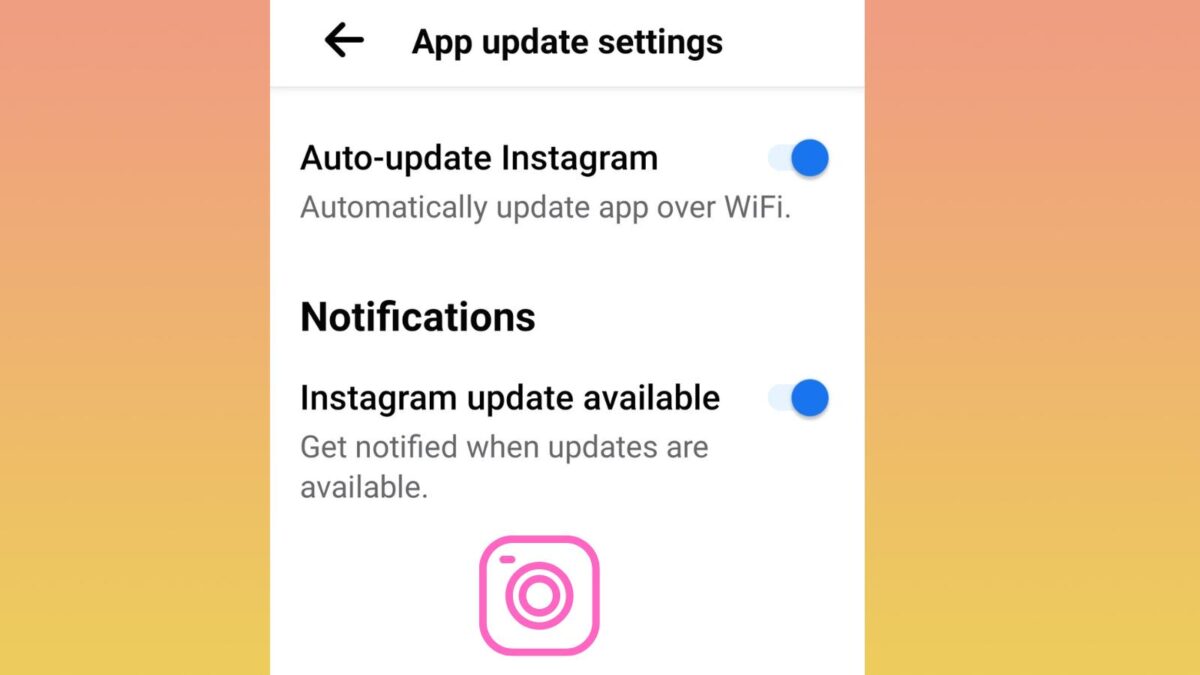
2. Update the Instagram App and Your Device OS. Go to the App Store or Google Play and update Instagram. Also, check for device system updates — outdated software causes many glitches.
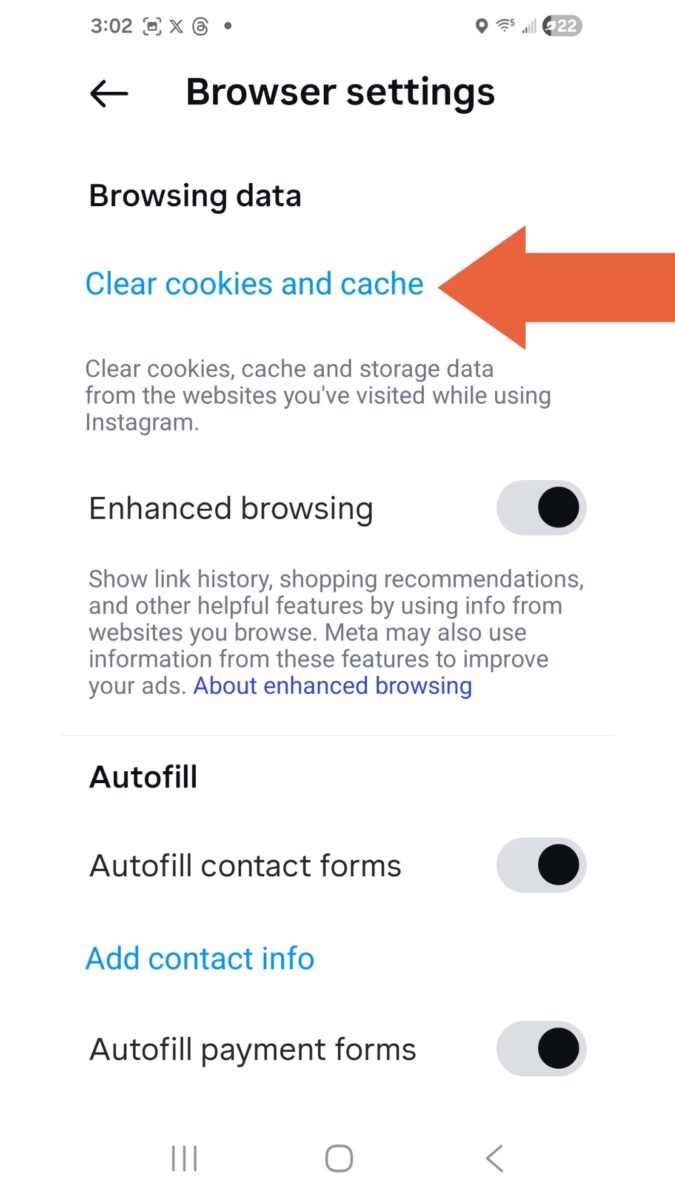
3. Clear Instagram Cache and Free Up Storage. On Android: Settings > Apps > Instagram > Storage > Clear Cache. On iOS: Delete and reinstall the app. Ensure your phone has at least 2–3 GB of free space.
4. Enable Upload at Highest Quality. Open Instagram > Profile > Menu (three lines) > Settings and privacy > Account > Data usage > Turn on “Upload at highest quality.”
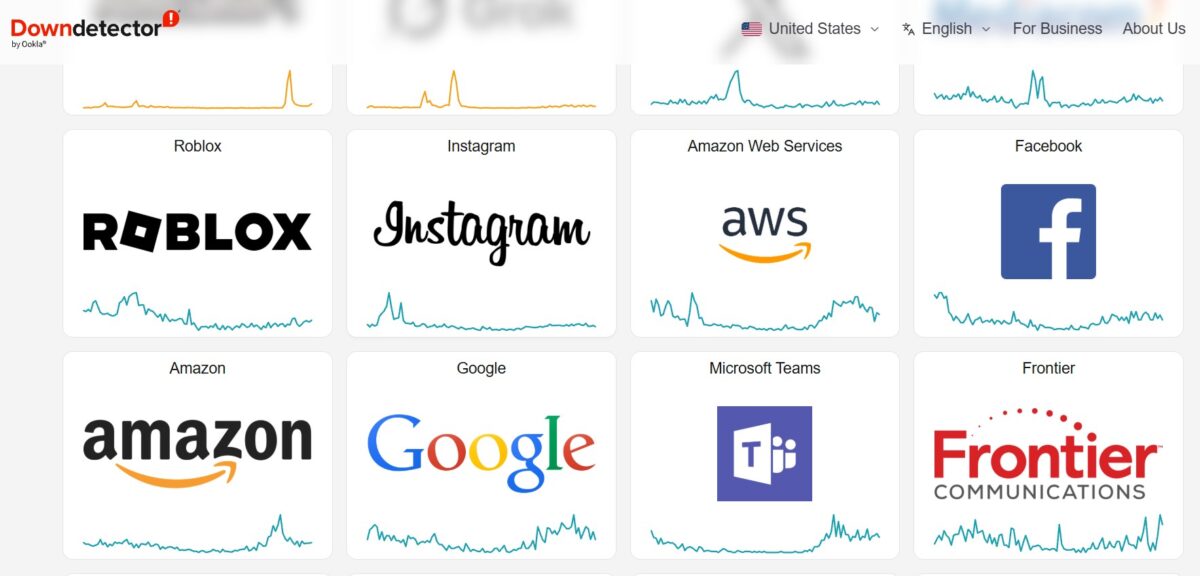
5. Check if Instagram Is Down. Visit Downdetector or search “Instagram down” on X (Twitter). If it’s a server issue, wait 30–60 minutes and try again.
6. Restart Your Phone and Router. A simple full restart often clears temporary glitches.
7. Simplify Your Reel File. Trim the video, remove heavy effects/transitions, or re-export at a lower bitrate. Test uploading a very basic version.
8. Log Out and Log Back In. Go to Profile > Menu > Settings and privacy > Log out. Log back in and try posting.
9. Try Posting from Another Device. Use a different phone, tablet, or even the Instagram web version (instagram.com) as a workaround.
10. Disable VPN, Proxy, or Data Saver. Turn off any VPN and low-data modes, as they can block or slow uploads.
11. Check for Account Restrictions. Test by posting to Close Friends or a new test Reel. If restricted, review Instagram’s notifications or appeal via Settings > Help > Report a problem.
12. Wait and Retry Later. Instagram glitches are often temporary. Post a draft first, then publish after 30–60 minutes.
If you are not sure how to clear the cache in your app, watch my video below to learn how to do it today.
Is Instagram Down?
One day, I spent hours trying to upload a reel on IG. I was extremely frustrated until I learned on X Twitter that the app was down. Yes, sometimes social media platforms can go down for a few minutes or a few hours.
When Instagram goes down, it may be just in one area of the world or country; it may not be a global outage.
That can be extremely frustrating if you are not aware of it. You can always check a down detector online to see if that is the case, or go to X (formerly Twitter) to search for “Instagram down”.
If Instagram is down, you will know why Reels aren’t posting to IG when you have been trying to upload one.
Reels Not Posting To Instagram: Device Capability
Do you have an older mobile phone? That could be another reason your reels aren’t posting to IG or Facebook.
Older mobile devices might struggle with uploading reels due to outdated software and hardware limitations. These devices often can’t support the latest updates from social media apps, leading to compatibility issues.
This means they might not have the necessary processing power or memory to handle the demanding features of reel creation and upload. Additionally, older operating systems may not allow the app to access certain features required for effective reel uploads.
To ensure smooth uploads, users may need to upgrade their devices or check for available updates that could provide support.
Are Reels Available In Your Area: (Country)?
The Reels feature is available in over 50 countries, but not all countries allow it. The list changes quickly, so you may have to refer to Instagram to see which countries may not be available.
Some may allow the use of Instagram, but not all the features that IG has released. Some countries may make IG accounts private.
Conclusion: How To Fix Reels Not Posting to IG
Instagram Reels can be one of the most powerful tools for growing your audience and business, but only when they actually go live. The good news? Most upload and posting issues are completely fixable once you know what to look for.
By addressing the common causes, following the 12 troubleshooting steps, and applying the optimization and prevention tips in this Inspire To Thrive guide, you’ll spend far less time fighting the platform and more time creating content that connects.
I’ve been there myself, watching a great Reel sit “processing” for hours before we switched to reliable fiber internet. That single change (plus the right settings and file specs) dramatically cut my failed uploads. The same can happen to you.
Save this article and bookmark the Key Takeaways section. Next time a Reel refuses to post, you’ll have a clear checklist to get it resolved in minutes instead of hours of frustration.
Have you tried any of these fixes? Which one worked best for you? Drop a comment below and let me know. I read everyone and often update the guide based on real creators‘ experiences.
Troubleshooting Instagram Reels Not Posting: FAQs
Yes — very often. On Android: Settings > Apps > Instagram > Storage > Clear Cache. On iOS: Delete and reinstall the app. This fixes many corrupted data issues.
Yes. If your account has flags (copyright strikes, spam behavior, etc.), uploads may fail. Test by posting to Close Friends only or creating a test Reel. Check notifications or appeal through Settings > Help.
Absolutely. Copyrighted or region-restricted audio and heavy effects can prevent posting. Use Instagram’s licensed music library or original audio instead.
Wait 1–2 hours and try again (server-side glitch), try posting from a different device or the web version, or contact Instagram Support via the app (Settings > Help > Report a Problem).
Yes. Older phones with low RAM/storage struggle with processing and uploading. Free up at least 2–3 GB and keep your OS updated.
Always use the correct specs, enable “Upload at Highest Quality,” test in drafts first, post at optimal times, and maintain a stable high-speed connection (20+ Mbps upload recommended).
The mobile app usually works best. The web version (instagram.com) can be a good backup when the app is glitchy, but it has fewer editing features.
This is usually a temporary Instagram server glitch, not a problem with your video or internet. Cancel the upload, force-close the app, wait a minute, and try again. In many cases, the Reel has already posted even if the progress bar never reaches 100%.

Disclosure: This Inspire To Thrive blog post contains affiliate links. I may earn a commission from qualifying purchases at no extra cost to you. Some sections were drafted with AI tools and carefully reviewed/edited by me.

- Is Benable Legit? My Honest Benable Review & Earnings Proof - October 24, 2026
- Instagram Privacy Settings: What Others Can and Can’t See - October 24, 2026
- Instagram DM Encryption Is Gone: What It Means for Privacy in 2026 - October 23, 2026
Enjoy this content? Help me show up more often in Google by adding Inspire To Thrive as a Preferred Source: