Ever had two people “share” login credentials to your X account and then nobody remembers who changed the password? It’s a common problem with business accounts. It also turns into lost access, messy posting, and a real security risk if a contractor leaves. X delegate accounts fix that by letting people help run your account using their own logins.
No password handoffs, no mystery devices. Below, you’ll learn how the feature works, what each role can do, and when it’s the right move for your business.
Estimated reading time: 9 minutes
Table of Contents
Key Takeaways
- X delegate accounts allow multiple users to access your X account without sharing passwords, enhancing security.
- Roles include Owner with full control, Admin who can manage tasks, and Contributor with limited access to post and reply.
- Setting up X delegate accounts is quick; invite users via their @username and assign roles accordingly.
- Use delegates for vacation postings, event updates, and social media management, but be cautious with sensitive posts.
- Common mistakes include granting Admin access prematurely and failing to remove past delegates, so review access regularly.
What X Delegate Accounts Are, and What They Are Not
Delegated account access is shared access to your X account with guardrails in place. You remain the account owner, but you can invite other X users to act on your behalf while signed in to their own profiles, granting them delegated access to your account.

That means if someone’s access needs to end, you remove them, and it’s done instantly, without changing your password.
This is also what replaced older team access options that many people remember (like TweetDeck Teams). Today, it’s the standard way to securely grant access within X to share profile permissions. For the official breakdown, see X’s Delegate feature guide.
One important reality check: even with delegates, the owner is still responsible for what gets posted.
The three roles: owner, admin, and contributor
Think of how you assign roles like keys on a keyring; not everybody needs the master key.
- Owner: Full control, including security and account settings.
- Admin (administrator): Can post and schedule, manage drafts, manage DMs, and (most importantly) add or remove other members and view analytics.
- Contributor: Can post and schedule, reply, and handle DMs, but can’t invite others or see analytics.
How X Delegate Accounts Work Day to Day (setup, switching, and limits)
Setup is quick once you know where X hides it.
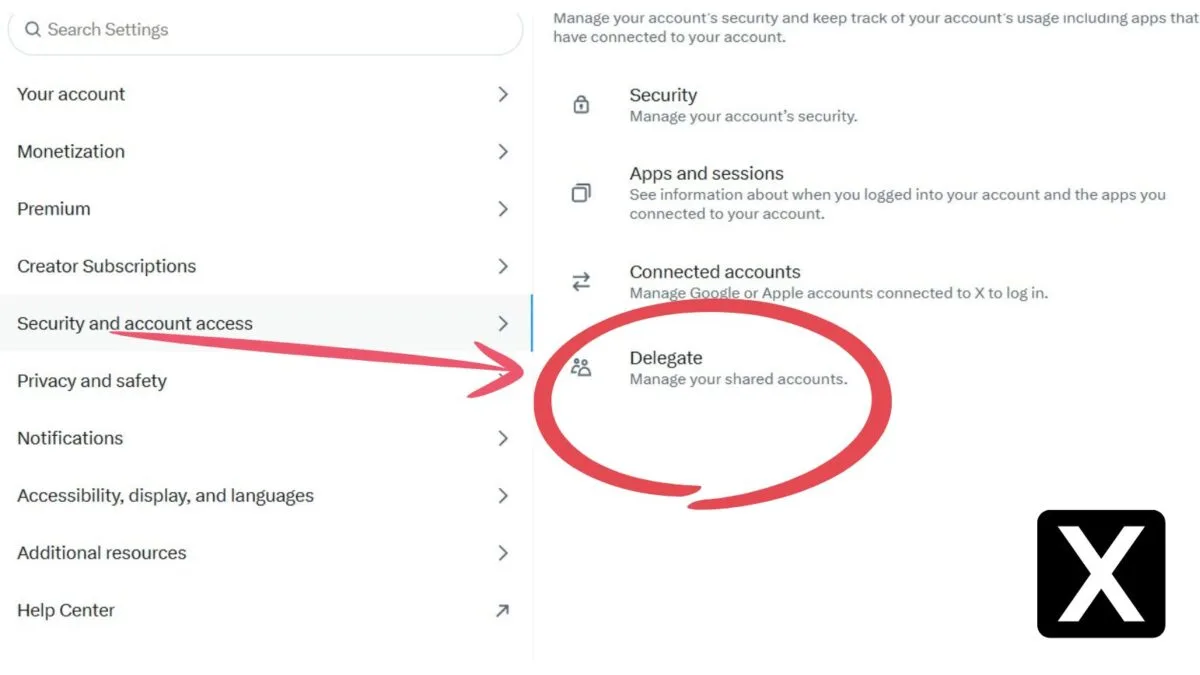
- On the web or in the app, go to Settings and Privacy
- Then Security and account access
- Go to Account access and security
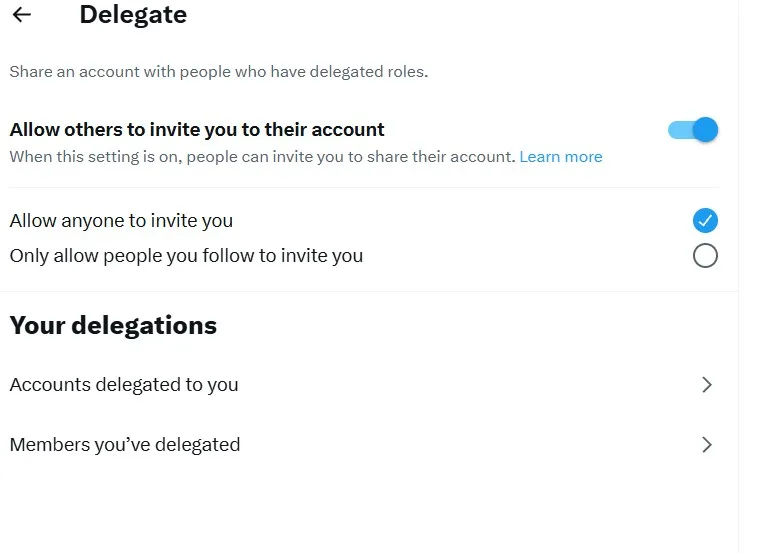
- Then Members you’ve delegated
From there, you invite a member (usually by their @username, which is tied to the email on their X account), select Admin or Contributor, and send the invite.
They’ll get a notification in the notifications tab and accept the invitation inside their delegate section.
After acceptance, delegates don’t “log in as you.” They use the account switcher menu in their profile menu to toggle between accounts, do the work, then switch back.

Two practical limits matter:
- Note the five-account limit: each person can manage up to 5 delegated accounts at a time.
- If you remove access, it ends immediately.
A quick setup checklist for busy owners
- Confirm the invite goes to the right person (and the right X handle).
- Start new helpers as contributors first.
- Enable 2FA on the owner account.
- Review access monthly (five minutes, calendar it).
- Keep one simple brand voice doc so posts sound like you.
When You Should Use a Delegate, and When You Should Not
Use a delegate when you need coverage without chaos: for vacation posting, live event updates, help with answering DMs, or splitting duties (marketing posts vs. support replies). It also works well with social media agencies and freelancers, since you can grant access to your business account to manage social media, then remove delegates the day the contract ends.
Delegates can post and schedule tweets for your X account efficiently.
However, I’ve learned that this doesn’t always work, as I manage an X delegate account for a client. Give it an hour or more, and try again, and then it usually works.
Be cautious if you’re a very early solo brand (you may not need it yet), if posts are regulated or legal-heavy, or if your voice is still inconsistent. Delegates move fast, so you need at least a basic approval process for sensitive topics.
Rule of thumb: choose Admin only for someone who must manage access or report on performance. Everyone else should be a Contributor. You can edit the role to adjust between levels as your team scales.
X Delegate Accounts vs. Third-Party Scheduling Tools
X delegate accounts let you schedule and post inside X with built-in permission controls, so you don’t have to share your password. Third-party scheduling tools can save time across multiple networks, but you’re trusting another app with access (and you may hit feature limits or extra approval steps).
If you manage a client or team account, delegate access keeps things cleaner; if you run several platforms at once, a third-party tool can still be the better fit.
How To Add Someone To X Degate Account
See the screenshot below to add someone to your account as a delegate:
Then you will click and see the following screen:
Common mistakes that cause headaches
The usual problems aren’t technical, they’re human:
- Giving Admin access too soon.
- Forgetting to remove delegates for past contractors.
- Having no posting guidelines (tone, offers, reply rules).
- No quick crisis plan for accidental posts, since the owner is still accountable for shared account responsibilities.
Conclusion: When To Use X Delegate Accounts
If multiple people need to access your X account, the delegate feature is the safest way to collaborate without sharing your account password. Delegated account access keeps sensitive settings secure while your team works together.
Start small, assign the lightest role that fits, and tighten rules as your team grows.
Do a quick access audit today in settings and privacy: decide who needs help, pick Admin or Contributor, write basic posting rules, then send the invites with confidence.
Frequently Asked Questions About X Delegate Accounts: How They Work, and When You Should Have One
An X delegate setup lets you give someone access to help manage your account while they sign in with their own X login. You’re not handing over your password, and you can remove access without changing your credentials.
Sharing a login is risky (and messy). You can’t tell who did what, access tends to spread, and you’re stuck doing password resets when someone leaves a role. With delegation, you maintain clearer control: you invite specific people, assign permissions, and revoke access when the job’s done.
That depends on the permission level you assign (X may label roles differently depending on your account type and plan). In general, delegation is meant to let someone handle day-to-day work without giving them full ownership of the account.
Common delegate tasks include:
•Posting and scheduling content (if your setup supports scheduling)
•Replying to mentions and helping with basic community management
•Reviewing performance and reporting (when analytics access is included)
•Assisting with account upkeep, based on the role you give them
If you need someone to manage sensitive areas (billing, security settings, or account ownership), treat that as a separate decision and keep access tight.
You should set up delegates when your X account is tied to a business, brand, or public presence, and more than one person needs to touch it.
A few clear signs it’s time:
You’re answering lots of replies and DMs (and you can’t keep up alone). You’re posting regularly and want help with consistency. You’re working with a VA, a social media manager, or an agency and don’t want them to have access to your personal login. You need coverage for weekends, travel, or launches.
If you’re doing client work, delegation also helps you keep boundaries. You can give access without collecting client passwords (which you don’t want to store anyway).
Yes, delegation is usually safer than password sharing because you’re not distributing a single set of credentials. Each person uses their own login, which makes it easier to control access as your team changes.
If someone stops working with you, you can typically remove their delegate access without disrupting your login, connected tools, or posting workflow. That’s the big win: you don’t have to change passwords, log everyone out, and update third-party apps just because one person is done.
You’ll still want basic security habits on your side, like a strong password and two-factor authentication, but delegation cuts down the biggest day-to-day risk.
Sometimes yes, sometimes no.
If your helper only needs to draft and schedule posts inside a third-party tool, you might not need delegation on X at all. But if they need to reply in real time, handle community support, jump into trends, or troubleshoot account issues, delegation is often the cleaner option.
A simple way to decide is to ask: “Does this person need to act as me on X, or just prep content?” If they need hands-on access inside X, delegation usually fits better than sharing logins or relying only on a scheduler.


- Before Hiring a Google Ads Expert, Check These 3 Things - April 8, 2026
- Is Instagram Down In My Area? How To Check The Status of IG - April 7, 2026
- How To Find and Delete Hidden Comments on Facebook - April 7, 2026