You don’t need to post everywhere to get better results on social media in 2026. You need a plan of social media best practices you can keep, content that helps people, and a style that fits the platform you’re on.
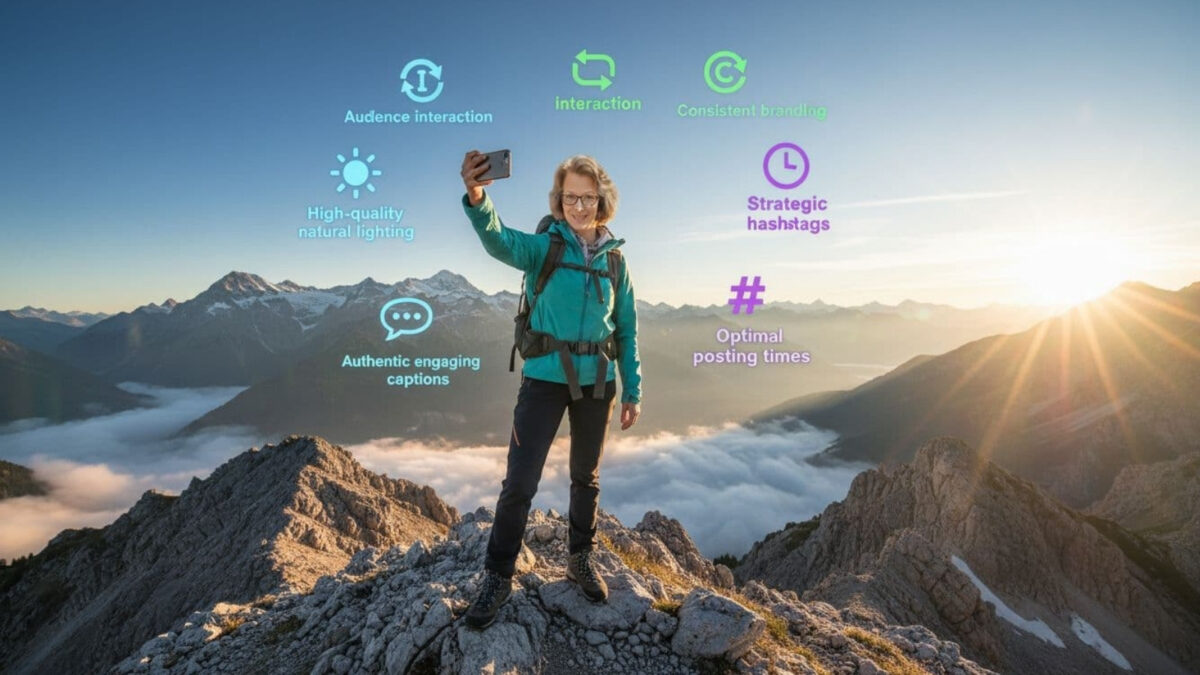
Social media best practices are the combination of strategic content creation, platform-specific optimization, and meaningful engagement used to reach a target audience. They boil down to three core principles:
- Consistency
- Value-first approach
- Platform fit
An effective social media strategy doesn’t require being everywhere at once; it requires being where your audience is.
For small business owners and bloggers, the old “post more” advice isn’t enough anymore. The posts that win now feel human, answer real questions, show personality, and get quick engagement after they go live.
The 25 best practices below from Inspire To Thrive break that down for Instagram, Facebook, X, Pinterest, LinkedIn, and TikTok, without turning your week into a full-time content job.
Estimated reading time: 9 minutes
Table of Contents
Key Takeaways of Best Practices
- Stick to three core principles: consistency, value-first content, and platform fit to build real results without burnout.
- Prioritize helpful, human posts that answer questions, show personality, or teach something useful, then repurpose across platforms.
- Pick 2-3 platforms where your audience is, post at a sustainable frequency like 3 times a week, and engage fast with comments and DMs.
- Use a simple weekly plan: start with one core idea, batch into Reels, carousels, pins, or posts, and track analytics for clicks, saves, and leads.
- Measure success by what drives actions like DMs and sales, not vanity metrics, and refine based on what works.
The Shared Habits That Make Your Content Work Better Everywhere
Before you worry about platform tricks, get the basics right. Most social wins come from simple habits repeated over time, not from chasing every update.
Focus on helpful, human content first.
People don’t follow you for nonstop offers. They follow you because you make their day easier, teach them something, or show them something real. That can be a quick tutorial, a customer story, a behind-the-scenes clip showcasing brand authenticity, a before-and-after, or one small fix to a common problem.
Helpful content also gives you more to say without sounding repetitive. Using content buckets, one customer question can become a Reel, a LinkedIn post, a TikTok, and a Pinterest pin.
Use a posting frequency you can keep
You don’t need to post all day. You do need a posting frequency you can stick with, as well as optimal times to post. That might mean three solid posts a week, two Stories a day, or one short video every weekday. In social media marketing, steady beats frantic.
Batch a few posts at once, schedule what you can using a social media content calendar, then leave room for timely content and replies. If you need a clean way to set that up, this small-business social strategy guide does a good job of tying your cadence to real goals like DMs, leads, and sales, not random vanity numbers.
Two platforms done well will beat six platforms done halfway.
Social Media Best Practices by Platform for 2026
Across the platforms below, you’re working with 18 platform-specific habits. Add the seven shared habits above, and you have 25 clear ways to tighten up your social media routine.
Instagram: Short-form video, strong visuals, and fast replies
Instagram still rewards Reels, Stories, and carousels. Use Reels for short-form video to reach new people, carousels to teach, and Stories to stay familiar or share user-generated content. Keep your visuals consistent, write a clear hook in the first line, and use a few targeted hashtags to help reach new viewers instead of dumping in a bunch.
If you sell products through social commerce, show them in use rather than sitting on a blank shelf. If you sell services, turn common client questions into quick carousels. Reply to comments and DMs fast, same day if you can.
If you’re still deciding which channels to use, this guide to choosing the right social platform for your business can help.
Facebook: Build trust through community building and local reach
Facebook still works when you treat it like a conversation, not a flyer. Longer posts can do well here, especially when they tell a story, answer a question, or share a local update.
Groups, events, and live video still matter for community building, especially if your business depends on local trust.
A good Facebook post often starts with a personal angle or a question. You can also stay visible with social listening to monitor local conversations by joining local community pages and leaving useful comments when people ask for recommendations.
➡️ Don’t pitch right away. Be helpful first.
X: keep it short, useful, and easy to respond to
X works best when your posts are quick, clear, and worth reacting to; post short takes, videos, timely updates, mini threads, and polls. If your niche has news, trends, or fast-moving opinions, this is where you can show up with a strong point of view.
Keep hashtags light, if any at all. The bigger play is replying well on X. Thoughtful replies can pull more attention than your original post, especially when you’re early to the conversation.
My response to Lily Ray on this post had 1,700 impressions!
I wonder what is next on their radar? 🤔
— Lisa Sicard 👩💻 (@Lisapatb) May 8, 2026
Pinterest: Create search-friendly pins that last
Pinterest is closer to a visual search engine than a social feed. That changes how you post. Use social SEO with keyword-rich pin titles, clear descriptions, and tall vertical images or videos.
Think less about instant buzz and more about content that can keep sending traffic for months.
How-to graphics, checklists, recipes, home ideas, blog post pins, and seasonal content still work. You don’t need to post as often here, but you do need consistency.
Clean design matters, and so does writing pin text around what people are already searching for.
LinkedIn: Share expertise and real business insight
LinkedIn rewards useful thinking, plain language, and real experience in B2B social media. You don’t need to sound stiff to sound professional. The LinkedIn algorithm favors:
- Short stories.
- Quick lessons.
- Mistakes you’ve learned from.
- Strong opinions about your field.
Boost your reach with employee advocacy by encouraging your team to share and comment.
Comments matter here. A smart comment on someone else’s post can open more doors than another self-promotional update. Keep your profile and post wording clear so people know what you do. That’s also why this 2026 social media guide for small businesses hits the right note on clarity and human connection.
➡️ In B2B social media, focus on authority and logic; B2C approaches thrive on emotion and social commerce.
TikTok: Hook attention fast and show the real side of your brand
TikTok still likes speed, personality, and simple ideas done well. The social media algorithm rewards a strong first three seconds. Ask a question, show the result first, or say the problem out loud. Then get to the point.
Behind-the-scenes clips, product demos, quick how-tos, day-in-the-life posts, and customer questions all fit here. Trends can help, but don’t force them. Use captions and on-screen text to hold attention, and reply to comments with follow-up videos when a topic starts getting traction.
@ileanesmith Have you heard about the SinkShroom? This little drain protector can save you a lot of frustration and help you avoid costly plumbing repairs! It will also give you peace of mind when you see your family combing their hair in front of the bathroom sink 🤣 #sinkshroom ♬ original sound – Ileane
A simple Weekly Plan Makes Your Social Media Easier to Manage
Don’t overbuild this. Pick two or three platforms, not all six. Start with one core idea each week, then reshape it for each social media channel using AI.
A simple week can look like this:
- Write one useful tip, story, or answer your audience’s needs. Experiment with influencer marketing or user-generated content.
- Turn it into a Reel or TikTok, a carousel or pin, and a short text post.
- Batch your content in one sitting, then set aside 15 to 20 minutes a day for replies, social listening, and customer care.
Measuring Success with Social Media Analytics
Track social media analytics to understand your social media ROI and engagement rate. Check what gets clicks, saves, comments, shares, and DMs. Keep the formats that move people to act.
Social Media Engagement Calculator
Plug in your numbers and instantly see your engagement rate.
Drop the ones that only fill space. Social media analytics make your social media strategy data-driven.
Frequently Asked Questions about Best Practices for Social Media Platforms
Do I need to be on every social platform?
No, you don’t. Pick 2-3 where your audience is and do them well; two platforms done right beat six done halfway. Use guides to choose options that align with your business goals and local reach.
How often should I post on social media?
Choose a frequency you can stick to, like three solid posts a week, daily Stories, or one video a weekday. Steady beats frantic, batch and schedule using a content calendar. Leave time for replies and timely content.
What type of content works best everywhere?
Helpful, human content that makes people’s day easier: tutorials, customer stories, quick fixes, or behind-the-scenes. Avoid nonstop offers, focus on value first. Repurpose one idea into platform-fit formats, such as Reels or carousels.
How do I measure if my social media is working?
Track analytics for engagement rate, clicks, saves, comments, shares, DMs, and leads, not just likes. Keep formats that drive action and drop the rest. Tie it to real goals like sales or conversations.
Can beginners start with a simple plan?
Yes, pick one platform to improve first. Look at your last five posts, fix the flat ones, and build a rhythm around one core idea, reshaped weekly for your channels. Spend 15-20 minutes daily on replies and listening.
Conclusion: Social Media Best Practices in 2026
The best social media best practices are the ones you can keep doing next week and the week after that. While platforms evolve, following your brand guidelines ensures a consistent identity.
You don’t need perfect content. You need consistency, useful posts, and a sense of how each platform wants content to appear.
A good plan also includes crisis management for handling negative feedback or technical issues gracefully, plus an understanding that the social media algorithm in 2026 favors those who build real human connections. Pick one platform to improve this week.
➡️ Look at your last five posts, fix what’s flat, and build a posting rhythm you can live with. That’s where better results usually start.
Disclosure: This Inspire To Thrive blog post contains affiliate links. I may earn a commission from qualifying purchases at no extra cost to you. Some sections were drafted with AI tools and carefully reviewed/edited by me.

- Why Taking Social Media Breaks Boosts Your Productivity - June 8, 2026
- Instagram Repost Feature: What Happens When You Share? - June 7, 2026
- 7 Mistakes That Stop You From Making Money Blogging (And What to Do Instead) - June 6, 2026